

Overview
Two-factor authentication (2FA) adds a second step when you log in to Hireflix. After entering your password, you also enter a code sent to your email or generated by an authenticator app. This makes it much harder for someone else to access your account, even if they know your password. Any team member can turn on 2FA for their own account. It’s optional and only affects you, not the rest of your team.Steps
1
Open Security settings
Click on your account name and go to the Security section.
2
Enable two-factor authentication
Under Two-factor authentication, switch the toggle to Enable and follow the prompts to finish setup.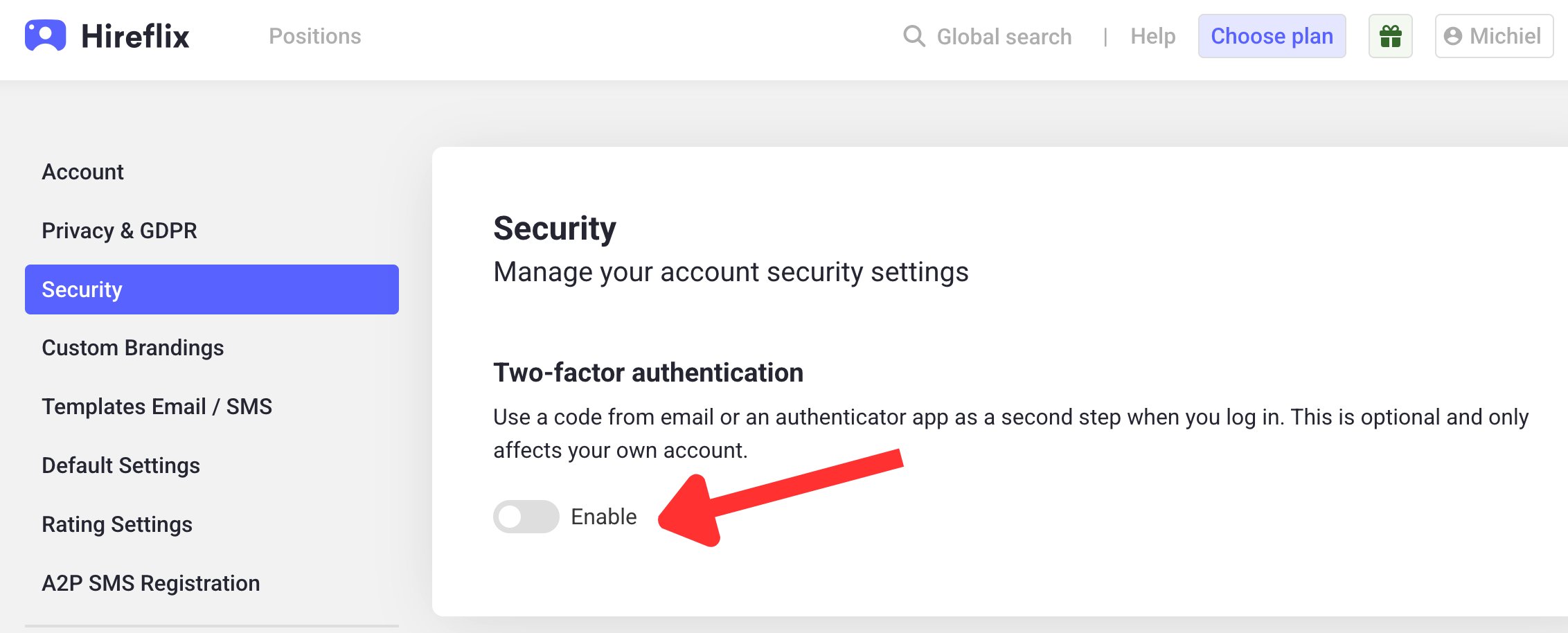
3
Log in with your code
The next time you log in, Hireflix asks for a code after your password. Use the code sent to your email from no-reply@hireflix.com, or the code from your authenticator app if you chose that option.
If your organization requires 2FA
If your admin has required two-factor authentication for the whole team, 2FA is already mandatory for you:- You can’t turn 2FA off in your Security settings while the requirement is on.
- If you had already enabled 2FA yourself, nothing changes for you. You weren’t logged out when the requirement was turned on.
- You can still switch between email codes and an authenticator app from your Security settings.