
Overview
The admin can make two-factor authentication (2FA) mandatory for every team member in your Hireflix workspace. Once it’s on, everyone has to enter a verification code after their password each time they log in, and nobody can turn 2FA off for their own account.What happens when you turn it on
- Everyone is logged out immediately, including you. Members who already turned on 2FA for their own account are the exception: they stay logged in.
- Members without 2FA set it up at their next login. After entering their password, they receive an 8-digit code from no-reply@hireflix.com. Entering it finishes 2FA setup for their account.
- Nobody can turn 2FA off in their Security settings while the requirement is on. Members can still switch from email codes to an authenticator app.
Steps
1
Open Team Management
Click on your account name and go to Account > Team Management. Each member shows a 2FA off badge if they haven’t turned on 2FA yet.
2
Enable the requirement
In the Require two-factor authentication section, switch the toggle to Enable.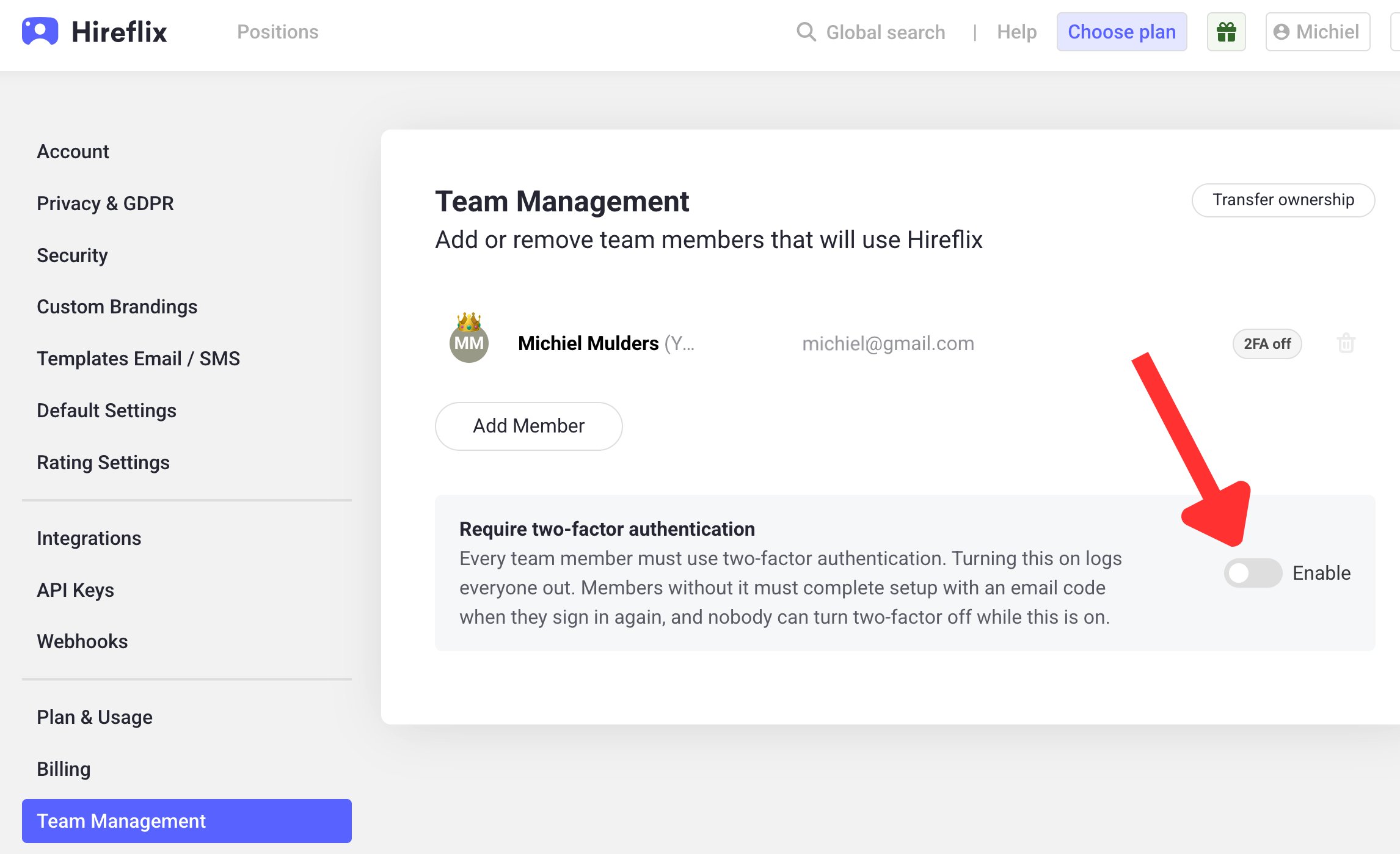
3
Confirm
A pop-up explains what will happen. Click Require for everyone to confirm.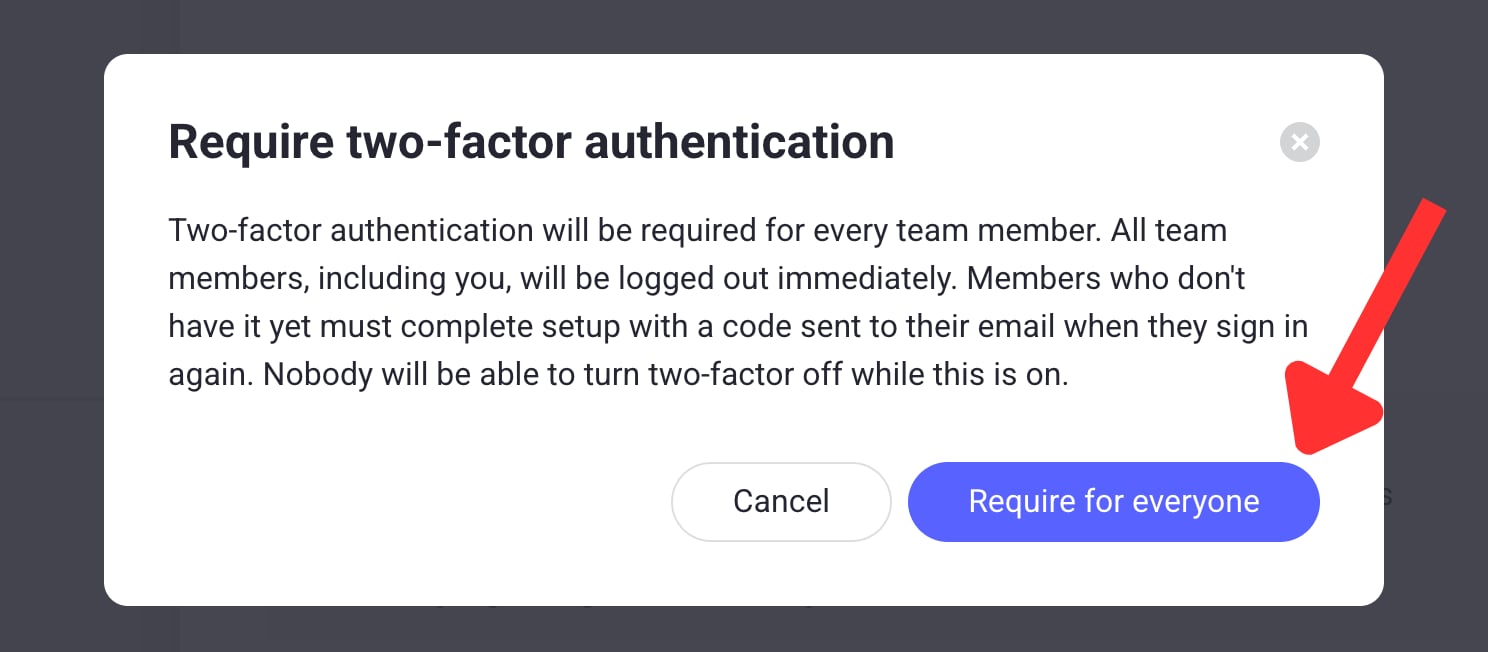
What team members see when they log in
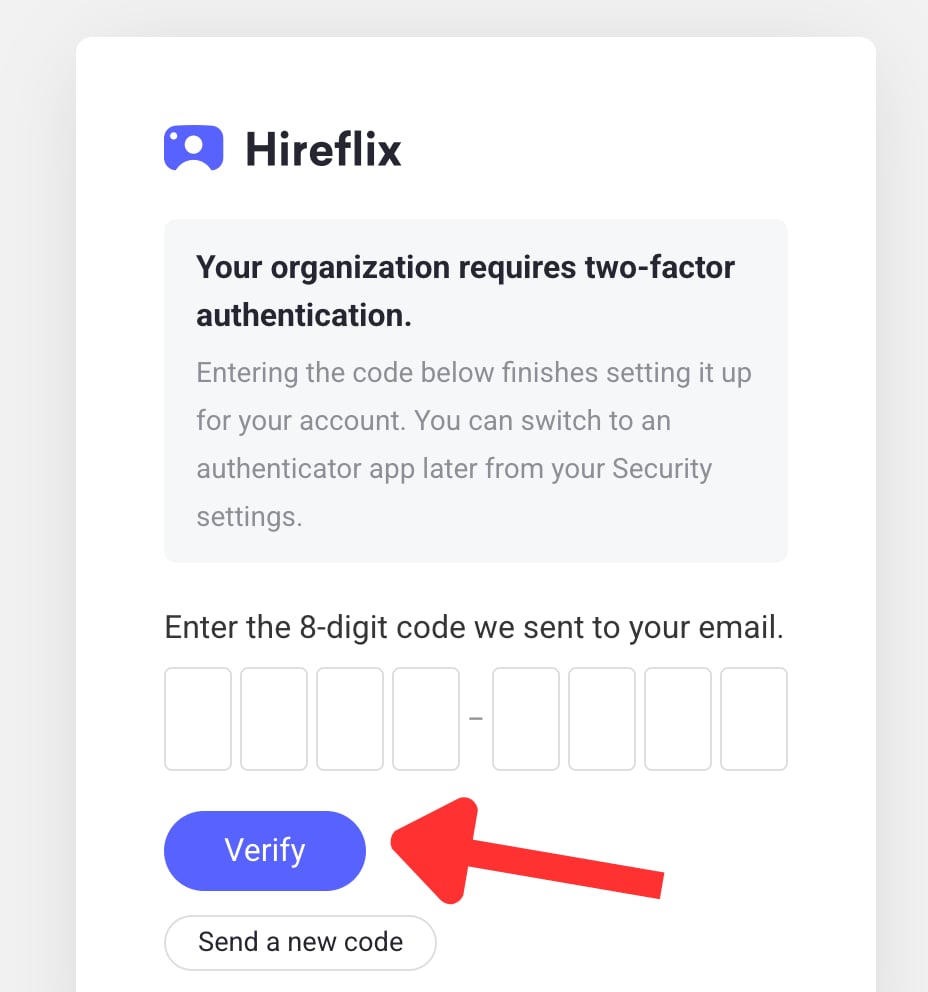
After the requirement is on, team members who didn’t have 2FA yet see the message “Your organization requires two-factor authentication” when they log in.1
Log in as usual
Enter your email and password.
2
Check your email
Look for an email from no-reply@hireflix.com with an 8-digit code. If you can’t find it, check your spam folder or click Send a new code.
3
Enter the code
Enter the 8-digit code and click Verify. This finishes 2FA setup for your account.