

Overview
There are two separate systems that decide who gets emailed about a candidate, and it’s easy to mix them up:Configuring one of these systems doesn’t affect the other. Read on for how each works.
Interview-completed notifications
Internal notifications determine who receives an email whenever a candidate completes an interview. These settings are configured separately for each position.Where to find these settings
1
Open the position
Open your position/interview.
2
Click Configure
Click Configure (gear icon).
3
Open Internal Notifications
Open the Internal Notifications section.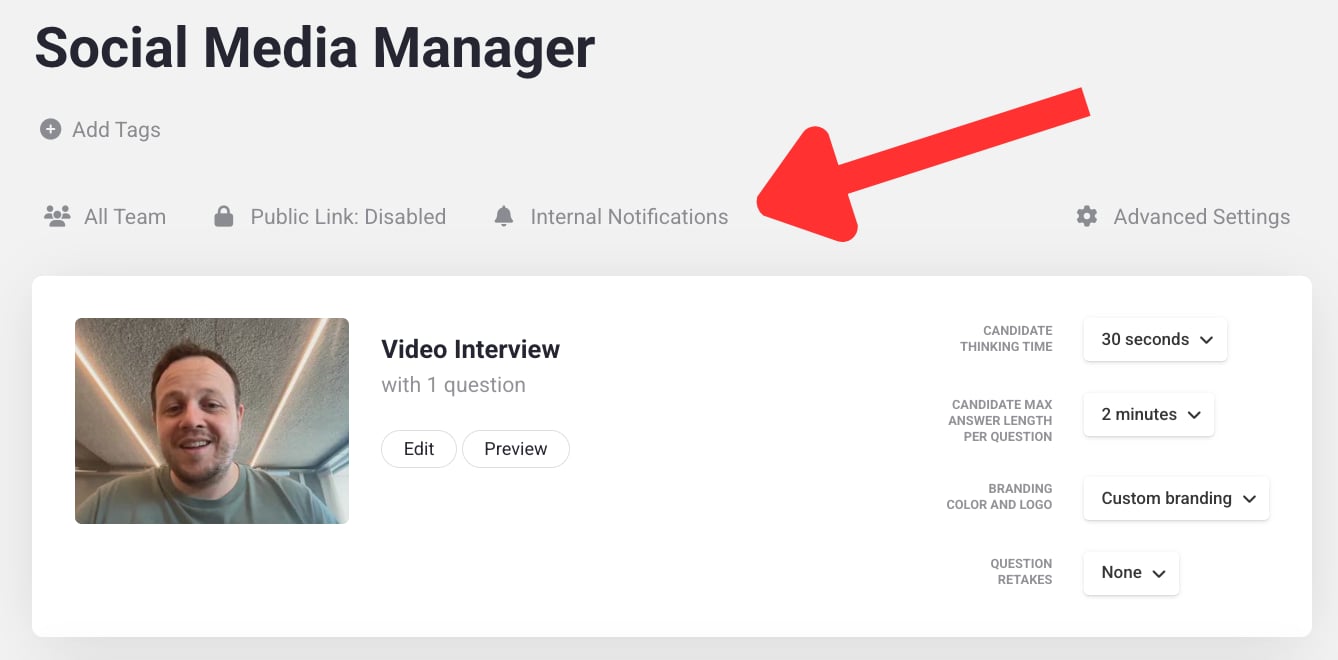
- An Inviter receives notifications toggle
- An Add additional team members dropdown
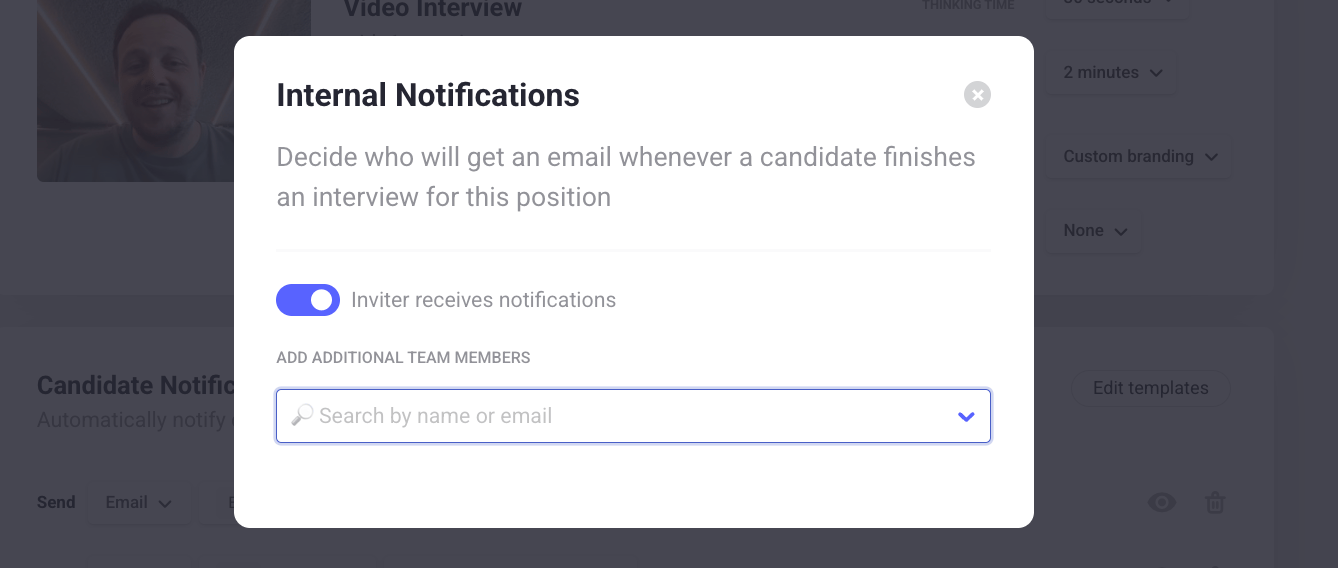
The inviter
By default, Inviter receives notifications is enabled. The user who invited the candidate automatically receives the completion notification. A user counts as the inviter when they:- Manually invite candidates from Hireflix
- Import candidates through a CSV or Excel file
Adding additional team members
The dropdown lets you add team members who should always receive notifications for that position, regardless of who invited the candidate. You can add multiple users, and combine this with inviter notifications — you can only select users already added to your Hireflix account. For example, if Laura is added in the dropdown, she’ll always receive completion notifications for that position, even if another recruiter invited the candidate.ATS integrations, public links, API, and automations
Things work differently when candidates are invited through a public link, an ATS integration, the Hireflix API, or Zapier/Make.com automations. In these cases, Hireflix doesn’t know which user should be considered the inviter, so it automatically assigns the account owner/admin as the inviter instead. If you mainly use ATS integrations, public links, API invitations, or automations, we recommend:- Disabling Inviter receives notifications
- Manually selecting recipients in the additional team members dropdown
Common questions
Can my colleague also receive notifications?
Can my colleague also receive notifications?
Yes, add them in the Additional team members dropdown for the position.
Why is the account owner receiving all notifications?
Why is the account owner receiving all notifications?
This usually happens because candidates are being invited through a public link, an ATS integration, the API, or Zapier/Make.com. In these situations, Hireflix automatically assigns the account owner as the inviter.
How do I stop someone from receiving notifications?
How do I stop someone from receiving notifications?
Disable Inviter receives notifications, or remove them from the additional team members dropdown.
Candidate reply routing
When a candidate replies to an email sent from Hireflix — an interview invite, a reminder, or a completion email — the reply doesn’t go to everyone on the team or to the Internal Notifications list above. Instead, Hireflix follows a clear set of rules to decide where that reply lands. Short answer:- By default, the reply goes to the user who invited the candidate.
- If a Custom reply-to address is enabled in the email template, replies go there instead.
- For invites sent via ATS integrations or public links, replies go to the account admin, unless a custom reply-to address is set.
Using a custom reply-to address
Email templates include an optional Custom reply-to address setting. When enabled, all candidate replies to emails using that template go to the specified address instead — regardless of who sent the invite. This is useful when replies should always land in a shared inbox, likerecruitment@company.com or a central HR inbox.
1
Open your templates
Go to Account > Templates Email / SMS.
2
Edit the template
Edit the relevant email template.
3
Enable Custom reply-to address
Enable Custom reply-to address and enter the email that should receive replies.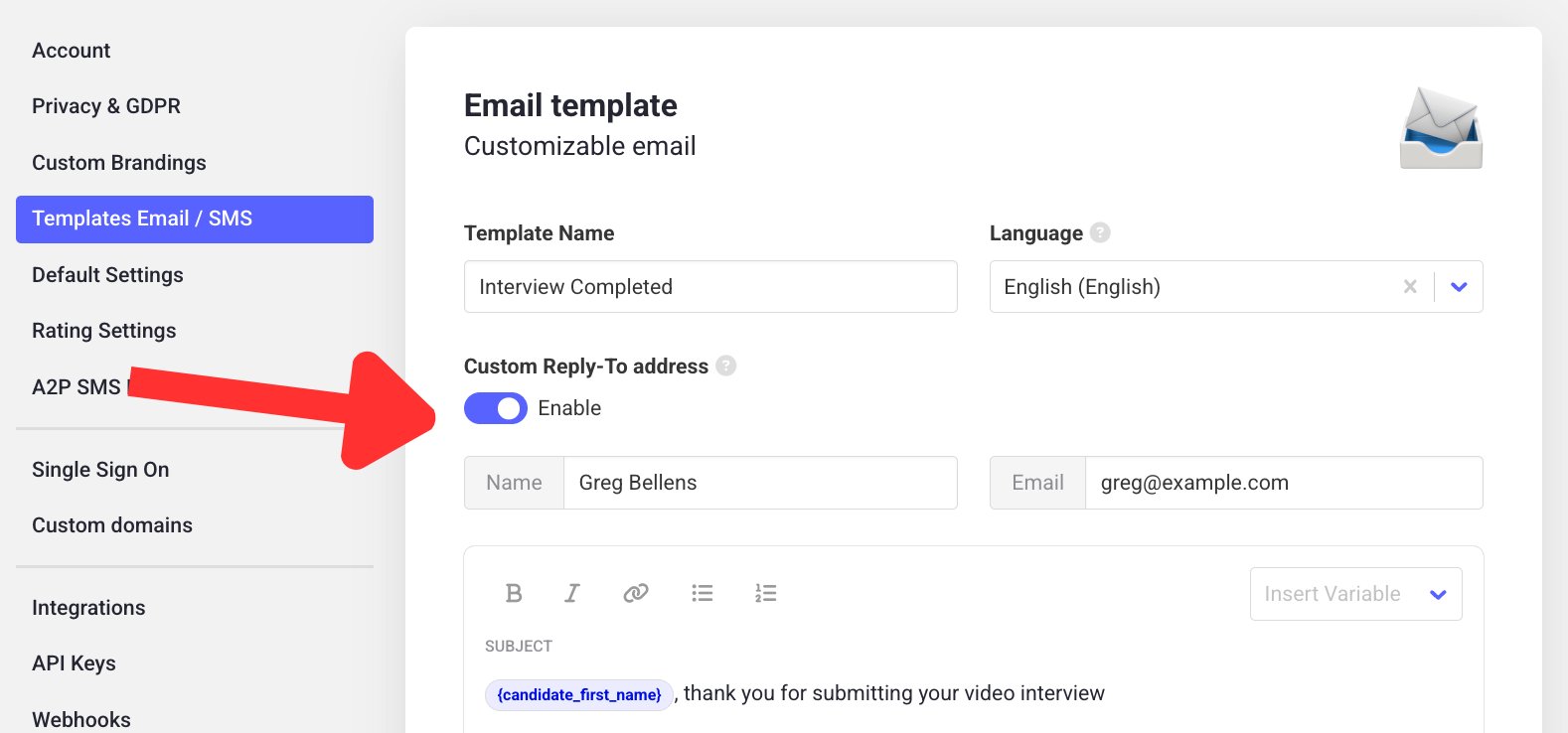
4
Save
Save the template.
- Changes to reply settings only affect new invites. Replies to past invites keep going to the address set at the time.
- Different templates can have different reply-to configurations.
- If replies are landing somewhere unexpected, check the email template used for that invite.
Learn next?
Learn how to create and customize the templates referenced above.