

Overview
Custom branding brings the interview experience closer to your company. Set your brand color and logo so candidates recognize your company throughout the interview.Steps
1
Go to Custom Brandings
Navigate to Account > Custom Brandings.
2
Create a new branding
Click Create a new branding.
3
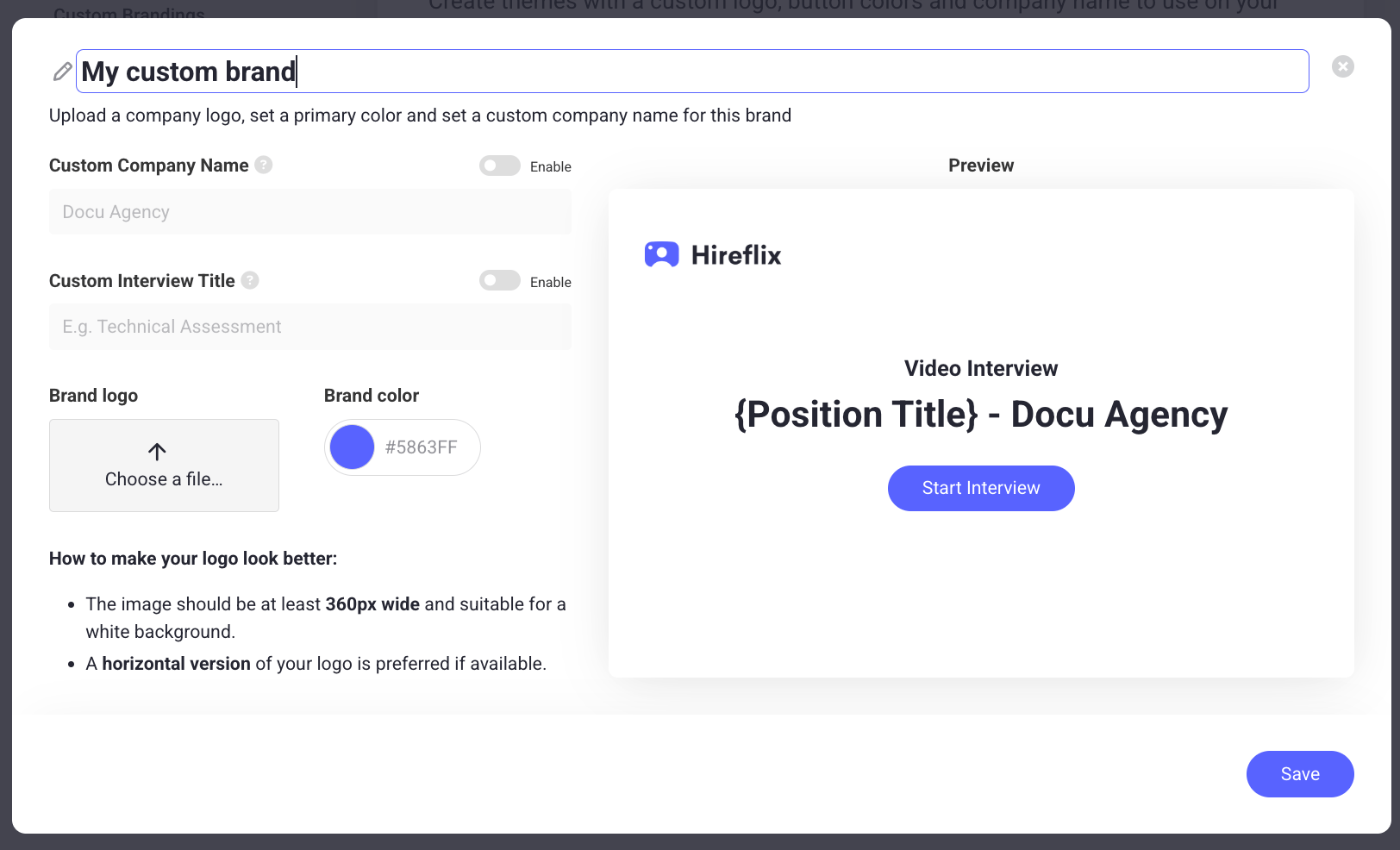
Upload your logo
Upload your company’s logo.
4
Set a brand color
Pick a brand color. If you’ve already uploaded your logo, the color picker will pull colors straight from it, so you don’t need to enter color codes yourself.
5
Preview your theme
Preview the theme on the right to make sure you like what candidates will see.
6
Save your branding
Click Save to apply your branding.
Applying a brand to a job position
You can also reach Custom Brandings while tailoring a job position: open the position’s settings and select which brand to apply to it, or add a new one. Choosing to add a new brand takes you straight to the Custom Brandings page described above.Learn next?
Learn how to control who on your team can access each position.