

Overview
An image prompt lets you ask a question while displaying an image. The candidate records a video answer while looking at the image. This is useful whenever you want candidates to react to something visual instead of answering from memory, for example:- Explaining a system architecture diagram and suggesting improvements.
- Interpreting a chart or dashboard.
- Giving feedback on a design, ad, or landing page.
- Describing a product photo or a situation in a picture.
Add an image prompt question
1
Open the question type menu
While building your interview, click the + More button next to Add question.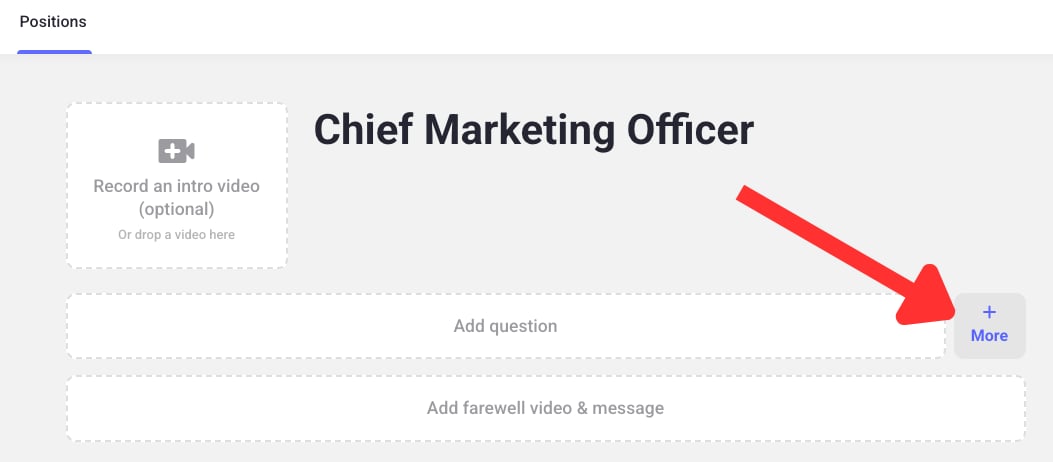
2
Select Image prompt
In the Add a question popup, select Image prompt on the left, then click the + Image prompt button to add the question to your interview.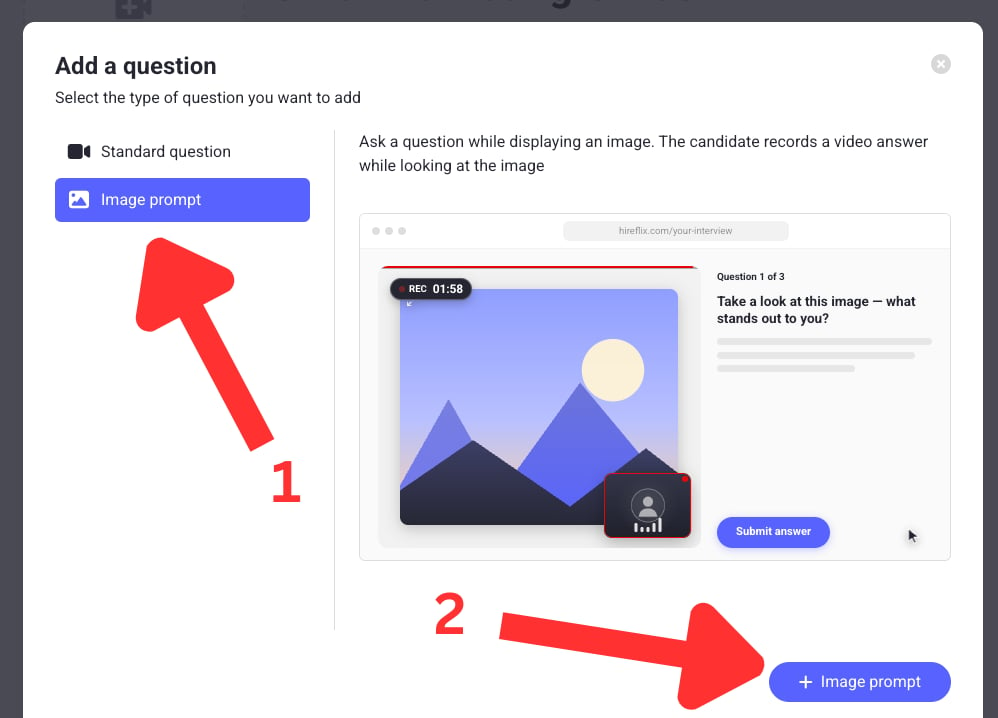
3
Upload the image and write the question
Upload the image you want candidates to look at, then fill in the Question Title and Question Description, just like a standard question.In the interview builder, an image icon next to the question number marks it as an image prompt question. Standard questions show a video icon instead.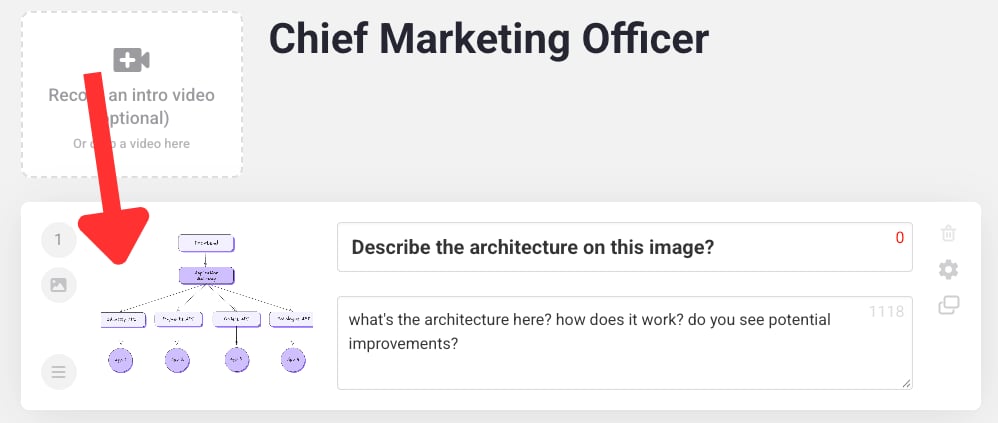
Save and preview
Click Save and go back once you’re done. To check how candidates will see the image while recording, click Preview Interview in the bottom right of your screen.Learn next?
Learn how to tailor the interview experience further.