

Overview
By default, you’ll receive an email notification every time a candidate completes an interview. You can also get notified in Slack.Set up Slack notifications
Learn how to connect Slack so your team gets notified there too.
Finding candidates to review
Once a candidate finishes their interview, they appear automatically in the To evaluate tab for your position. If you have a lot of candidates to filter through, click on the filter or sort icon on the right to help you find the right candidate.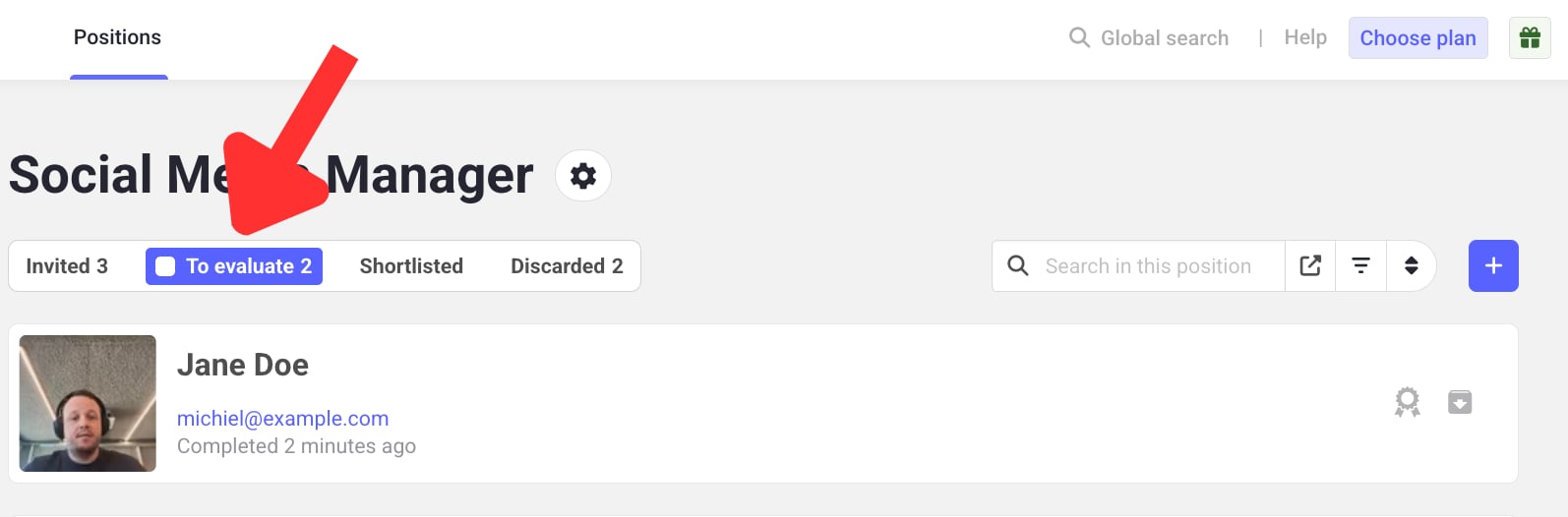
Steps
1
Open the candidate
Click on the candidate you want to review.
2
Rate their interview
On the left, assign a rating from 0.5 to 5, in increments of 0.5.
3
Add notes
Add notes in the notes box, then click Save comment.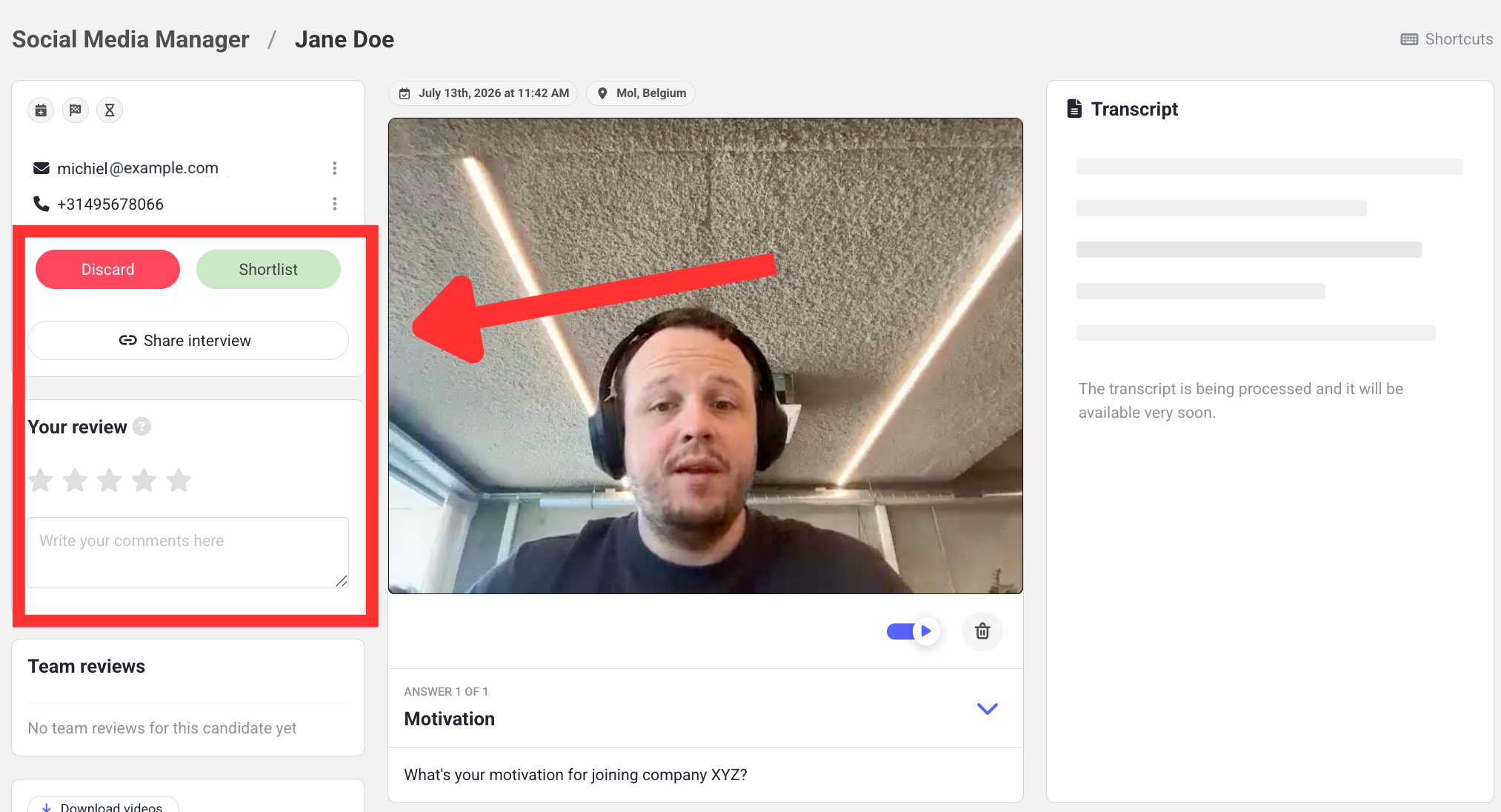
4
Shortlist or discard
Liked the candidate? Click the green Shortlist button. Not moving forward with them? Discard their interview instead.
Keyboard shortcuts
Speed up your review workflow with these shortcuts:Learn next?
Learn how to share an entire stage (like “To evaluate”) with a hiring manager, so new completed interviews are added to the same link automatically. Understanding when to share a full stage, bulk share selected interviews, or share a single interview helps you pick the safest option each time.