

Overview
In Hireflix, a position is the container for everything related to a job you’re hiring for: the video interview questions, the candidate experience, and the invitations and reminders. Creating a position is the first step, and from there you build the video interview itself. Every interview follows the same structure: an optional intro, one or more questions, and an optional outro.Create a new position
1
Open the Positions page
Click on the Positions menu item at the top of your screen.
2
Add a new position
Click the + icon on the right to start drafting a new position.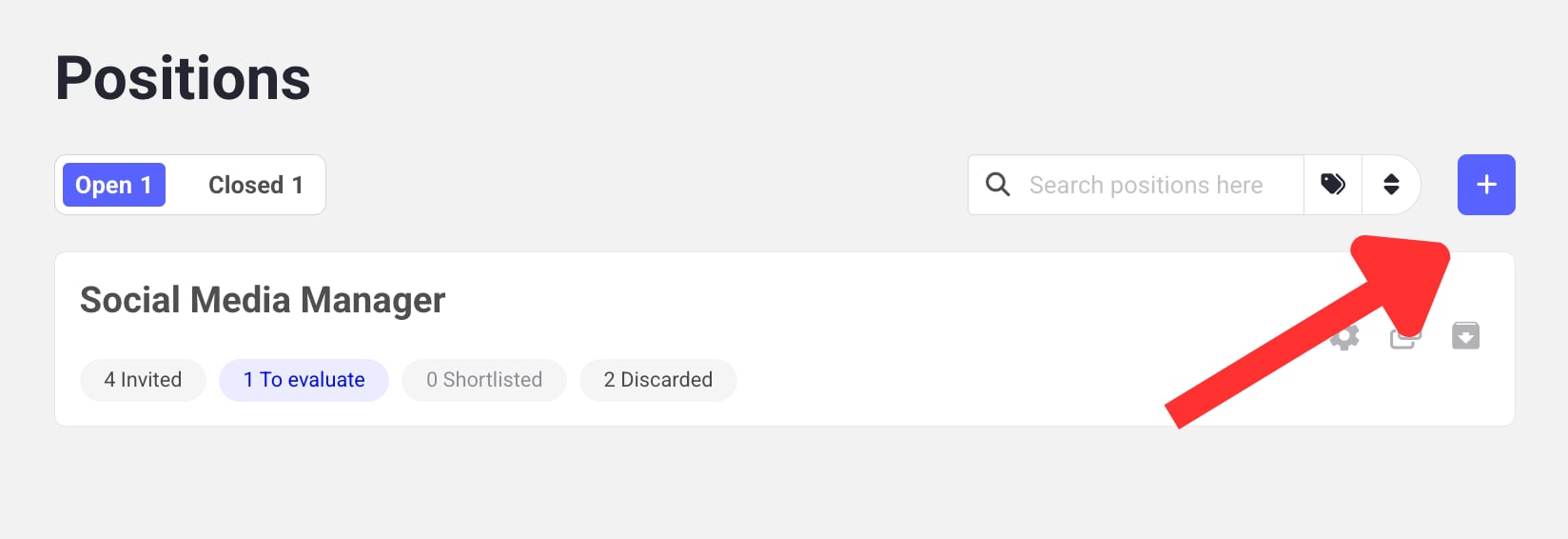
3
Update the position title and tags
Change the title of the position by clicking the placeholder label (Write job title here).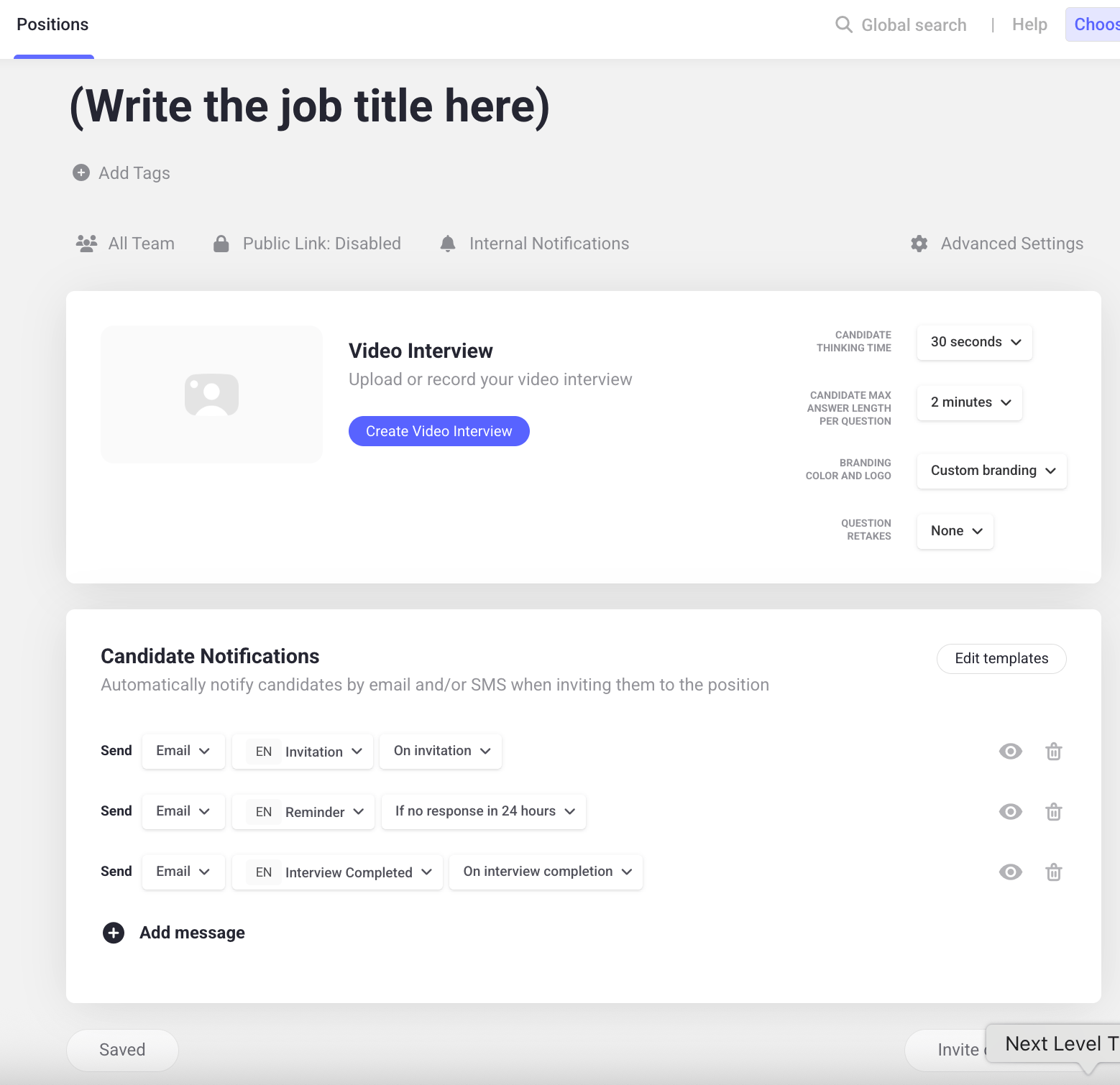
You can add up to 5 tags per position, each between 1 and 25 characters (whitespace is auto-trimmed).
4
Open the interview builder
Click the Create video interview button to start building the interview.
Build the video interview
1
Add an introduction (optional)
Introduce yourself and let candidates know what to expect. It helps them feel more comfortable before they start.What the candidate sees depends on whether you add an intro video:
- With an intro video, candidates see a window with your video before they start. This is recommended as it builds employer brand and puts candidates at ease.
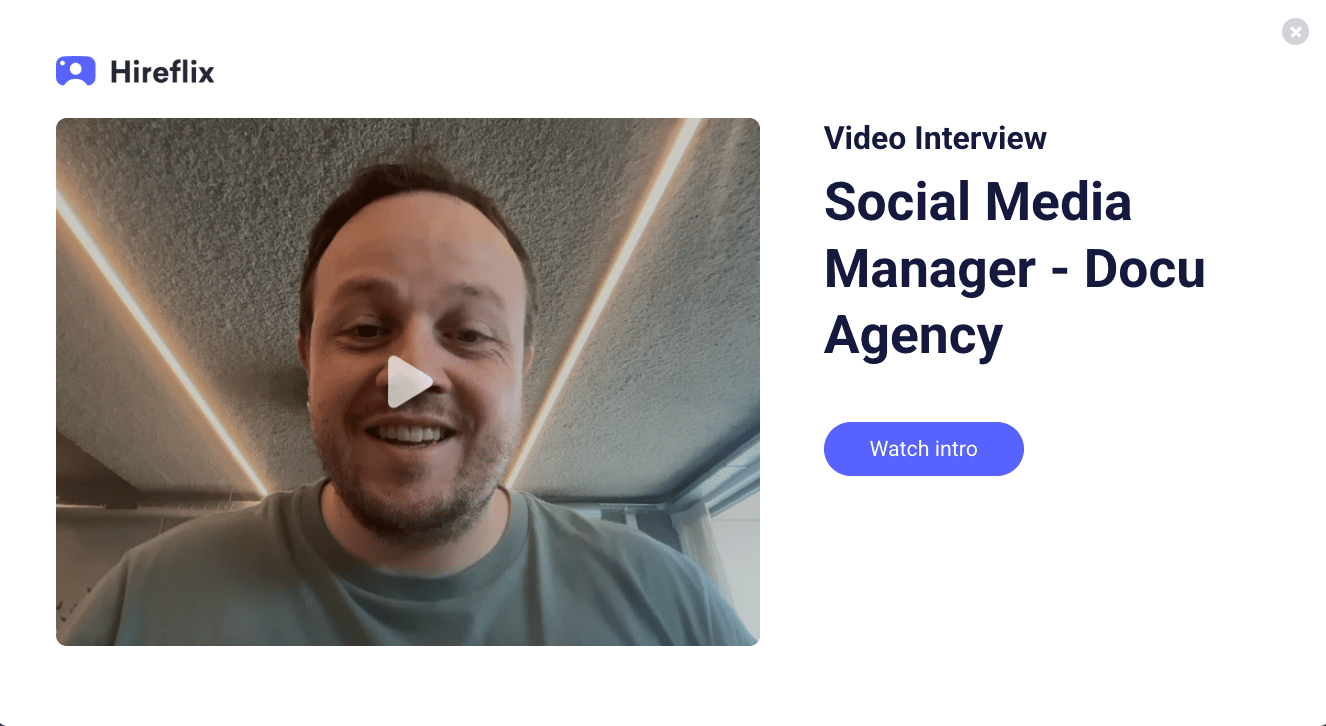
- Without an intro video, candidates just see the job title, the number of questions, and the Start Interview button.
2
Create your questions
Add at least 1 question — there’s no upper limit. Each question has: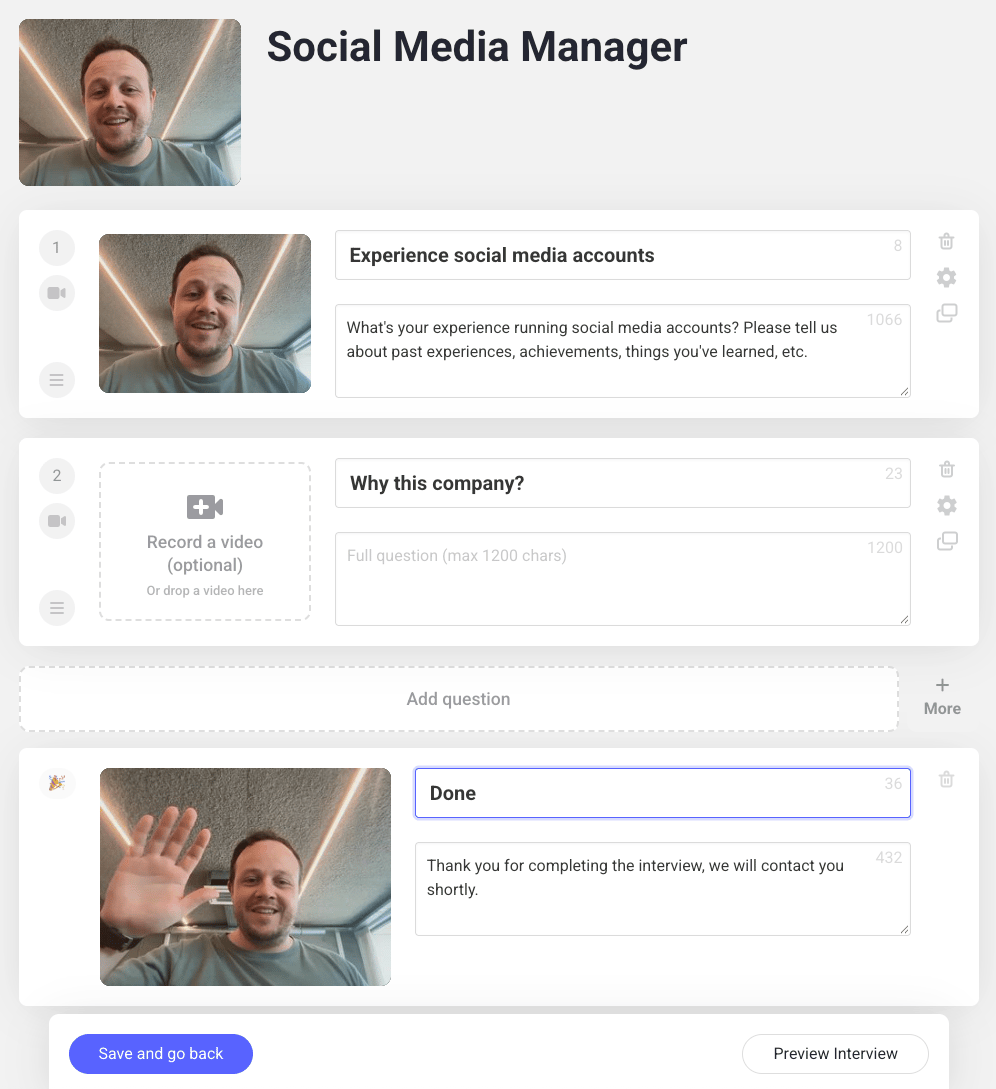
- A Question Title (up to 40 characters)
- A Question Description (up to 1200 characters)
- A video question (optional): Click Add video on a question to record yourself asking it, which feels more personal and gives candidates extra context. Already have a recorded question? Drag and drop it straight into the question. If a candidate is still unsure how to answer, they can fall back on the question description for more detail.
Recording outside Hireflix? Any video format works (we transcode it after upload), max 150 MB. Aim for a 4:3 aspect ratio — it fills the screen best; 16:9 also works but shows black bars top and bottom. See Video requirements for the full details.
3
Add an outro (optional)
Record an outro video to thank candidates for their time and let them know the interview is complete. The same video requirements above apply — drag and drop a pre-recorded outro the same way.
Save and preview
Don’t forget to click Save and go back once you’re done. To double-check the full flow (intro, questions, and outro), click Preview Interview in the bottom right of your screen.Learn next?
Learn how to add image prompt questions to your interview.