

Overview
Templates are the messages sent automatically to candidates, with the timing of your choice. You can have as many templates as you want — give them clear names so you don’t mix them up. There are two types of templates:- Invite
- Reminder
Editing an SMS template? Keep it under 160 characters (70 if it contains emoji or certain special characters) so it’s sent as a single SMS. Longer messages are split into several SMS and cost more.
Steps
1
Open your templates
Go to your account and click Templates Email / SMS in the menu. From here you can modify existing templates or create new ones.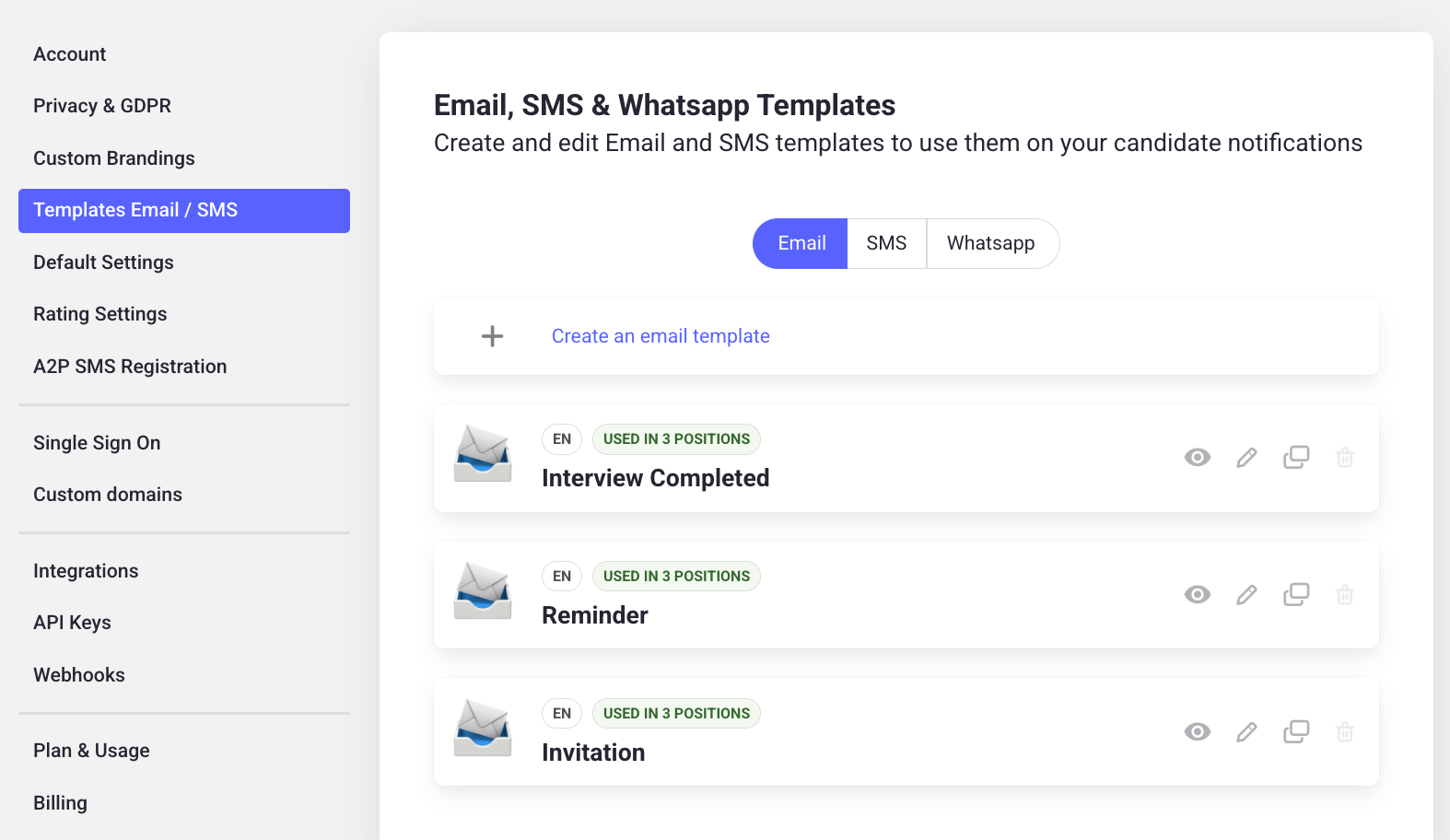
2
Edit a template
Click the pencil icon on a template to modify its: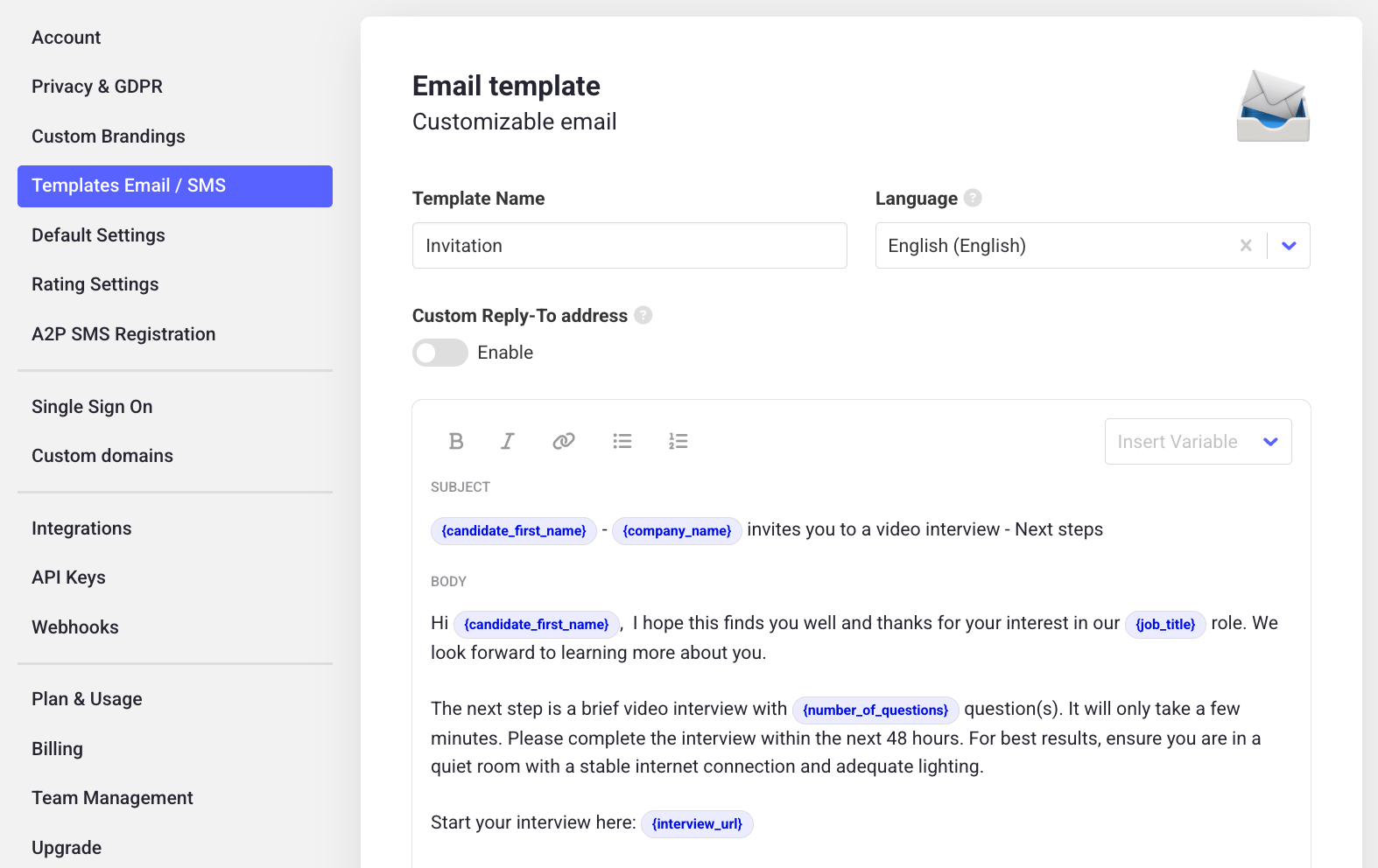
- Name
- Intended language
- Custom reply-to address (optional: overrides the default reply-to)
- Subject and body
3
Insert dynamic variables
In the top right of the text area, click Insert variable to dynamically pull in details that change per job position or candidate: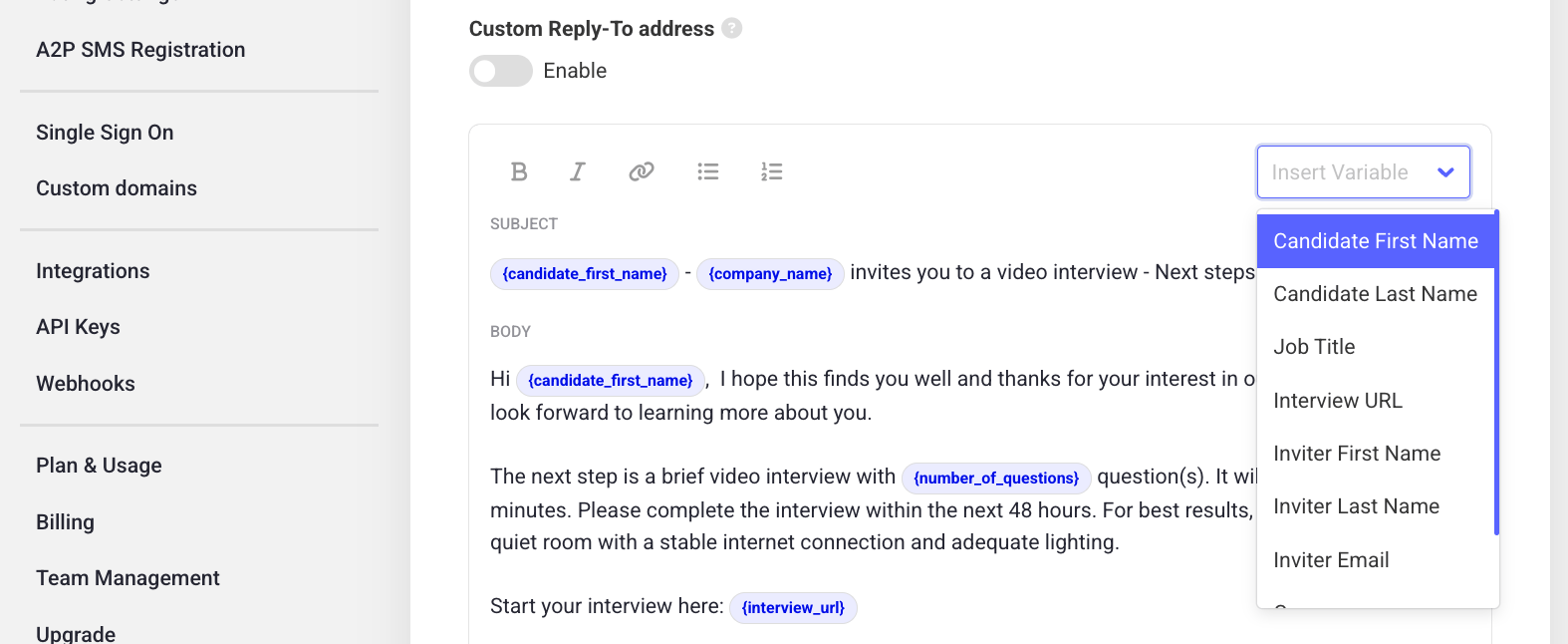
- Candidate first name
- Candidate last name
- Job title
- Interview URL
- Inviter first name
- Inviter last name
- Inviter email
- Company name
- Number of questions (in the interview they’ll take)
4
Save your template
Once you’re done editing, save the template.
Example candidate emails
Sending an email that candidates recognize as coming from your company, before they take the video interview, helps them approach it with less uncertainty and a more positive mindset — which increases your candidate conversion rate.This email complements the invitation sent by Hireflix — it’s not a substitute. If you want it to replace the Hireflix invite, don’t forget to include the interview link, which is unique to each candidate.
Template 1
This template may seem long, but it covers everything the candidate needs to know.Template 2
Shorter and more to the point. If you use this one, make sure your Hireflix invitation email template includes enough detail about the interview (e.g. which devices are supported).Learn next?
Learn who gets notified when an interview is completed, and where candidate replies go.