

Overview
You can’t directly edit the email of an existing user in Hireflix. Instead, add the new email as a new user, then transfer account ownership to that user — this keeps all your company data, interviews, and settings intact.Summary
- Add the new email as a user.
- Log in with the new email and accept the invite.
- Log out from the new user and log back in as the current owner.
- Transfer ownership to the new user.
- (Optional) Remove the old user.
Steps
1
Invite the new email
Go to Account > Team Management and click Add member. Invite the new email address you want to use.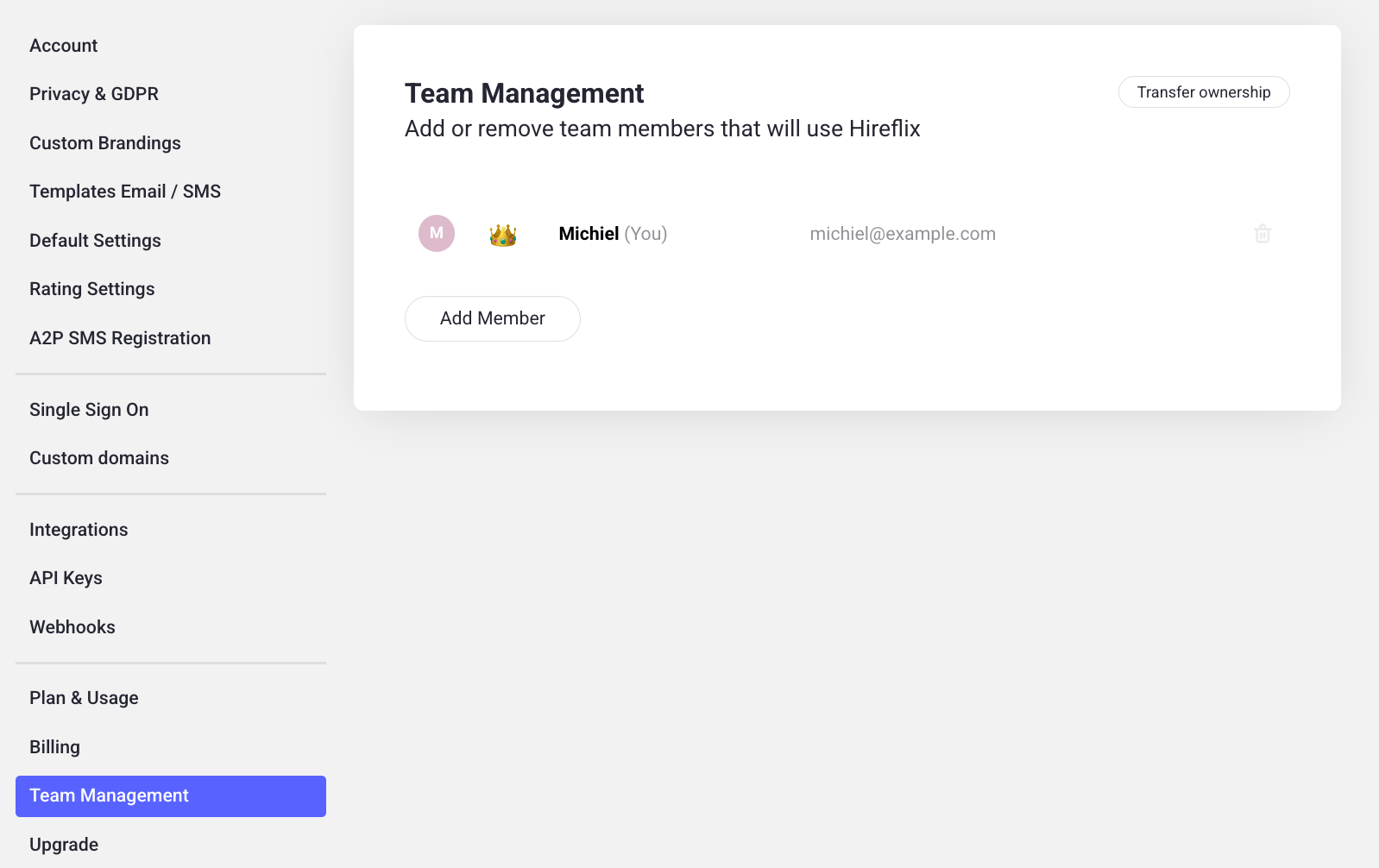
2
Accept the invite as the new user
Before opening the invitation, make sure you’re logged out of the old user in all tabs. Then open the invite from the inbox of the new email and sign in to complete the new user setup.
3
Log back in as the owner
After confirming the new user is active, log out from that new user and log back in with the current owner account.
4
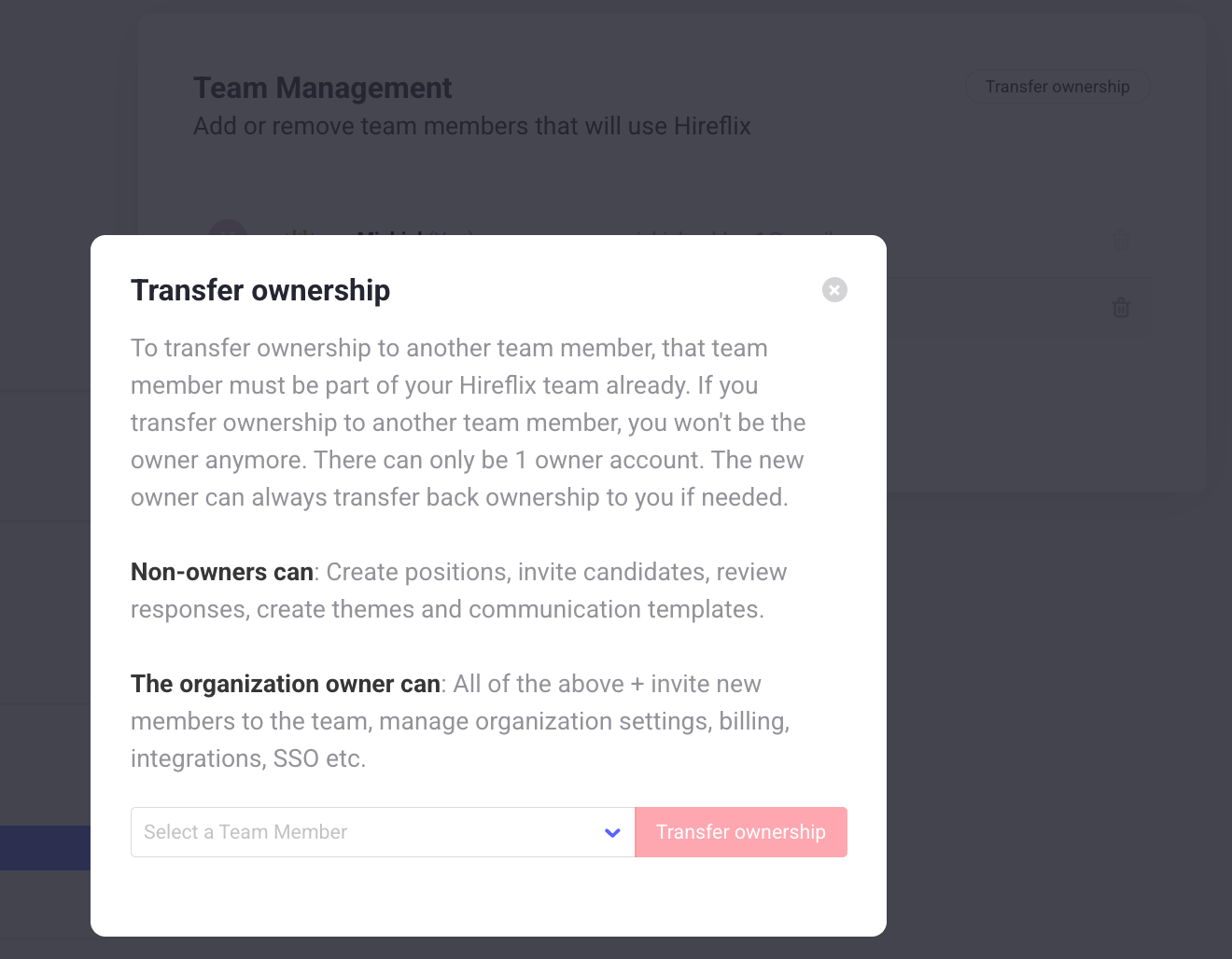
Transfer ownership
While logged in as the owner, go to Account > Team Management. Click Transfer ownership.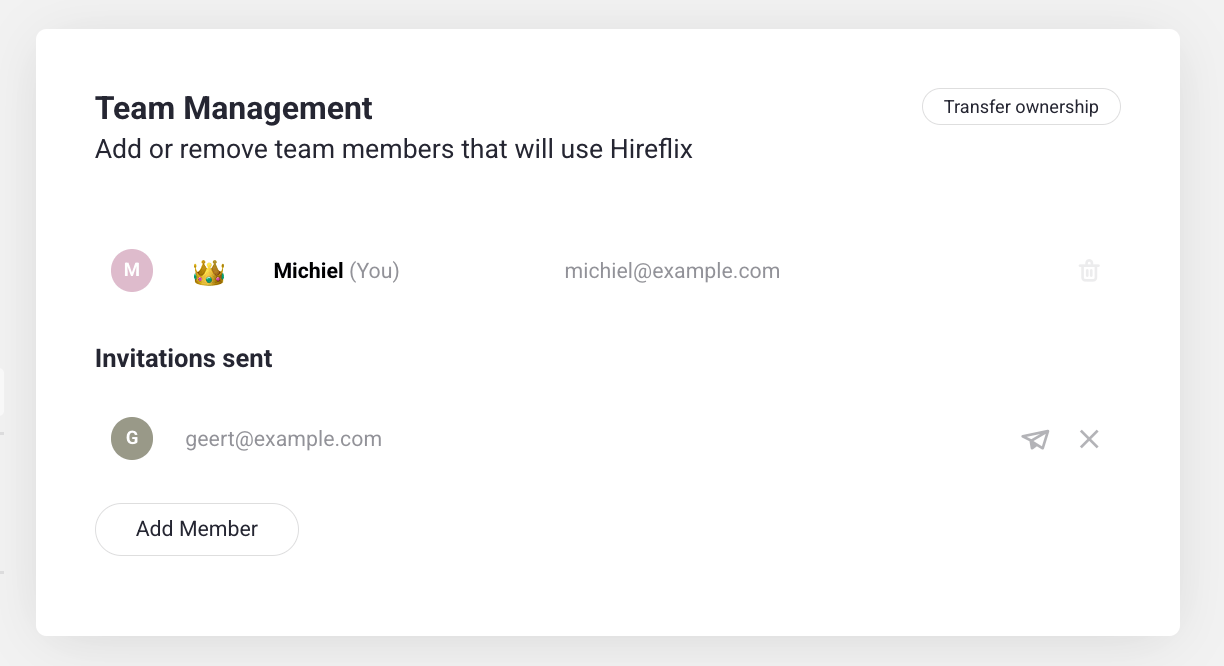
5
Remove the old user (optional)
Once you’ve confirmed everything works, you can remove the old user from Team Management by selecting them and choosing the Remove trashcan icon.