

What is this?
Hireflix publishes a skill file at hireflixsl.mintlify.app/skill.md. It contains everything your AI tool needs to talk to the Hireflix API directly: the GraphQL schema and example queries. Once you provide your API key, you can ask it to do things in plain English instead of writing GraphQL yourself. That includes building a position from scratch (name, questions, video or image prompts, intro/outro) just by filling in a short template in chat. We’ve tested the skill with Claude and ChatGPT / Codex. We recommend Claude, as it works best with Hireflix. Quick path:- Complete setup: add the skill to your AI tool.
- Create a position via chat: fill in the position template, your AI tool builds it.
- Explore your account: ask about positions, stats, and interview results.
You’ll need a Hireflix API key to use the skill. If you don’t have one yet, follow the Quickstart to create an account and generate a key. In Claude, you’ll also need to allow the Hireflix websites (see setup below) before starting your chat session.
Setup
Choose your AI tool and follow the steps.- Claude (recommended)
- ChatGPT / Codex
1
Allow the Hireflix websites in Claude
In Claude, click your account name and open Settings → Capabilities. Under Create and edit files, make sure Use the internet while making files is turned on. Then click Manage next to Allowed websites.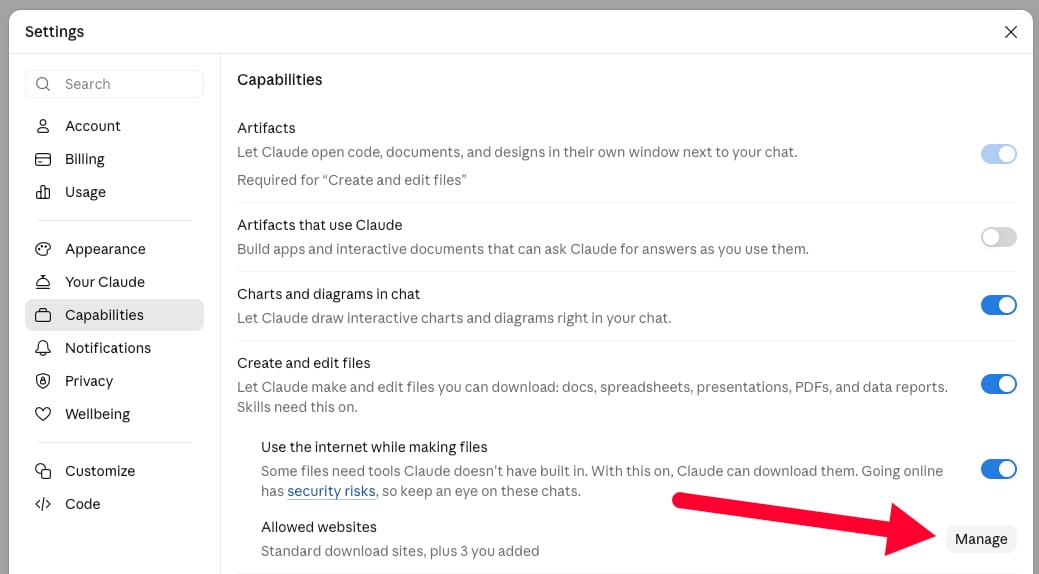
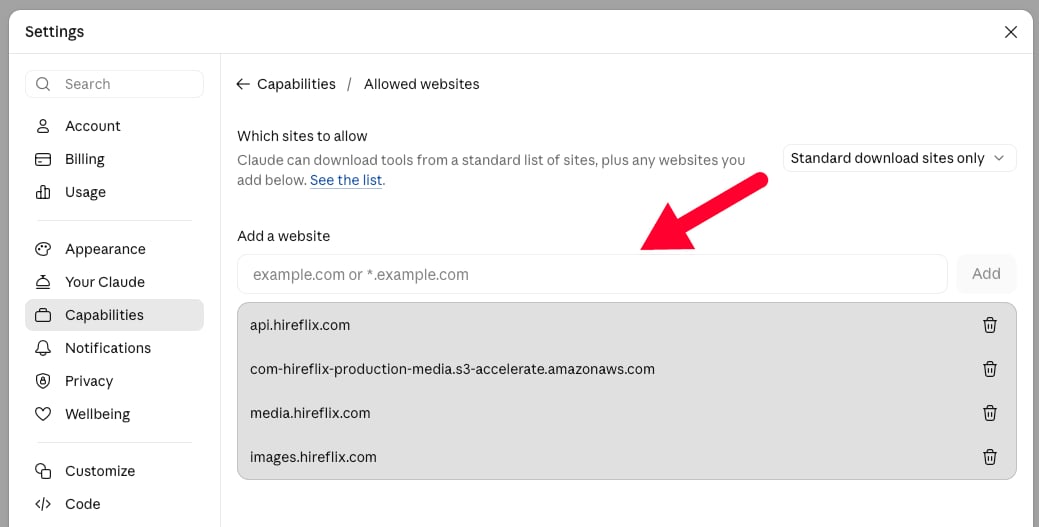
api.hireflix.com— the GraphQL API endpoint Claude talks to for every query and mutation.media.hireflix.com— where signed video playback URLs resolve; needed whenever Claude fetches or plays back an interview video.com-hireflix-production-media.s3-accelerate.amazonaws.com— the signed S3 URL Hireflix issues for video uploads (intro, outro, or per-question videos).images.hireflix.com— where uploaded question images are served; needed whenever Claude fetches or shows you an image from an image prompt question. (Uploading an image goes throughapi.hireflix.com, so it doesn’t need this domain.)
2
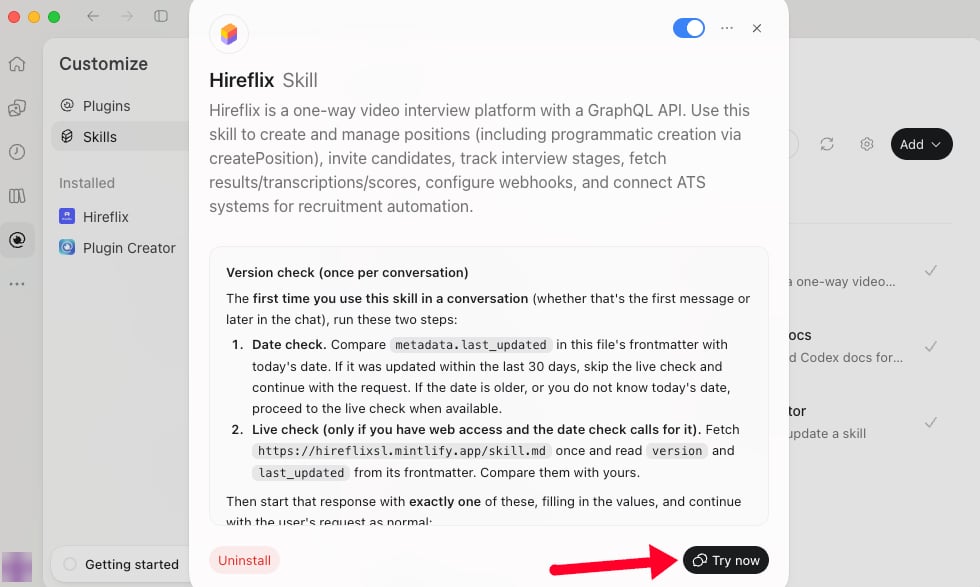
Get the Hireflix skill file
Open hireflixsl.mintlify.app/skill.md and save the page as
skill.md. You can hit CTRL + S or on Mac CMD + S to store the page as skill.md on your machine.3
Upload the skill to Claude
In Claude, click your account name and open Settings. Click Customize in the left menu and open the Skills tab. Then click the Add button in the top right and choose Upload skill.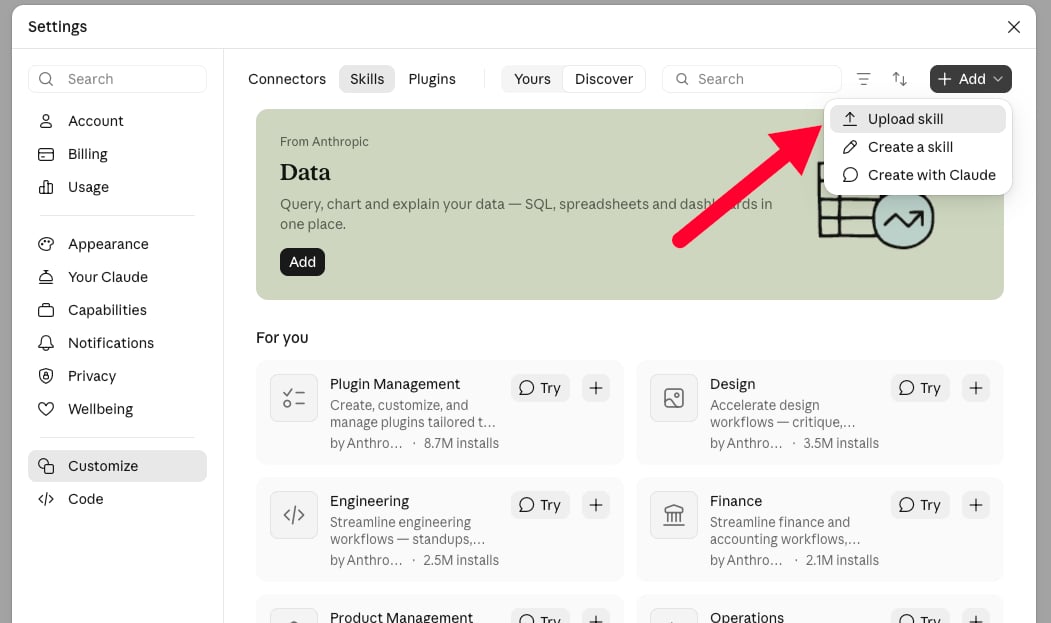
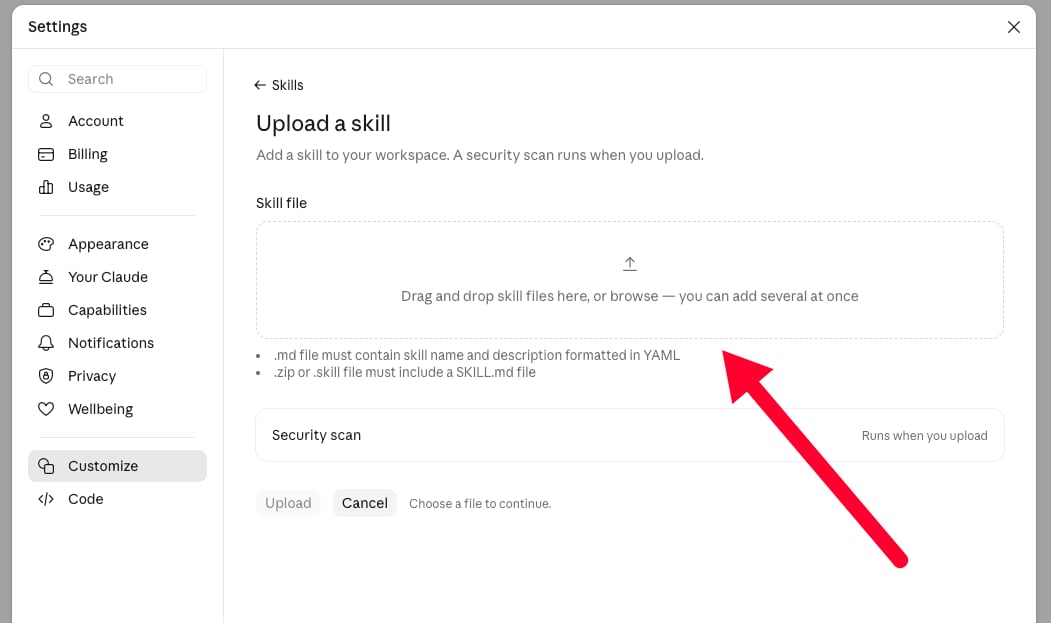
skill.md file you just saved into the Skill file box (or click it to browse for the file), then click Upload. Claude runs a security scan on the skill when you upload it.4
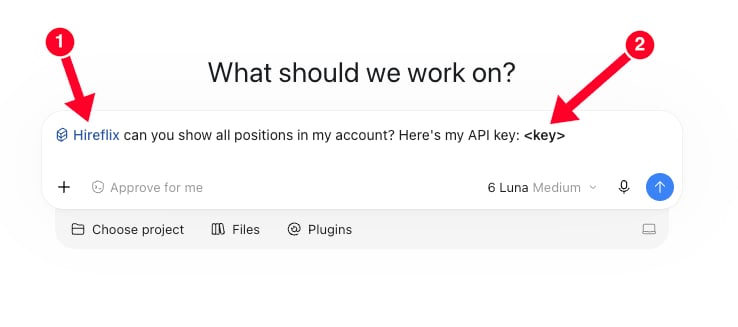
Start a new chat and add your API key
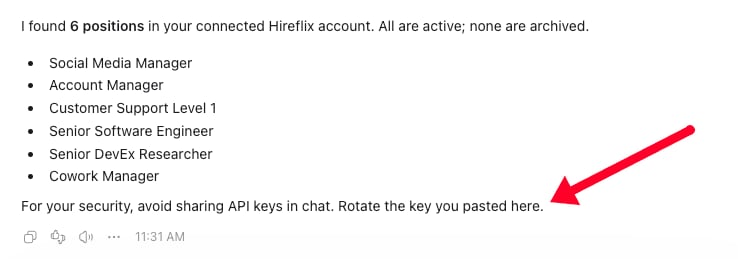
Start a new chat (so the allowed websites from step 1 apply), and give Claude your Hireflix API key so it can authenticate against
api.hireflix.com. See the Quickstart if you still need to create one.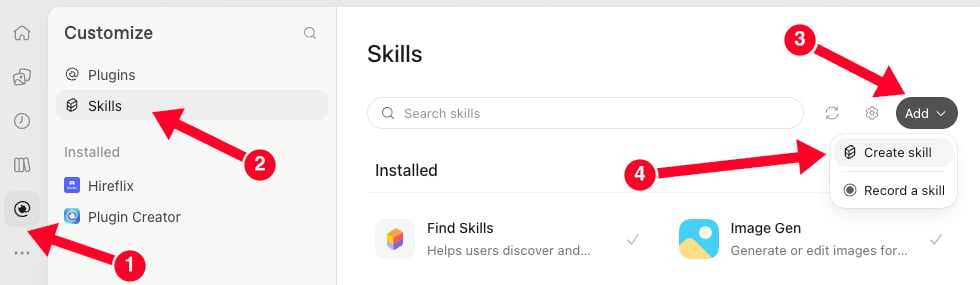
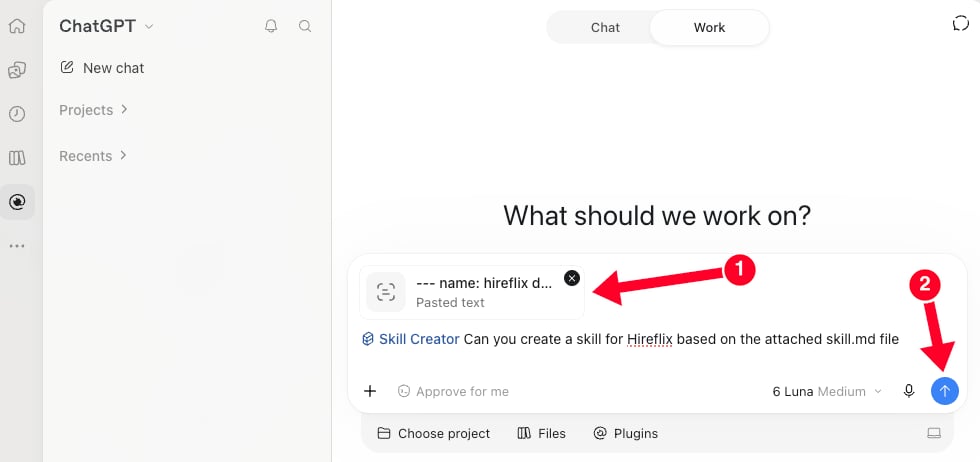
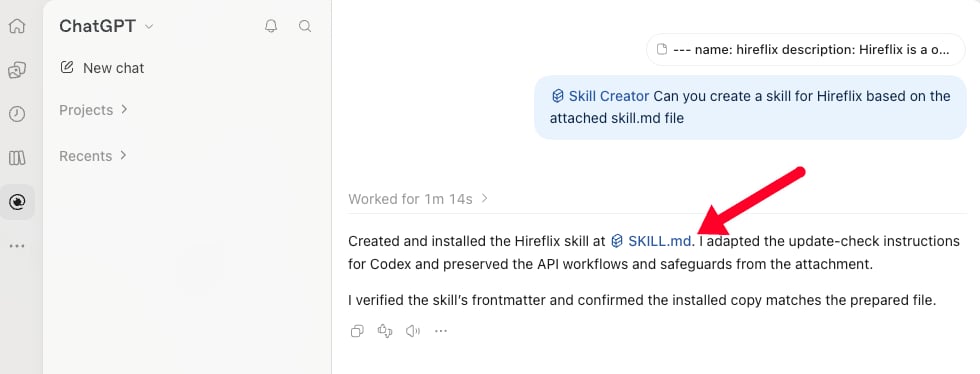
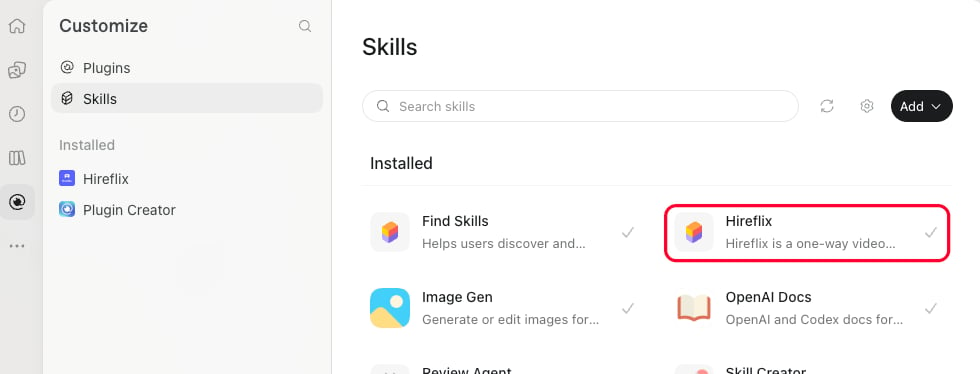
Create a position via chat
Once the skill is set up, you can build a new position just by chatting with your AI tool — no GraphQL required. It uses thecreatePosition mutation from the skill file (plus the matching upload steps for any videos or images you attach) to build the position exactly as you describe it.
The easiest way to start is to tell your AI tool “I want to create a new Hireflix position”. It replies with the fill-in template below, so you can see right away what’s required and what’s optional. If you’ve already given some details (for example the job title or a few questions), it fills those in for you and only leaves the missing fields open.
The position template
- Template
- Example
- Name — the job title candidates see.
- Tags — optional labels to organize your positions in the dashboard.
- Intro video — an optional video shown before the first question. There’s no intro text: without a video, candidates see the job title, the number of questions, and the Start Interview button.
- Question title and description — the title is capped at 40 characters, so it’s usually a short label (e.g. “Motivation”). Use the description (up to 1200 characters) for the actual question, context, or instructions — you’ll want one on most questions.
- Attachment — optionally, one video prompt (you asking the question on camera) or one image (a diagram, chart, design, …) per question. Candidates always answer by recording a video, whatever the attachment.
- Outro — the screen candidates see after the last question: a title, a text, and optionally a video.
Attaching videos and images
Attach files directly to your chat message and reference them by file name in the template (e.g.video: intro.mp4, image: org-chart.png). Your AI tool uploads them for you. In Claude, make sure you’ve allowed the websites from the setup step first.
- Videos: max 150 MB each, any format (Hireflix converts it after upload). A 4:3 aspect ratio fills the screen best; 16:9 works but shows black bars.
- Images: max 10 MB each, any image type (JPEG, PNG, GIF, WebP, SVG). One image per question — if you want to show several images, create one image question per image.
Your AI tool never compresses, resizes, or converts your files. If a file is too large or isn’t a video/image, it tells you exactly what’s wrong (e.g. “that file is 240 MB, 90 MB over the limit”) so you can shrink it yourself, for example with HandBrake.
What gets checked before creating the position
- Required fields — a name and at least one question with a title. Fields you leave empty, leave on the placeholder text, or set to “none” are skipped.
- Character limits — if a title or text is too long, your AI tool tells you which field and by how much, and asks you for a shorter version. It never shortens or rewrites your text itself.
- Outro — if you keep the outro block (even just for the video), it needs both a title and a text.
- Your content stays yours — your AI tool doesn’t invent questions or texts. Want suggestions? Ask it to draft questions for a role first, then paste the ones you like into the template.
Explore your account
With your API key set for the session, try asking things like (make sure to first create a position so you have some dummy data):- “Which candidates have been waiting the longest for someone to review their Hireflix interview? List all interviews that are completed but not yet evaluated, across all my active positions, with the one that has been waiting the longest at the top. For each, show the position, candidate name and email, the date they finished, how many days they’ve been waiting, and their score if there is one.”
- “Give me an Excel sheet with all active positions and every candidate who has been invited, with each candidate’s status (invited, to evaluate, shortlisted, discarded) in its own column.”
- “Can you pull interview stats (per stage) for each of the positions (total, pending, to evaluate, shortlisted, and discarded)?”
- “Can you give me an overview of the questions and answers for the following completed interview for position
<position-id>?” - “Can you download all videos for position with ID
<position-id>?” - “Can you invite
<firstname><lastname><email>to my new position?” - “Can you help me list all positions for Hireflix in my account?”
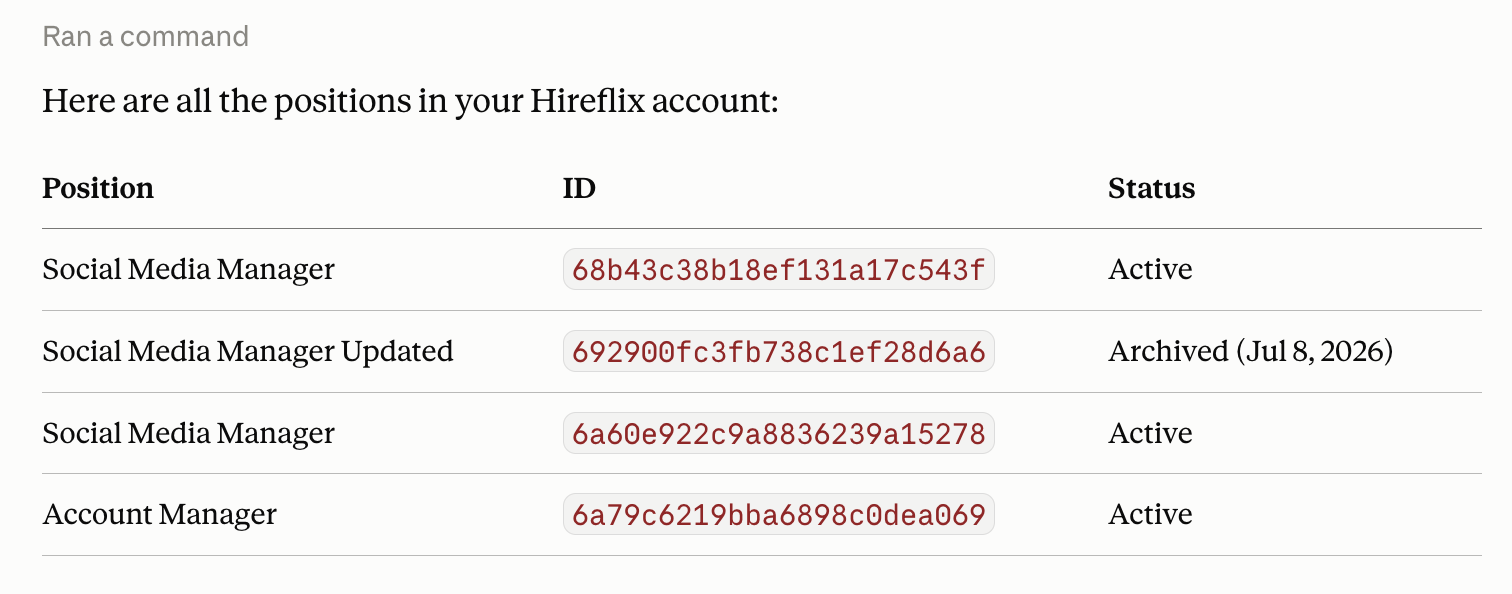
Claude's response after being asked to list all positions
What’s next?
Use the Hireflix MCP
Connect your AI tool of choice to your Hireflix account with the MCP server: no API key needed.