

What is this?
Hireflix publishes a skill file at hireflixsl.mintlify.app/skill.md. It contains everything an AI (we use Claude in this example) needs to talk to the Hireflix API directly — the GraphQL schema and example queries — so that once you provide your API key, you can ask Claude to do things in plain English instead of writing GraphQL yourself. That includes building a position from scratch (name, questions, intro/outro, timing) just by describing it in chat. Quick path:- Complete setup — allow network access and upload the skill file to Claude.
- Create a position via Claude chat — describe a role in plain English, Claude builds it.
- Explore your account with Claude — ask about positions, stats, and interview results.
You’ll need a Hireflix API key to use the skill. If you don’t have one yet, follow the Quickstart to create an account and generate a key. You’ll also need to complete the network egress setup below before starting your chat session — see step 1.
Setup
1
Allow Hireflix domains in your network egress settings
In Claude, go to Settings → Capabilities, scroll all the way down to the Allow network egress section, and enable the domain allowlist. Add all three of the following domains before you start a new chat — all three are required, regardless of what you’ll be asking Claude to do: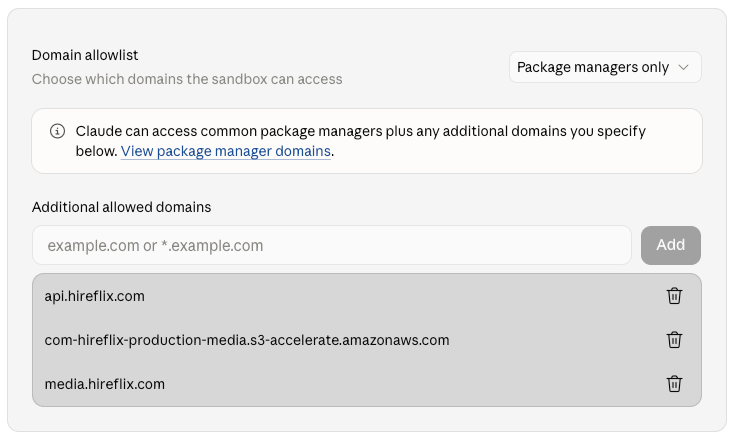
api.hireflix.com— the GraphQL API endpoint Claude talks to for every query and mutation.media.hireflix.com— where signed video playback URLs resolve; needed whenever Claude fetches or plays back an interview video.com-hireflix-production-media.s3-accelerate.amazonaws.com— the signed S3 URL Hireflix issues for video uploads (intro, outro, or per-question videos).
2
Get the Hireflix skill file
Open hireflixsl.mintlify.app/skill.md and save the page as
skill.md. You can hit CTRL + S or on Mac CMD + S to store the page as skill.md on your machine.3
Upload the skill to Claude
Still under Settings → Skills, upload the 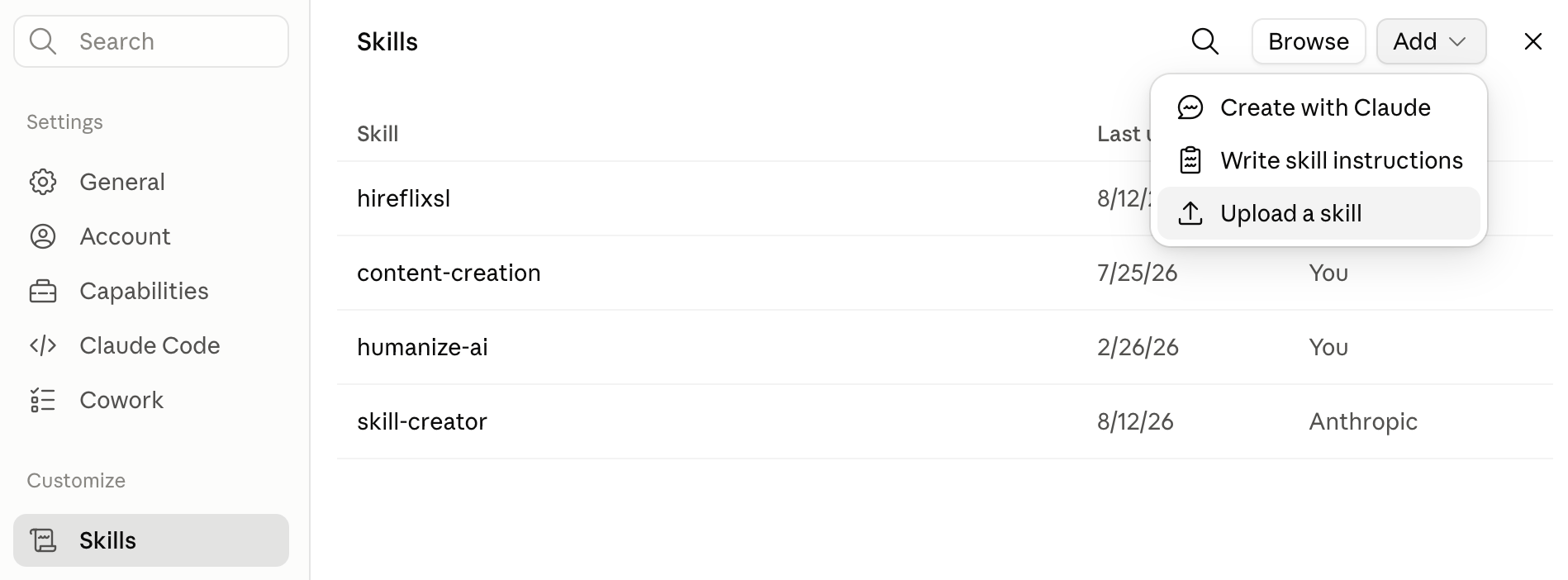
skill.md file you just saved by clicking the “Add” button and selecting “Upload a skill”.4
Start a new chat and add your API key
Start a new chat (so the network egress rule from step 1 applies), and give Claude your Hireflix API key so it can authenticate against
api.hireflix.com. See the Quickstart if you still need to create one.Create a position via Claude chat
Once the skill is set up, the fastest way to build a new position is to just describe it to Claude in a normal chat message — no GraphQL required. Claude uses thecreatePosition mutation from the skill file (and the matching upload mutations if you attach video files) to build the position, question by question, exactly as you describe it.
The three templates below go from bare minimum to full control. Pick whichever matches how much you want to specify versus leave at Hireflix’s defaults, copy it into your chat with Claude, fill in the bracketed values, and attach any video files you mention — Claude uploads them for you.
Question titles are capped at 40 characters — short enough that most titles will just be a label. Use the optional description (up to 1200 characters) for the actual instructions or context the candidate needs; you’ll want one on most questions.
- Minimal template
- Simple template
- Full template
The fastest option: just the role and the questions. Claude will use Hireflix’s defaults — video answers, no intro/outro, 30 seconds thinking time, 2 minutes to answer. You can always add an intro/outro, branding, or per-question overrides later from the dashboard, or by asking Claude to update the position.When to use: quick screening rounds, internal tests, or when you just want something usable in the dashboard in one message and will fine-tune it there later.
- Attach video files directly in the chat message — Claude uploads them for you, as long as you’ve allowed all three domains from the setup step above.
- If you don’t specify tags, format, or timing, Claude applies Hireflix’s defaults (video answers, no time limit).
- You can always ask Claude to list draft questions for a role first, then paste one of these templates back with the ones you like.
Explore your account with Claude
With your API key set for the session, try asking Claude things like (make sure to first create a position so you have some dummy data):- “Can you help me list all positions for Hireflix in my account?”
- “Can you pull interview stats (per stage) for each of the positions (total, pending, to evaluate, shortlisted, and discarded)?”
- “Can you give me an overview of the questions and answers for the following completed interview for position
<position-id>?” - “Can you download all videos for position with ID
<position-id>?” - “Can you invite
<firstname><lastname><email>to my new position?”
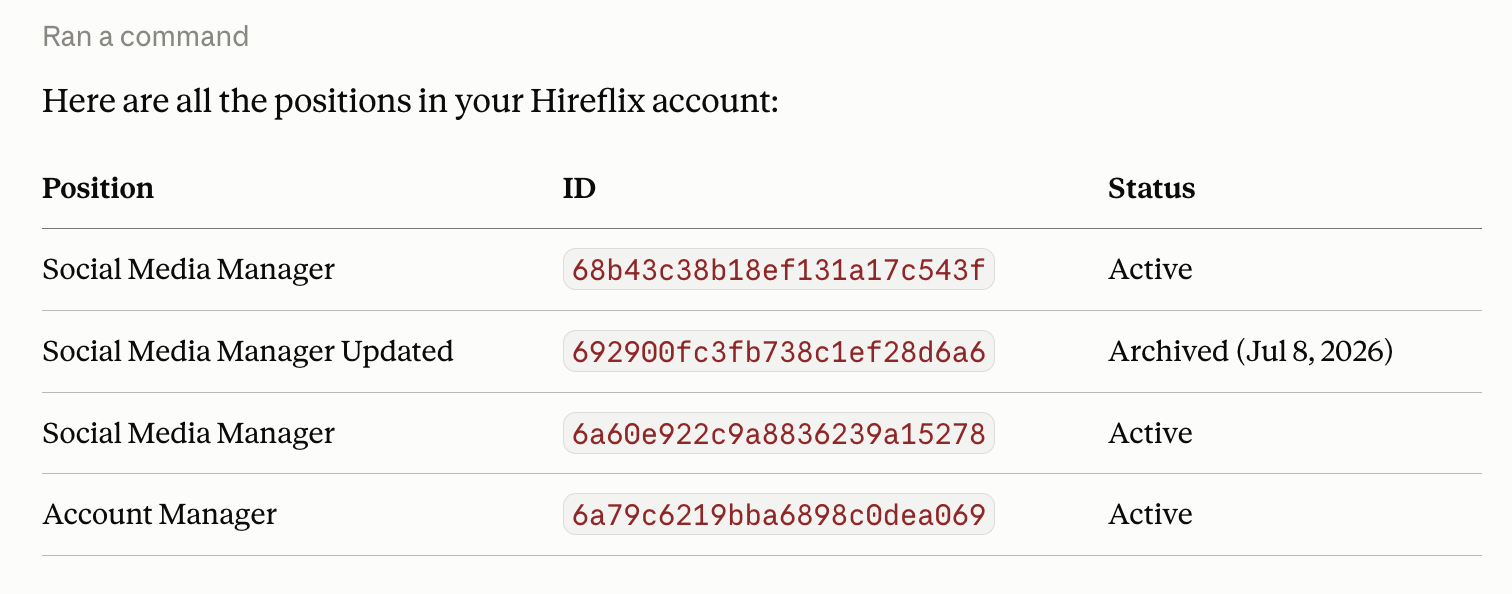
Claude's response after being asked to list all positions
What’s next?
GraphQL Basics
Understand the queries and mutations Claude is running on your behalf.
Interview Management
Explore the full interview flow: from inviting candidates to reviewing completed interviews.