

The Hireflix integration with Zoho Recruit allows you to launch one-way video interviews directly from within Zoho Recruit. You can trigger interviews manually or automatically, in bulk or individually, track completion status, and watch candidate responses, all from inside Zoho.
This guide follows the video above and explains every step in detail. Let’s get started!
Important: Identify your Zoho Recruit account type
There are two versions of Zoho Recruit:- Accounts with the Applications module: usually newer accounts.
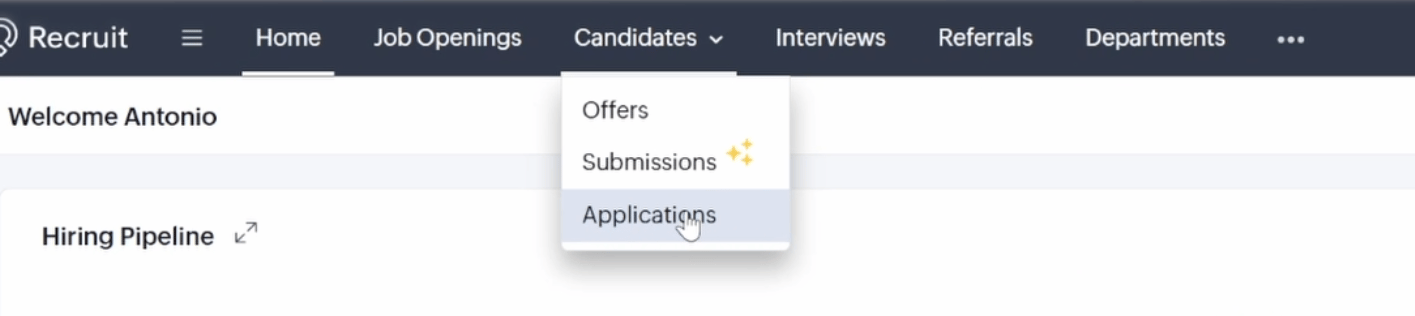
- Accounts without the Applications module: typically older accounts.

Step 1: Create your pipeline stages
First, create two stages in your hiring pipeline:- Trigger stage: to send the interview invite (e.g., “Send Hireflix Interview”).
- Progression stage: where candidates are moved automatically once they complete the interview (e.g., “Hireflix Interview Completed”).
- Go to Setup > Hiring Pipeline. If you don’t see it, search for “Hiring Pipeline” at the top search bar.
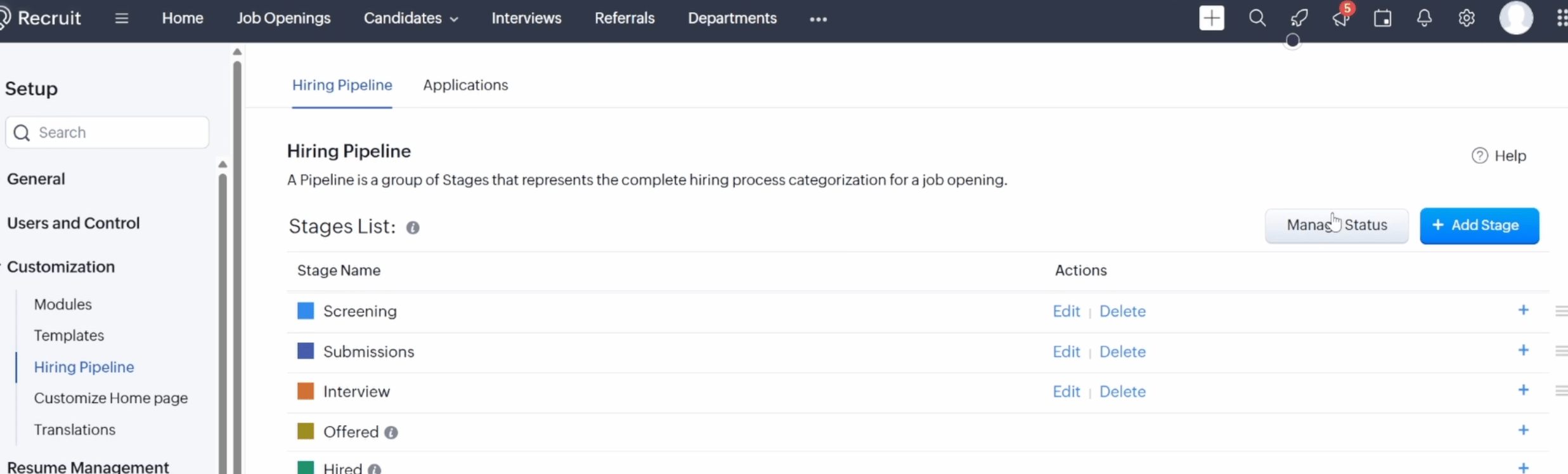
- Click Manage Status, then Add Options in Bulk.
- Add the following options:
- “Send Hireflix Interview”
- “Hireflix Interview Completed”
- Set the group to Interview, and click Add Choices.
- Arrange the order of stages as you prefer, for example: Completed stage after Send stage.
- Click Save.
Step 2: Install the Hireflix app from the Zoho Marketplace
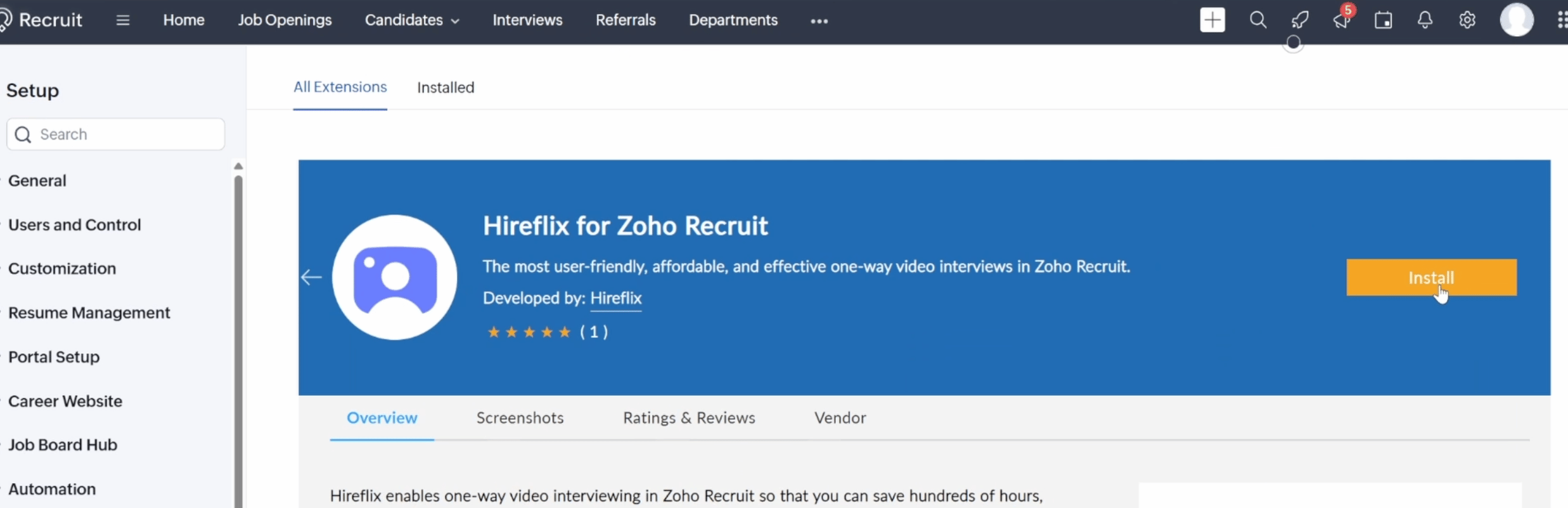
- Go to Setup > Marketplace (or search for “Marketplace” at the top).
- Find the Hireflix app and click Install.
- Accept the terms of use and click Install.
- Select Install for all users to ensure your whole team has access.
Step 3: Enable the integration in Hireflix
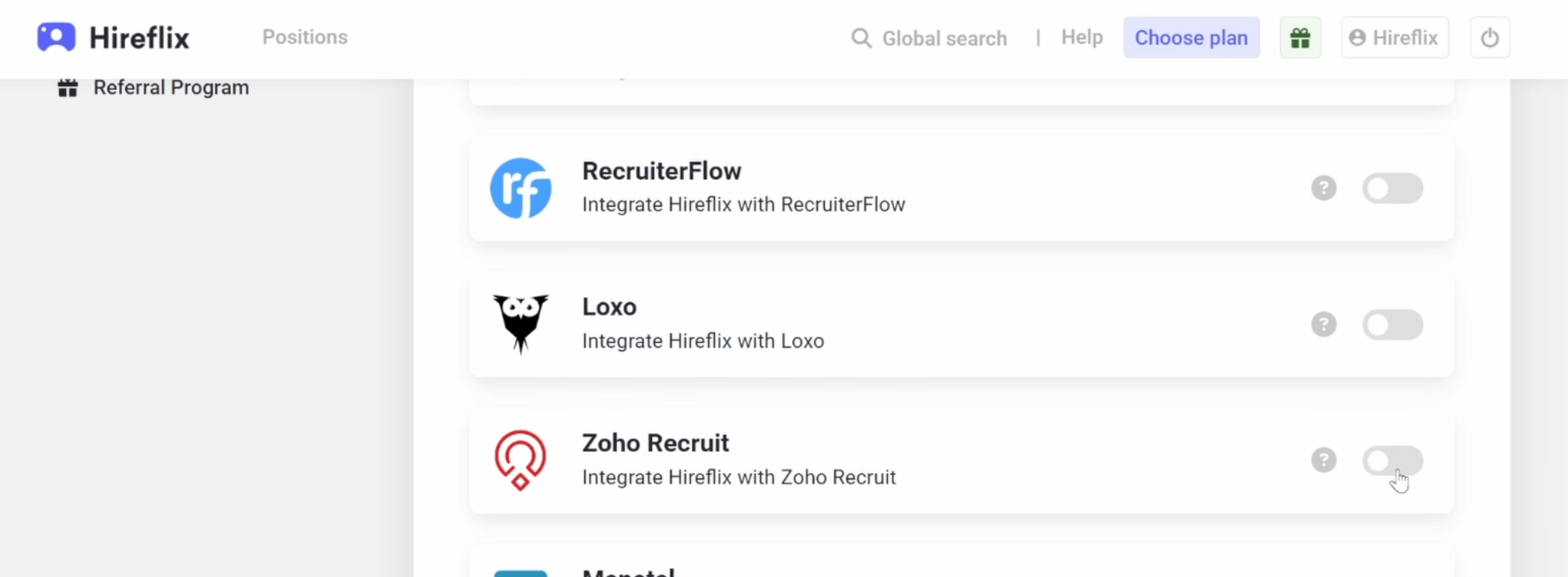
- Log in to your Hireflix account.
- Go to Account > Integrations > Zoho Recruit.
- Enable the integration and log in to Zoho Recruit when prompted.
- Once connected, click “I’ve watched the video” and proceed.
Step 4: Create the automation in Zoho Recruit
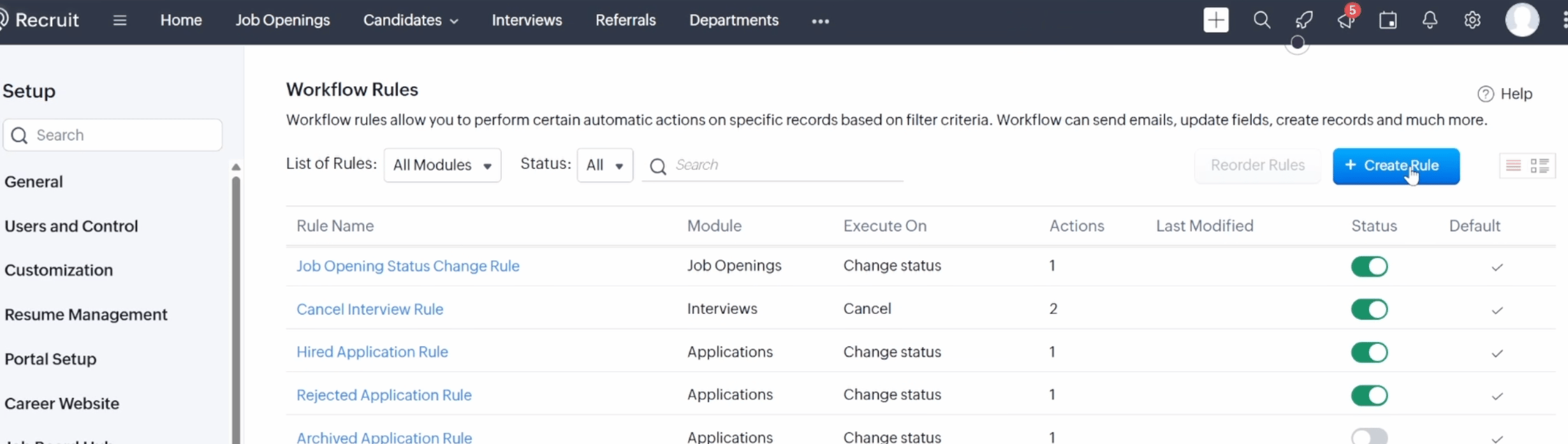
- In Zoho Recruit, go to Setup > Automation > Workflow Rules.
- Click Create Rule.
- Select your module:
- Give your rule a name (e.g., “Hireflix Trigger”), then click Next.
- Set the trigger to On a record action > Field Update.
- Configure: When status changes from any to Send Hireflix Interview.
- Click Next, select all records, and click Next.
- Add an instant action: Webhook.
- Set webhook name (e.g., “Hireflix Webhook”).
- Go to Hireflix, click Configure > Advanced Settings, and copy your webhook URL.
- Paste the URL into Zoho Recruit. Set method to POST, leave Authorization as General.
- Configure URL parameters:
- applicationId : Applications : Application Id
- candidateId : Candidates : Candidate Id
- jobId : Job Openings: Job Opening Id
- candidateId : Candidates : Candidate Id
- jobId : Job Openings: Job Opening Id
Important: You must write the Parameter names exactly as above with only the “i” capitalized in “Id” and with no spaces etc. It has to be exact for the integration to work.
- Click Save and Associate, then Save the rule.
Step 5: Configure the progression stage in Hireflix
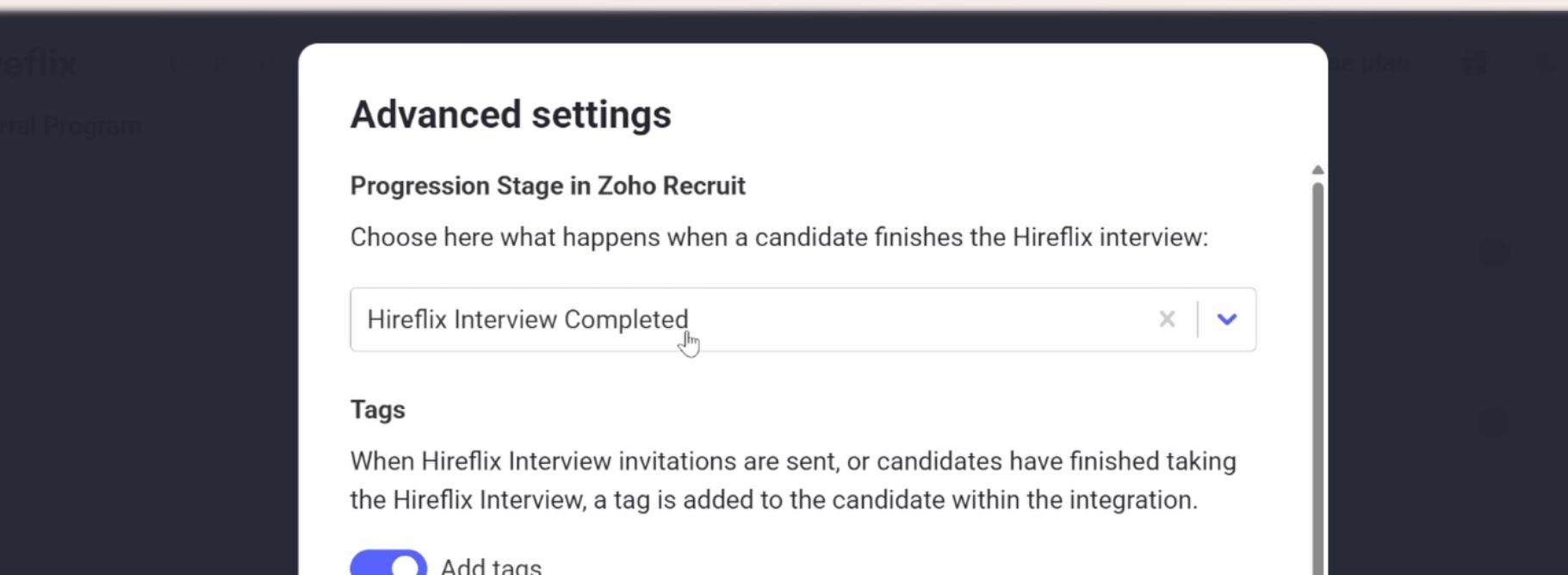
- In Hireflix, go to Integrations > Zoho Recruit > Advanced Settings.
- Set your progression stage to Hireflix Interview Completed.
- Optional: Configure automatic tags and adjust the link expiration settings for your interviews.
- Click Save.
Step 6: Connect Zoho Recruit positions to Hireflix interviews
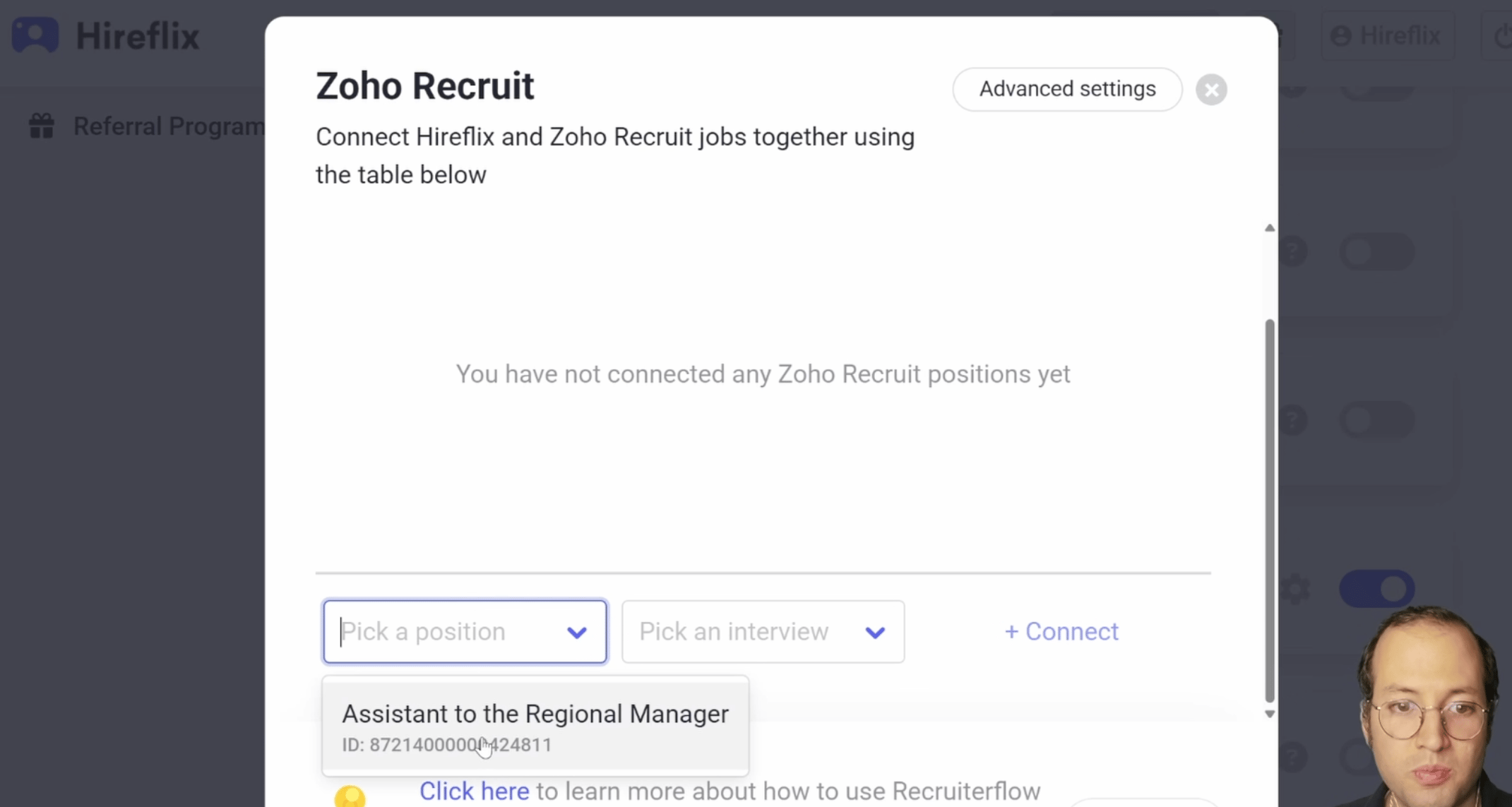
- In Hireflix, go to Integrations > Zoho Recruit > Configure.
- Select the Zoho Recruit position and choose the Hireflix interview you want to connect.
- Click Connect and Save.
Note: You only need to do this once per position!
Step 7: Triggering interviews from Zoho Recruit
- In Zoho Recruit, go to Job Openings and select your position.
- Move one or more candidates to the Send Hireflix Interview stage.
- The interview invitation will be sent automatically!
- You’ll also see the tag Hireflix Interview Sent added to the candidate.
Step 8: Reviewing completed interviews
- When a candidate completes the interview, since you configured the progression stage, they will automatically move to the Hireflix Interview Completed stage.
- For accounts with Applications module: The interview link will appear in both the Application record (Notes section) and Candidate profile.
- For older accounts: The link will appear in the Candidate profile, under Other Info > Hireflix Interview URL.
- Click the link to watch the interview directly, no need to log in to Hireflix!