

What is this?
The Hireflix MCP server athttps://mcp.hireflix.com/mcp connects Claude directly to your Hireflix account. Once connected, Claude can look up and manage your positions, candidates, interviews, and webhooks for you. Just ask in plain English.
Unlike the Claude skill, you don’t need an API key or to allow any websites in your Claude settings. You sign in with your Hireflix account, and Claude works with your current permissions, so it can only see and do what you can in the dashboard.
Quick path:
- Add the Hireflix connector: add the MCP URL as a custom connector in Claude.
- Connect your Hireflix account: sign in and allow Claude access.
- Start chatting: ask Claude about your positions and interviews.
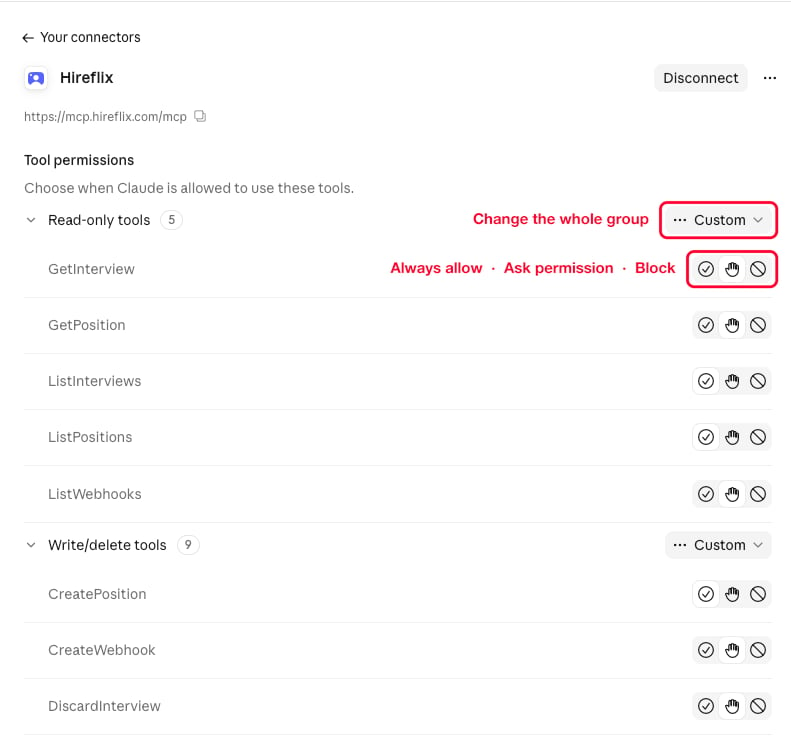
- Fine-tune tool permissions (optional): choose which tools Claude can use without asking.
Available tools
The Hireflix MCP gives Claude these tools:Not everything you can do in Hireflix has its own tool. Fetching interview transcriptions, for example, isn’t in the list above. That’s what the schema tools are for: Claude uses introspect and search to look through the full GraphQL schema Hireflix provides, finds the query it needs, and runs it with execute. So if you ask for something without a dedicated tool, Claude can usually still do it.
Add the Hireflix connector
On Claude’s free plan, you can only add one custom connector. If you’ve already added another custom connector, remove it first or upgrade your Claude plan to add Hireflix.
1
Open your connector settings
In Claude, click your account name and open Settings. Click Customize in the left menu and open the Connectors tab. Then click the Add button in the top right and choose Add custom connector.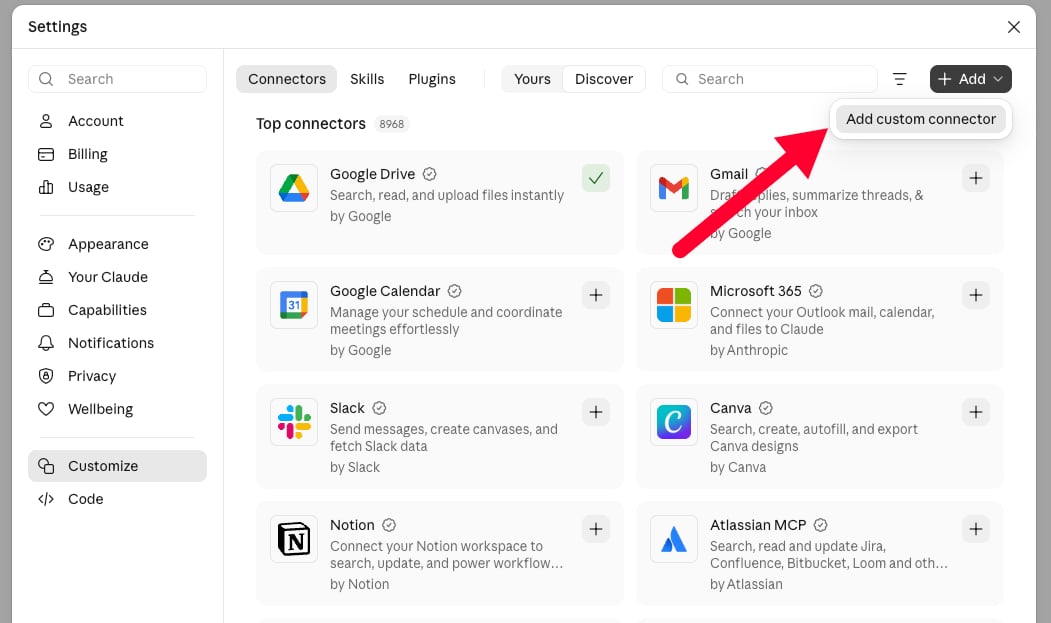
2
Enter a name and the MCP URL
Name the connector Click Continue.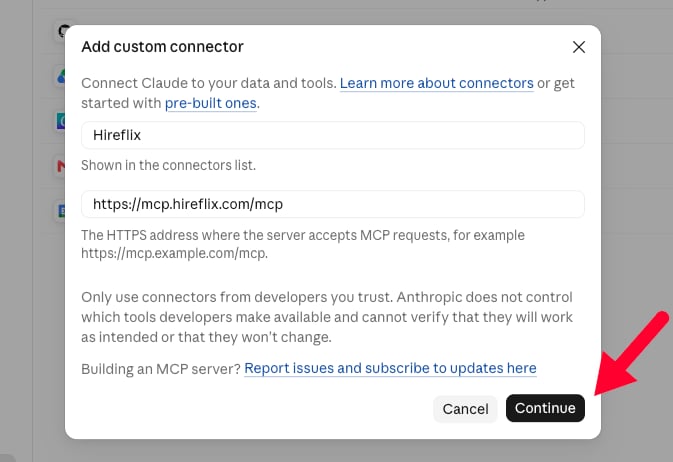
Hireflix and enter the MCP server URL:3
Keep the default connection settings
Claude detects how to connect to Hireflix and pre-fills the authentication settings (Sign in now and Register automatically). Leave them as they are and click Add.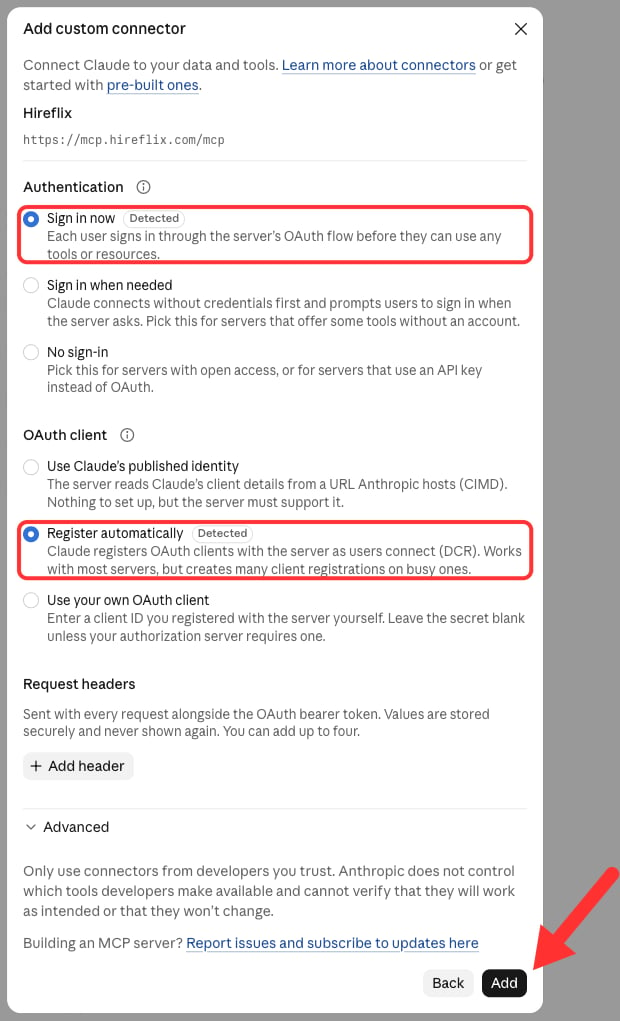
Connect your Hireflix account
1
Click Connect
After you click Add, Claude opens the Hireflix connector page, which tells you you’re not connected to Hireflix yet. You can always find this page again under Settings → Customize → Connectors, in the Yours list. Click Connect to start linking your account. This opens a connection request on Hireflix to link your Hireflix account with Claude. If you’re not logged in to Hireflix yet, log in first.
2
Allow Claude to access your account
Hireflix shows what Claude will be able to do. Click Allow to give it access. This lets Claude: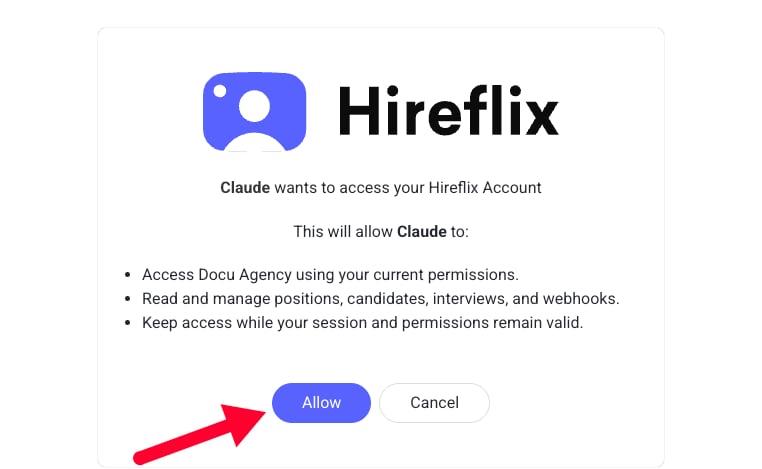
- Access your Hireflix account using your current permissions.
- Read and manage positions, candidates, interviews, and webhooks.
- Keep access while your session and permissions remain valid.
Start chatting with Hireflix
Start a new chat and ask Claude to use the Hireflix MCP. You can now ask questions about your positions, interviews, and candidates, for example:- “Using the Hireflix MCP, list all my active positions.”
- “Which interviews for the
<position name>position are completed but not yet evaluated?” - “Give me interview stats per stage (pending, to evaluate, shortlisted, discarded) for each of my positions.”
- “Summarize the answers from the latest completed interview for the
<position name>position.” - “Fetch the transcriptions for all interviews for the
<position name>position.” - “Can you analyze the responses for all interviews for the
<position name>position and give me a rating for each, based on which candidate you think is best for our company?” - “Invite
<firstname><lastname><email>to the<position name>position.” - “Shortlist the interview from
<candidate name>and give it a score of 4.”
Creating positions
To create a position through the MCP, use the position template from the Claude skill tutorial. Copy it, fill it in, attach any intro, outro, or question videos, and send it to Claude. The template follows the same input schema Hireflix expects, so Claude knows exactly which fields are required and what the character limits are.Fine-tune tool permissions
Go back to Settings → Customize → Connectors, switch to Yours, and open Hireflix to choose exactly which tools Claude may use. Tools are split into Read-only tools and Write/delete tools, and for each tool you can pick:- Always allow: Claude uses the tool without asking.
- Ask permission: Claude asks you before every use. This is the default for every tool.
- Block: Claude can’t use the tool at all.
What’s next?
Interview Management
Explore the full interview flow: from inviting candidates to reviewing completed interviews.