

- “Open this on Safari”
- “Your camera or microphone is not working”
1. Fixing the “Open this on Safari” Error
By default, Hireflix detects certain in-app browsers or WebViews and may block them for compatibility reasons.✅ Solution
Append the following query parameter to your interview URL:Example
Instead of: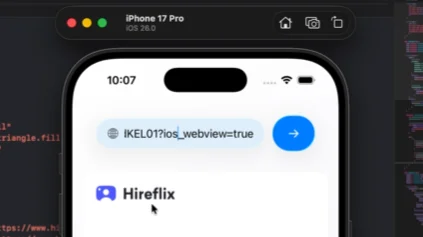
2. Fixing the “Camera or Microphone is Not Working” Error
Even after enabling WebView support, iOS will not automatically grant camera or microphone access. For security reasons, your app must explicitly:- Declare camera & microphone usage in
Info.plist - Request runtime permissions
- Properly configure
WKWebViewto handle media permissions
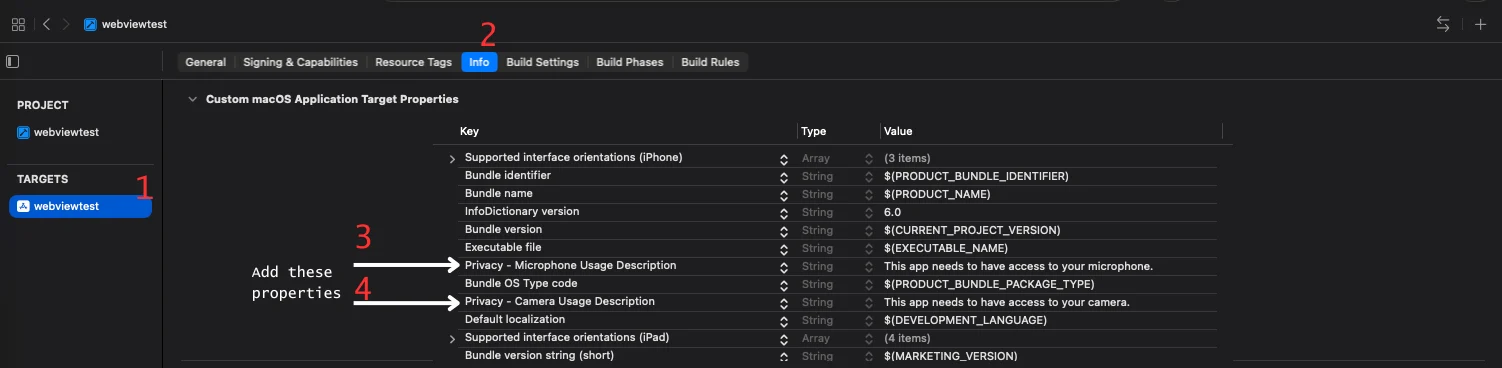
Step 1: Add Privacy Permissions in Xcode
In Xcode:- Select your project in the navigator
- Select your app target
- Open the Info tab
- Click the “+” button to add new keys
- Add:
Privacy - Camera Usage DescriptionPrivacy - Microphone Usage Description
Step 2: Import Required Frameworks
Step 3: Request Camera & Microphone Permissions
Add permission request logic in your app:Step 4: Configure WKWebView to Handle Media Permissions
If you’re usingWKWebView, implement the WKUIDelegate method:
Step 5: Assign the WKWebView UI Delegate
When creating your WebView:uiDelegate is critical. Without it, media permission requests will not be handled correctly.
Summary
When embedding Hireflix in an iOS WebView:- ✅ Add
?ios_webview=trueto the interview URL - ✅ Add camera & microphone usage descriptions in
Info.plist - ✅ Explicitly request AVFoundation permissions
- ✅ Implement
WKUIDelegatemedia permission handling - ✅ Assign the WebView’s
uiDelegate