> ## Documentation Index
> Fetch the complete documentation index at: https://hireflixsl.mintlify.site/llms.txt
> Use this file to discover all available pages before exploring further.
# Setting Up Invites and Reminders
## Overview
Setting up messages is the last step in creating a job position. These messages — emails, SMS, or WhatsApp — are sent to candidates automatically by Hireflix. You just need to pick which ones go out.
## Default messages
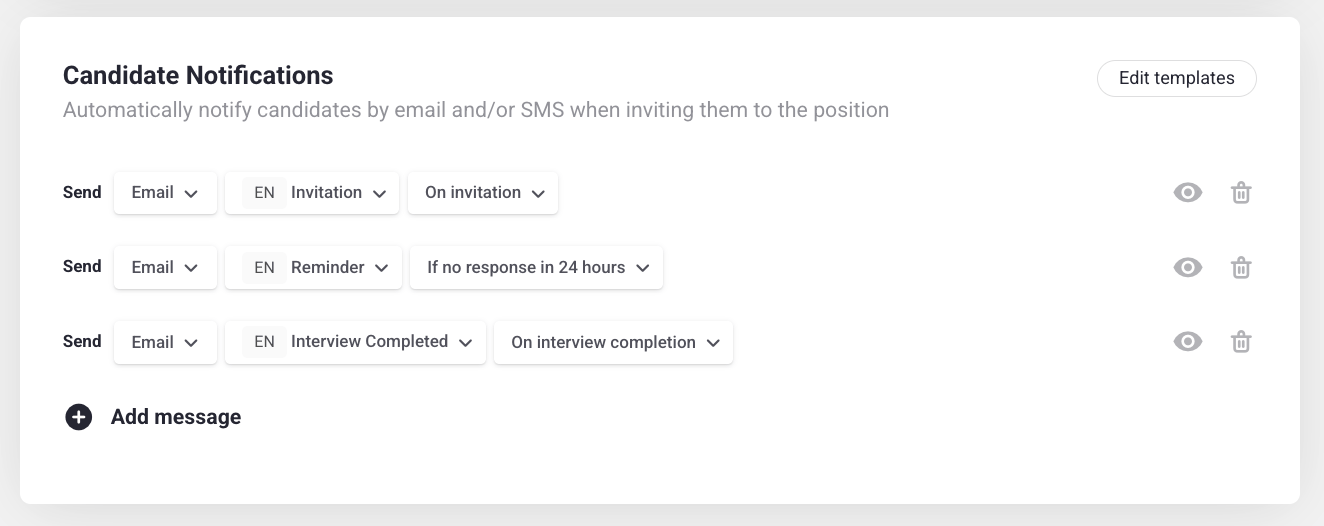
Three messages are enabled by default:
1. An email inviting the candidate to the interview, with their unique interview URL.
2. An email reminder if there's no response within 24 hours.
3. An email thanking the candidate once they complete the interview.
 ## Customizing your messages
Don't like the defaults? You can send custom messages instead, like an SMS or WhatsApp reminder.
Select **Email**, **SMS**, or **WhatsApp**.
Choose a message template. Want to build your own? Learn how to [create custom templates](/user/messages/creating-customizing-templates) or jump straight there by clicking **Edit templates** from the Candidate Notifications pane.
## Customizing your messages
Don't like the defaults? You can send custom messages instead, like an SMS or WhatsApp reminder.
Select **Email**, **SMS**, or **WhatsApp**.
Choose a message template. Want to build your own? Learn how to [create custom templates](/user/messages/creating-customizing-templates) or jump straight there by clicking **Edit templates** from the Candidate Notifications pane.
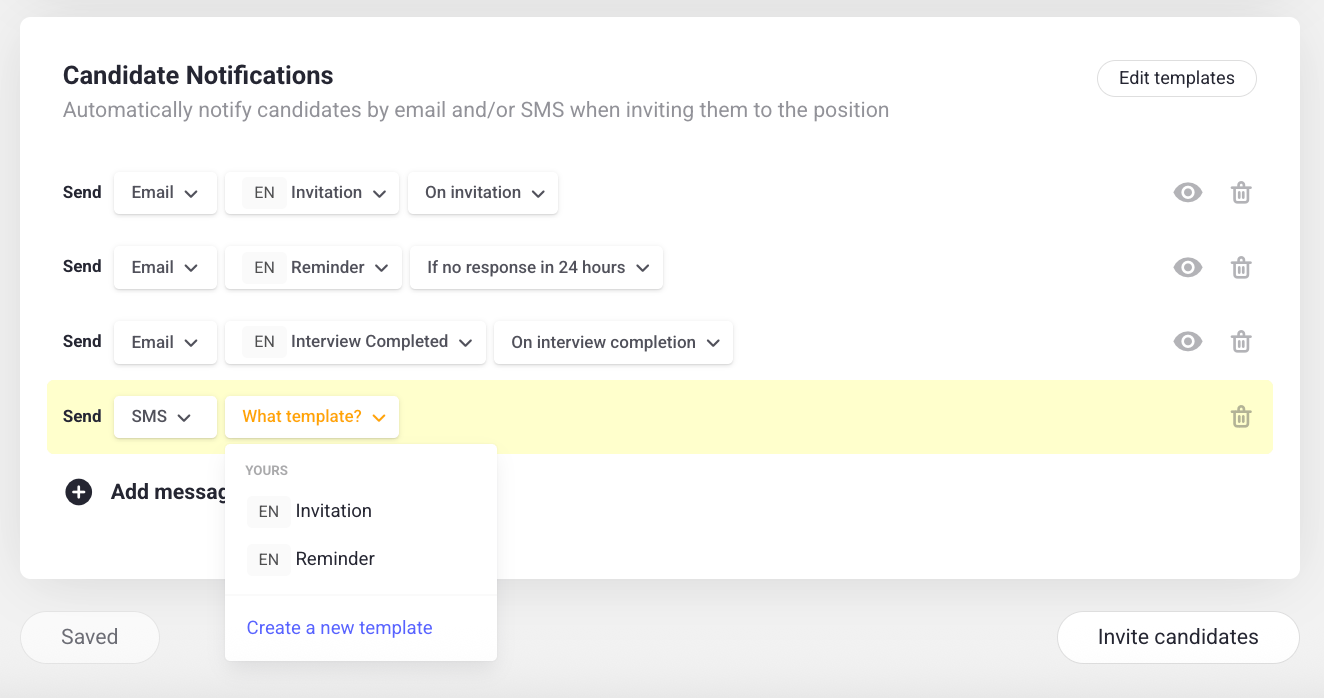 Choose when the message should be sent:
* **On invitation**
* If no response in **24h**
* If no response in **47h**
* If no response in **X hours** (set your own duration)
Click the eye icon to preview the message before it goes live.
There's a maximum of **6 touch points** per candidate.
Learn how to create and customize your own message templates.
Choose when the message should be sent:
* **On invitation**
* If no response in **24h**
* If no response in **47h**
* If no response in **X hours** (set your own duration)
Click the eye icon to preview the message before it goes live.
There's a maximum of **6 touch points** per candidate.
Learn how to create and customize your own message templates.