> ## Documentation Index
> Fetch the complete documentation index at: https://hireflixsl.mintlify.site/llms.txt
> Use this file to discover all available pages before exploring further.
# How-to: Importing Candidates (CSV/Excel)
## Overview
Import a CSV or Excel file containing your candidates' contact information to invite them in bulk. Your file should contain these fields:
| Field | Required |
| :---------------------------------------------------- | :----------------- |
| First name **and** last name, or a single Name column | Mandatory |
| Email | Mandatory |
| Phone number | Highly recommended |
A phone number is only needed if you want to send SMS messages, which we highly recommend, since it leads to a higher candidate conversion rate.
Don't forget the country prefix when entering a phone number. Numbers must use the format `+X XXXXXXXXX`.
## Steps
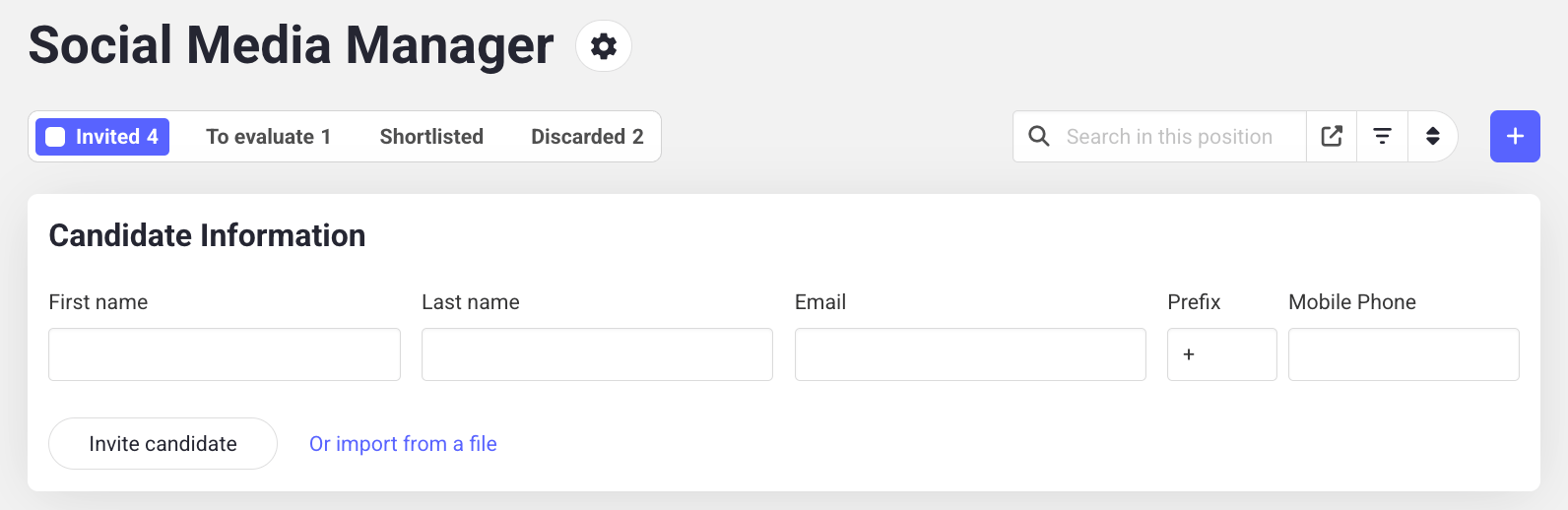
Go to your position. Next to the **Invite Candidate** button, click **or import from a file** to start the import flow.
 Upload a CSV or Excel file.
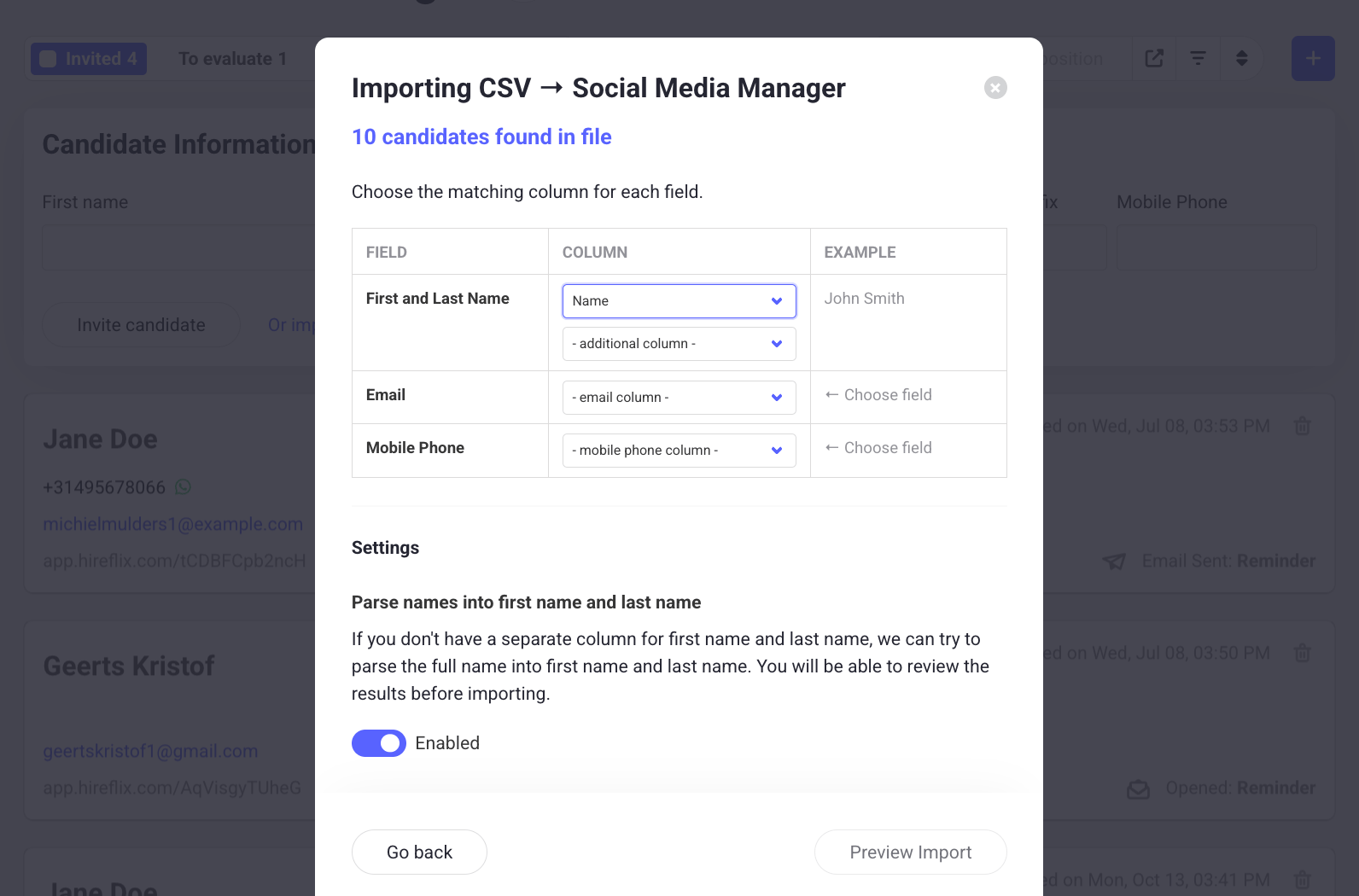
Match each field to the right column in your file:
* Link the `firstname` and `lastname` columns to the **first name** and **last name** fields. If your file has a single `name` column instead, enable the setting below to automatically split it into first and last name.
* Match your **email** column.
* Match your **phone number** column.
Upload a CSV or Excel file.
Match each field to the right column in your file:
* Link the `firstname` and `lastname` columns to the **first name** and **last name** fields. If your file has a single `name` column instead, enable the setting below to automatically split it into first and last name.
* Match your **email** column.
* Match your **phone number** column.
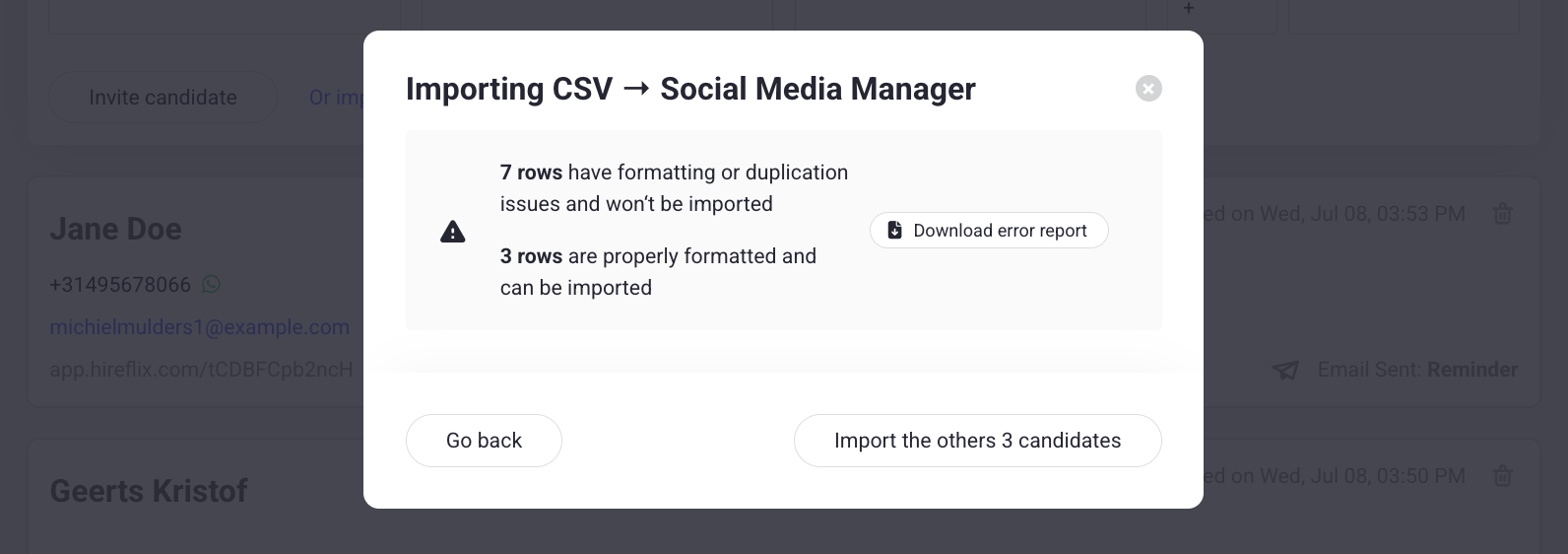
 Click **Preview Import** to check for issues before importing. The most common issue is phone numbers that don't follow the `+X XXXXXXXXX` format. In the image below, I made a formatting error with the phone numbers. You can download the error report to understand what went wrong.
 Once everything looks good, import your candidates in bulk.
Learn what happens when invitations are sent.
Once everything looks good, import your candidates in bulk.
Learn what happens when invitations are sent.