> ## Documentation Index
> Fetch the complete documentation index at: https://hireflixsl.mintlify.site/llms.txt
> Use this file to discover all available pages before exploring further.
# How-to: Adding an Image Prompt Question
## Overview
An **image prompt** lets you ask a question while displaying an image. The candidate records a video answer while looking at the image.
This is useful whenever you want candidates to react to something visual instead of answering from memory, for example:
* Explaining a system architecture diagram and suggesting improvements.
* Interpreting a chart or dashboard.
* Giving feedback on a design, ad, or landing page.
* Describing a product photo or a situation in a picture.
Image prompt questions sit alongside your standard video questions, so you can mix both types in the same interview.
## Add an image prompt question
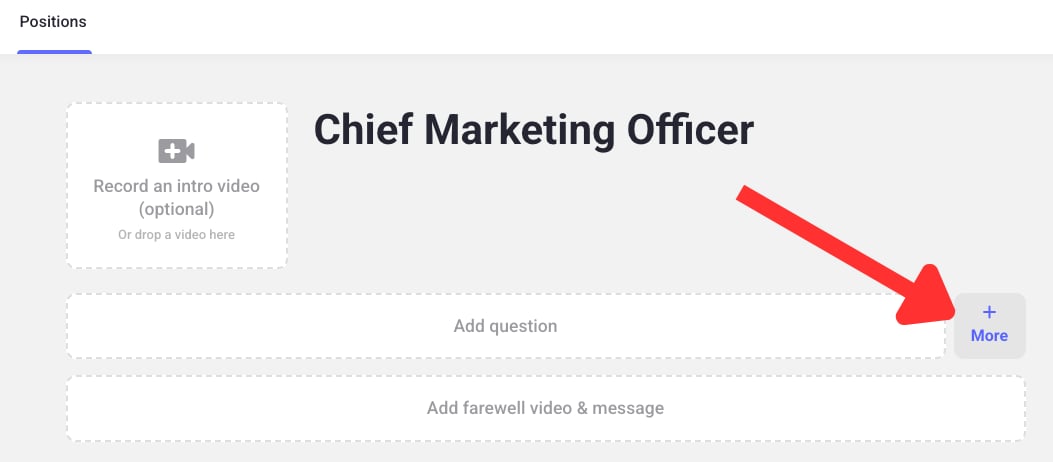
While building your interview, click the **+ More** button next to **Add question**.
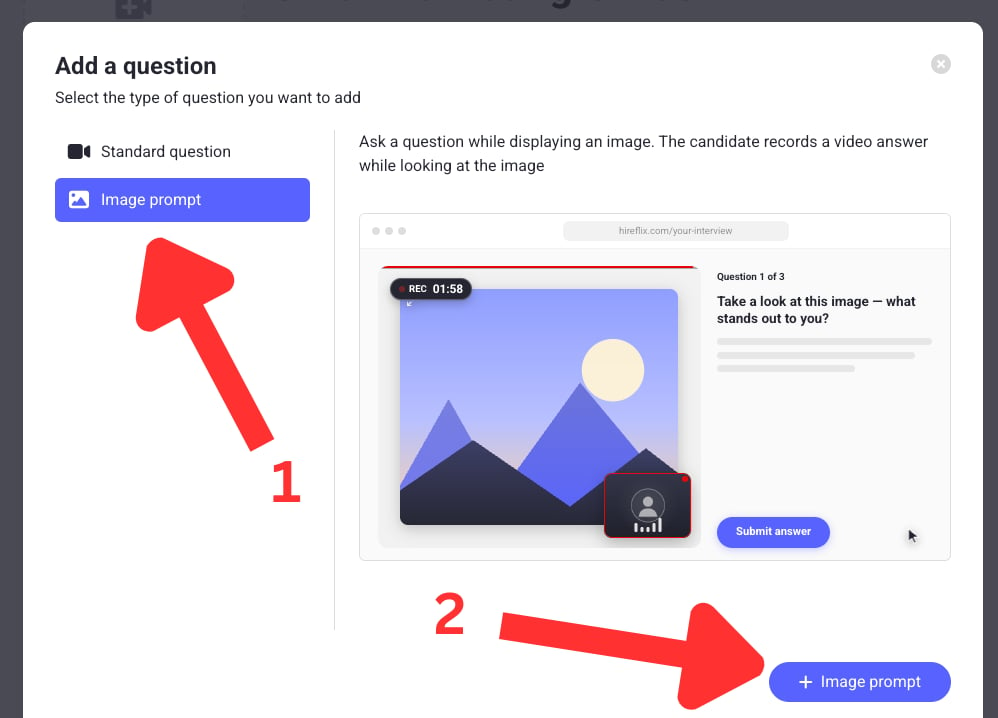
 In the **Add a question** popup, select **Image prompt** on the left, then click the **+ Image prompt** button to add the question to your interview.
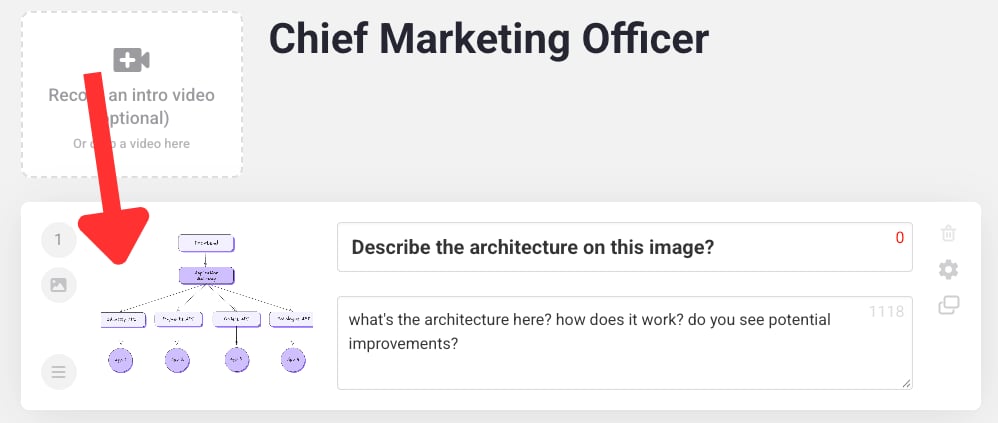
 Upload the image you want candidates to look at, then fill in the **Question Title** and **Question Description**, just like a standard question.
In the interview builder, an **image icon** next to the question number marks it as an image prompt question. Standard questions show a **video icon** instead.
Upload the image you want candidates to look at, then fill in the **Question Title** and **Question Description**, just like a standard question.
In the interview builder, an **image icon** next to the question number marks it as an image prompt question. Standard questions show a **video icon** instead.
 Each image prompt question supports **one image only**. Multiple images per question (for example, a carousel) aren't supported yet. If you want candidates to react to several images, add a separate image prompt question for each one.
## Save and preview
Click **Save and go back** once you're done. To check how candidates will see the image while recording, click **Preview Interview** in the bottom right of your screen.
Learn how to tailor the interview experience further.
This documentation is built and hosted on [Mintlify](https://mintlify.com), a developer documentation platform.
Each image prompt question supports **one image only**. Multiple images per question (for example, a carousel) aren't supported yet. If you want candidates to react to several images, add a separate image prompt question for each one.
## Save and preview
Click **Save and go back** once you're done. To check how candidates will see the image while recording, click **Preview Interview** in the bottom right of your screen.
Learn how to tailor the interview experience further.
This documentation is built and hosted on [Mintlify](https://mintlify.com), a developer documentation platform.