> ## Documentation Index
> Fetch the complete documentation index at: https://hireflixsl.mintlify.site/llms.txt
> Use this file to discover all available pages before exploring further.
# Setting Up SSO with OneLogin
## Overview
How to set up SSO between Hireflix and OneLogin.
Only assign people whose email matches an email that's part of your team in Hireflix, otherwise they won't be able to log in.
OneLogin supports SAML 2.0, but since Hireflix doesn't have a predefined integration, you'll need to use the **Custom Connector** approach OneLogin provides.
This page contains more specific details on top of [OneLogin's official Custom Connector instructions](https://onelogin.service-now.com/support?id=kb_article\&sys_id=8a1f3d501b392510c12a41d5ec4bcbcc\&kb_category=de885d2187372d10695f0f66cebb351f).
## Steps
From your [Hireflix account settings](https://admin.hireflix.com/en/my-account/sso), enable SSO and open the **Service Provider Metadata Endpoint** file.
In OneLogin, add the **SAML Custom Connector (Advanced)** application, then open its Configuration settings and set the following fields:
| Field | Value |
| :--------------------------- | :------------------------------------------------------------------------------------------------------------------------------------------------------------------------------------------ |
| RelayState | `https://admin.hireflix.com/en/jobs` |
| Audience (EntityID) | The `EntityID` string from the Service Provider Metadata Endpoint XML file, e.g. `hireflix-1a2b3cbf-12f0-2a7b-1332-f1c7617226ef` |
| Recipient | Leave unset |
| ACS (Consumer) URL Validator | `^https:\/\/admin\.hireflix\.com\/sso\/saml2\/callback\/hireflix-.*$` |
| ACS (Consumer) URL | The `Location` attribute of the `` entry in the same XML file, e.g. `https://admin.hireflix.com/sso/saml2/callback/hireflix-1a2b3cbf-12f0-2a7b-1332-f1c7617226ef` |
Leave all other fields untouched.
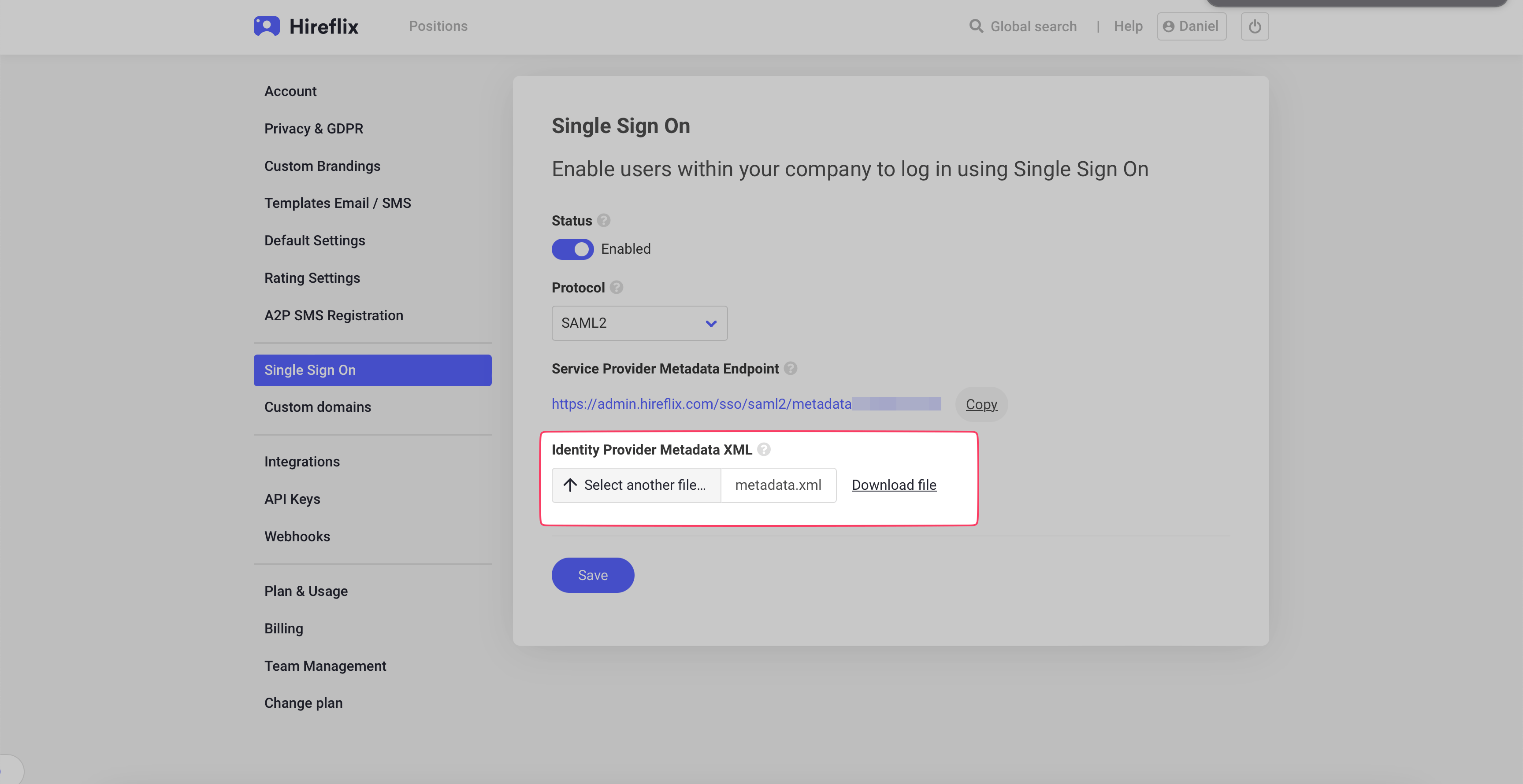
In the OneLogin App Configuration page, select **More Actions** and download the SAML metadata. Upload this file to Hireflix on the SSO configuration page, under **Identity Provider Metadata XML**.
 You should be all set!
Contact us at [support@hireflix.com](mailto:support@hireflix.com) and we'll help you out.
You should be all set!
Contact us at [support@hireflix.com](mailto:support@hireflix.com) and we'll help you out.