> ## Documentation Index
> Fetch the complete documentation index at: https://hireflixsl.mintlify.site/llms.txt
> Use this file to discover all available pages before exploring further.
# Setting Up SSO with Okta
## Overview
How to set up SSO between Hireflix and Okta.
Only assign people whose email matches an email that's part of your team in Hireflix — otherwise they won't be able to log in.
## Steps
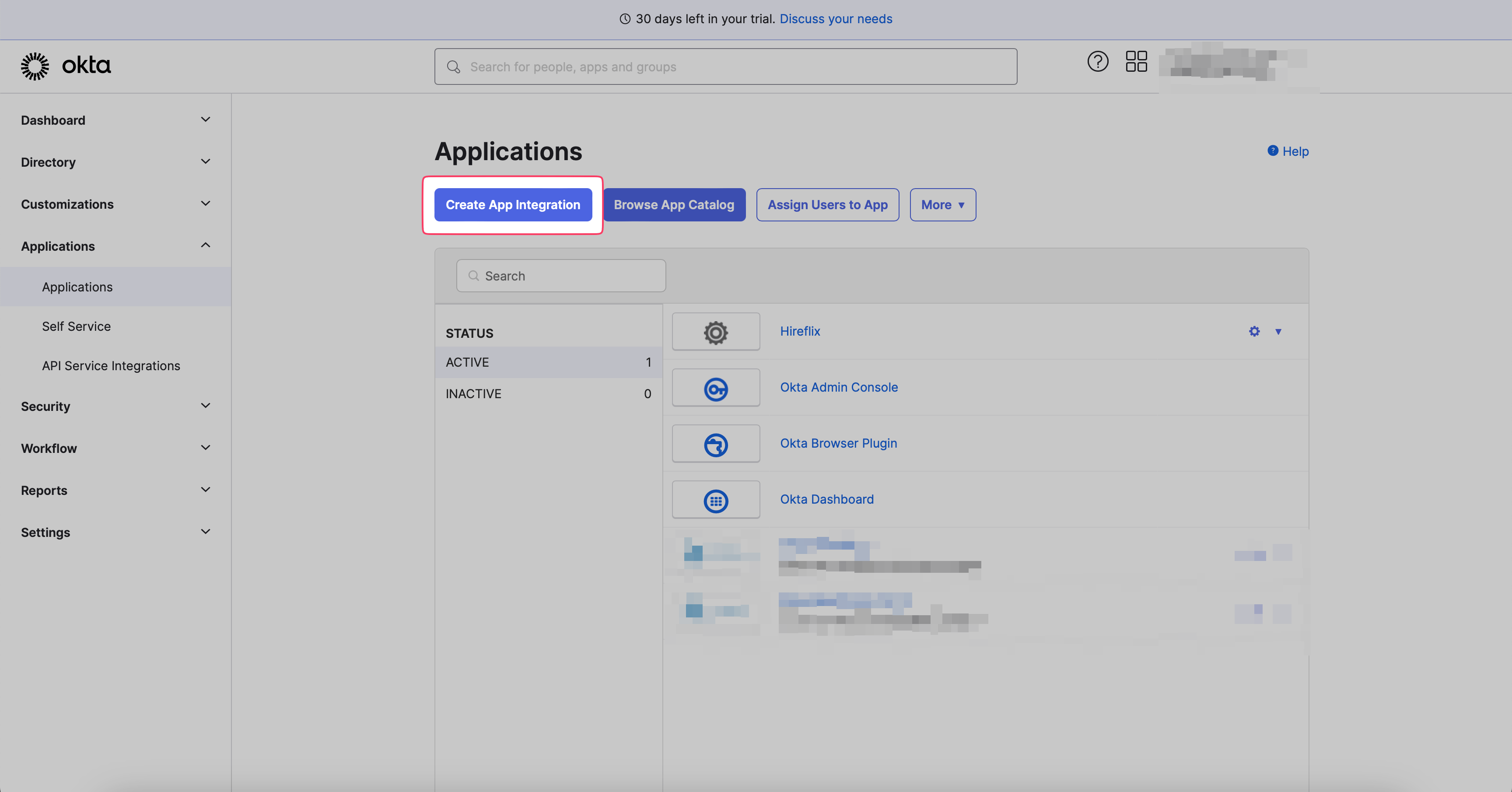
Go to **Okta > Applications > Create App Integration**.
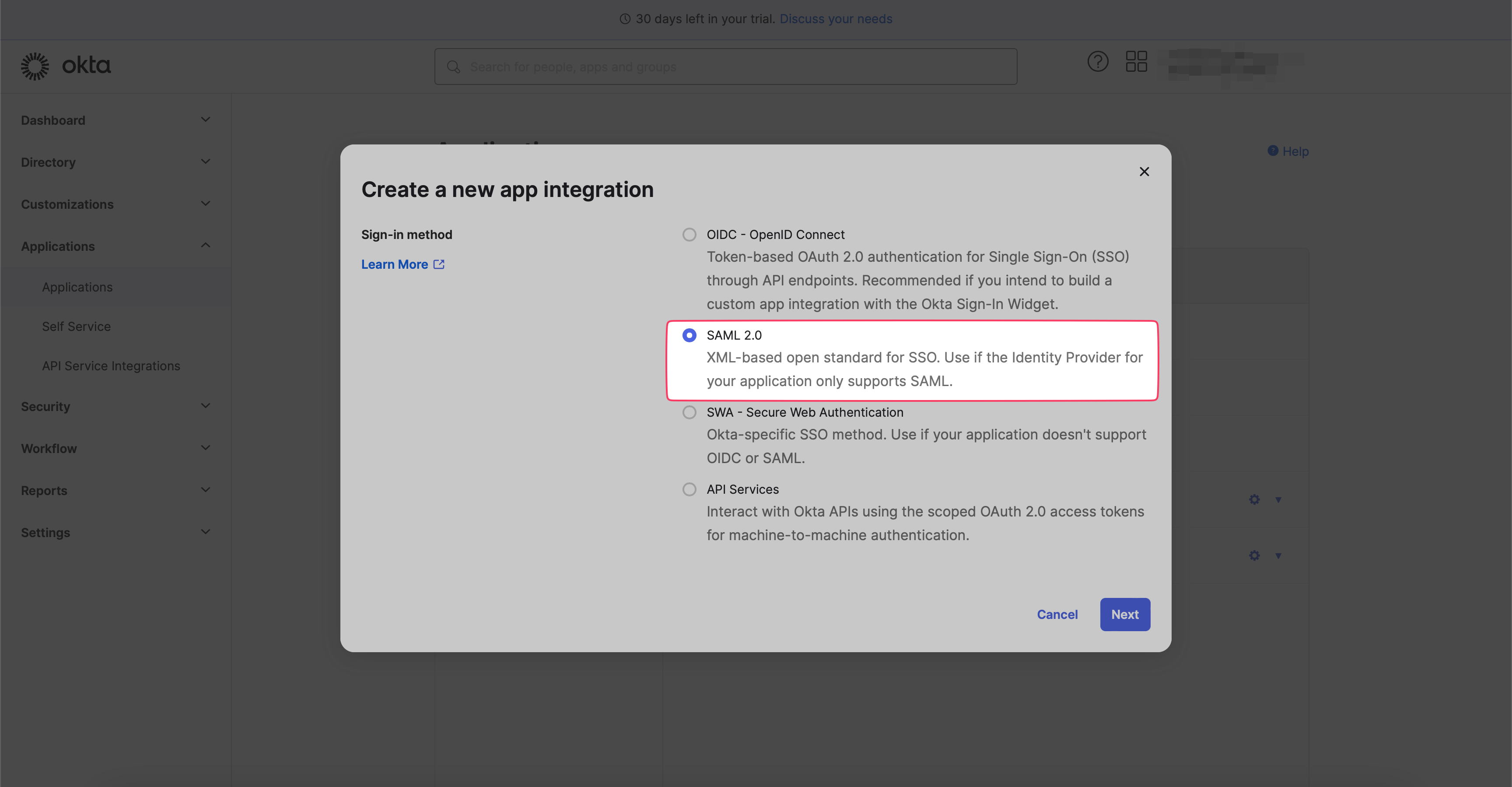
 Choose **SAML 2.0** as the sign-on method.
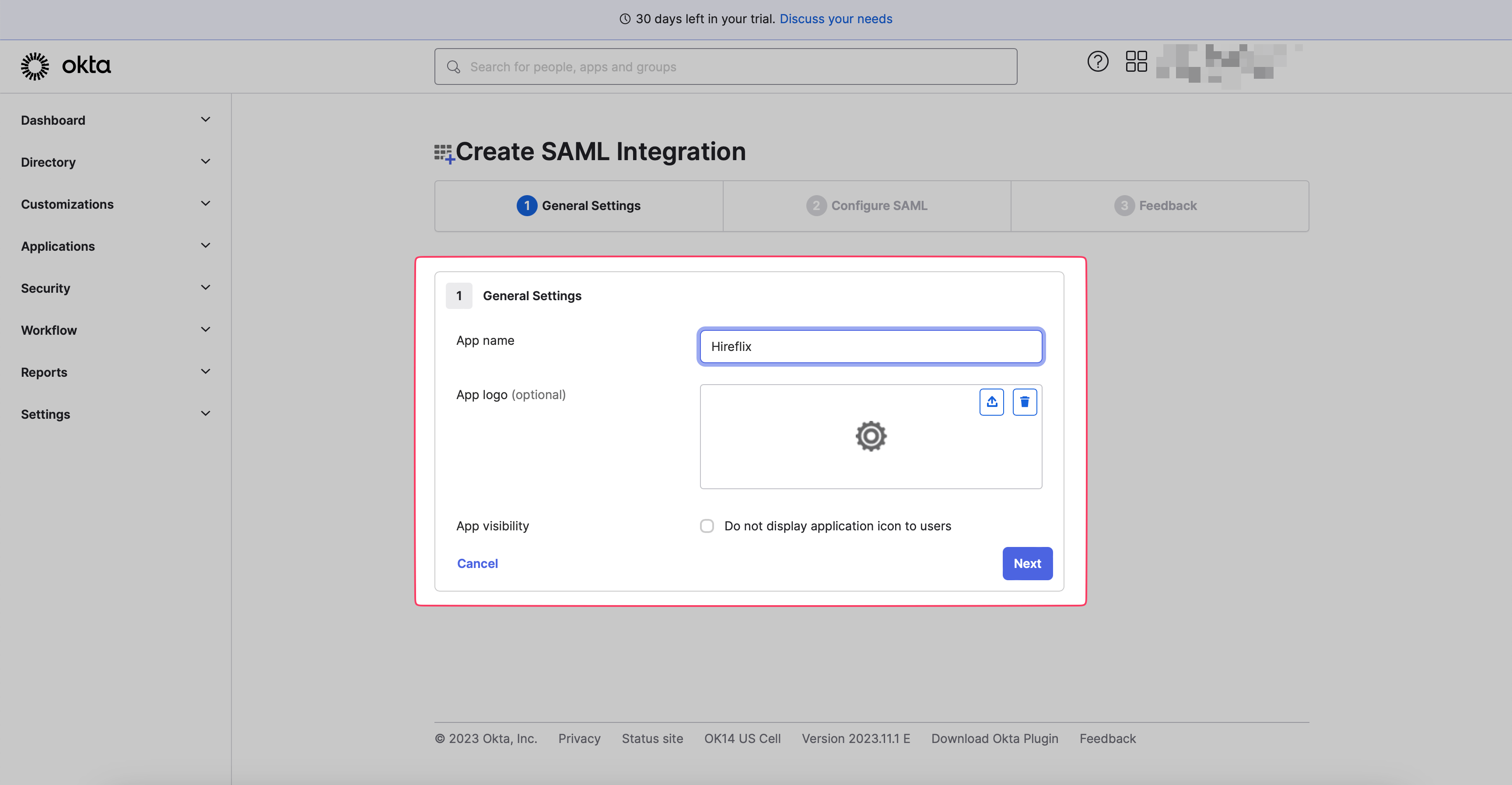
 Set the app name and logo (optional). We suggest using "Hireflix".
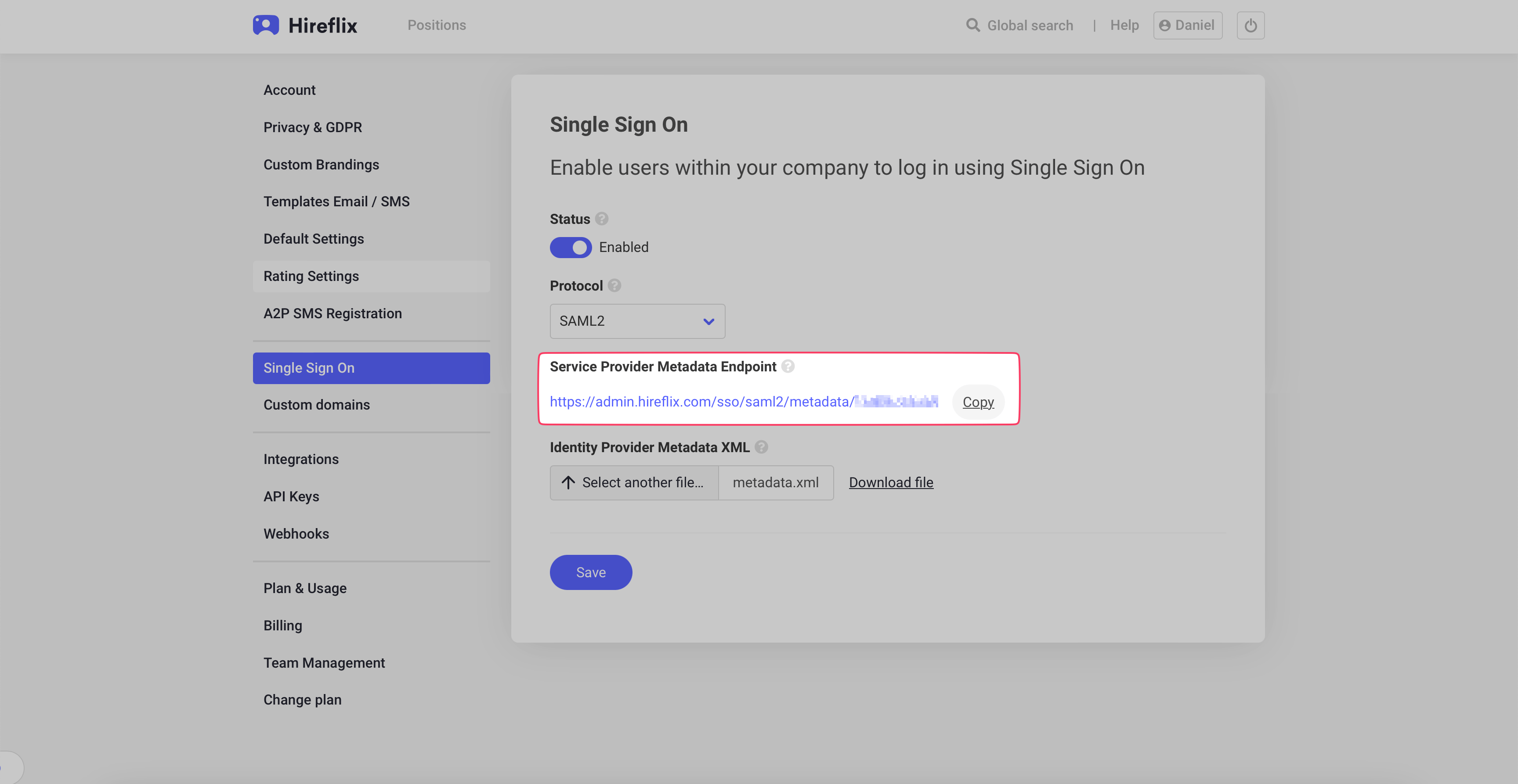
 Go back to [**Hireflix > My Account > Single Sign On**](https://admin.hireflix.com/en/my-account/sso). Enable SSO and copy the **Service Provider Metadata Endpoint URL** to your clipboard. Open a new browser tab and load the URL — this displays an XML-formatted document (see the next step).
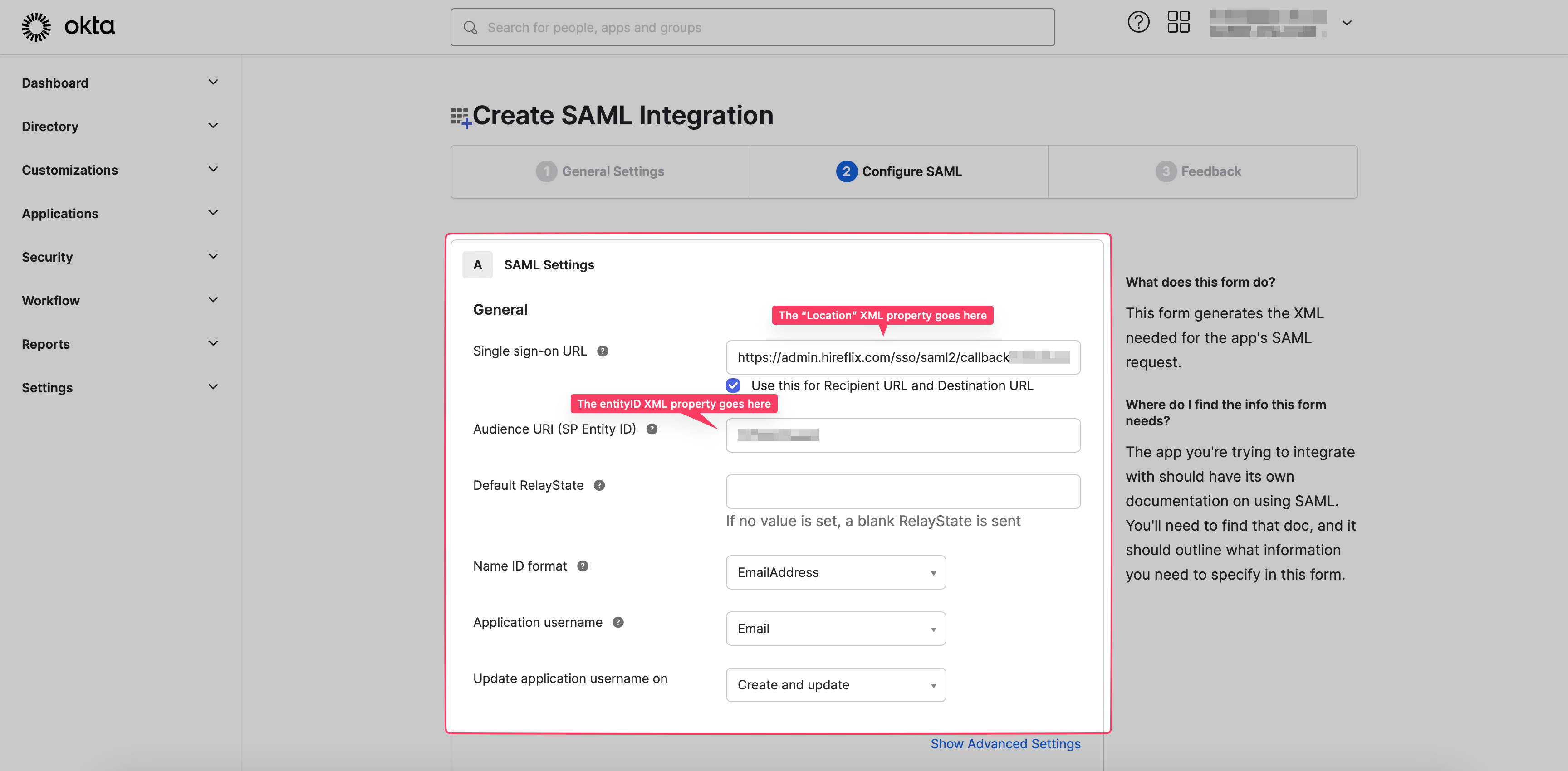
 Within the XML document, copy the URL in the **Location** property. It should look like `https://admin.hireflix.com/sso/saml2/callback/`.
 Copy the **entityID** property from the same XML document.
 Paste the values you copied into the corresponding fields in Okta.
Make sure the following settings are configured **exactly** as shown:
* Name ID format → `EmailAddress`
* Application username → `Email`
* Update application username on → `Create and update`
Paste the values you copied into the corresponding fields in Okta.
Make sure the following settings are configured **exactly** as shown:
* Name ID format → `EmailAddress`
* Application username → `Email`
* Update application username on → `Create and update`
 Click **Next** and finish the last configuration step. Once done, go to the **Sign On** tab in Okta.
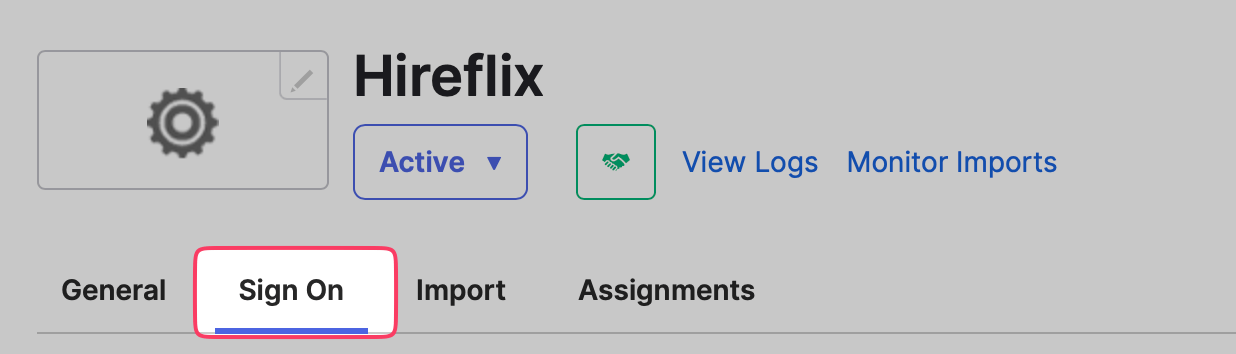 Under **Settings > Sign on methods > SAML 2.0 > Metadata details**, copy the Metadata URL and load it in another browser tab. Save the metadata contents as an XML file — you'll need it for the next and final step.
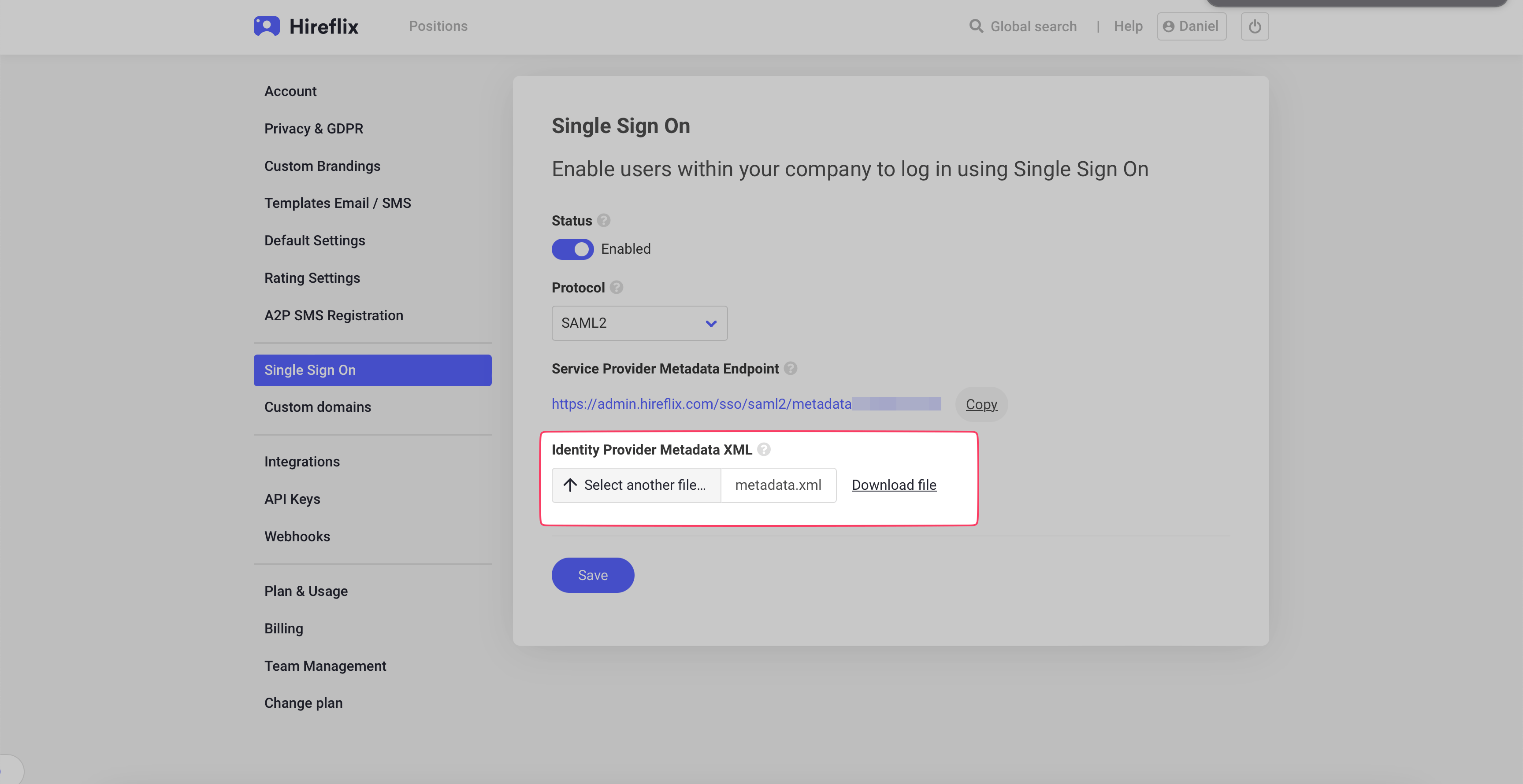
Go to **[Hireflix > My Account > Single Sign On](https://admin.hireflix.com/en/my-account/sso) > Identity Provider Metadata XML** and upload the metadata file from the previous step. Once uploaded, click **Save**.
Under **Settings > Sign on methods > SAML 2.0 > Metadata details**, copy the Metadata URL and load it in another browser tab. Save the metadata contents as an XML file — you'll need it for the next and final step.
Go to **[Hireflix > My Account > Single Sign On](https://admin.hireflix.com/en/my-account/sso) > Identity Provider Metadata XML** and upload the metadata file from the previous step. Once uploaded, click **Save**.
 ## Assign Okta users to the Hireflix SSO app
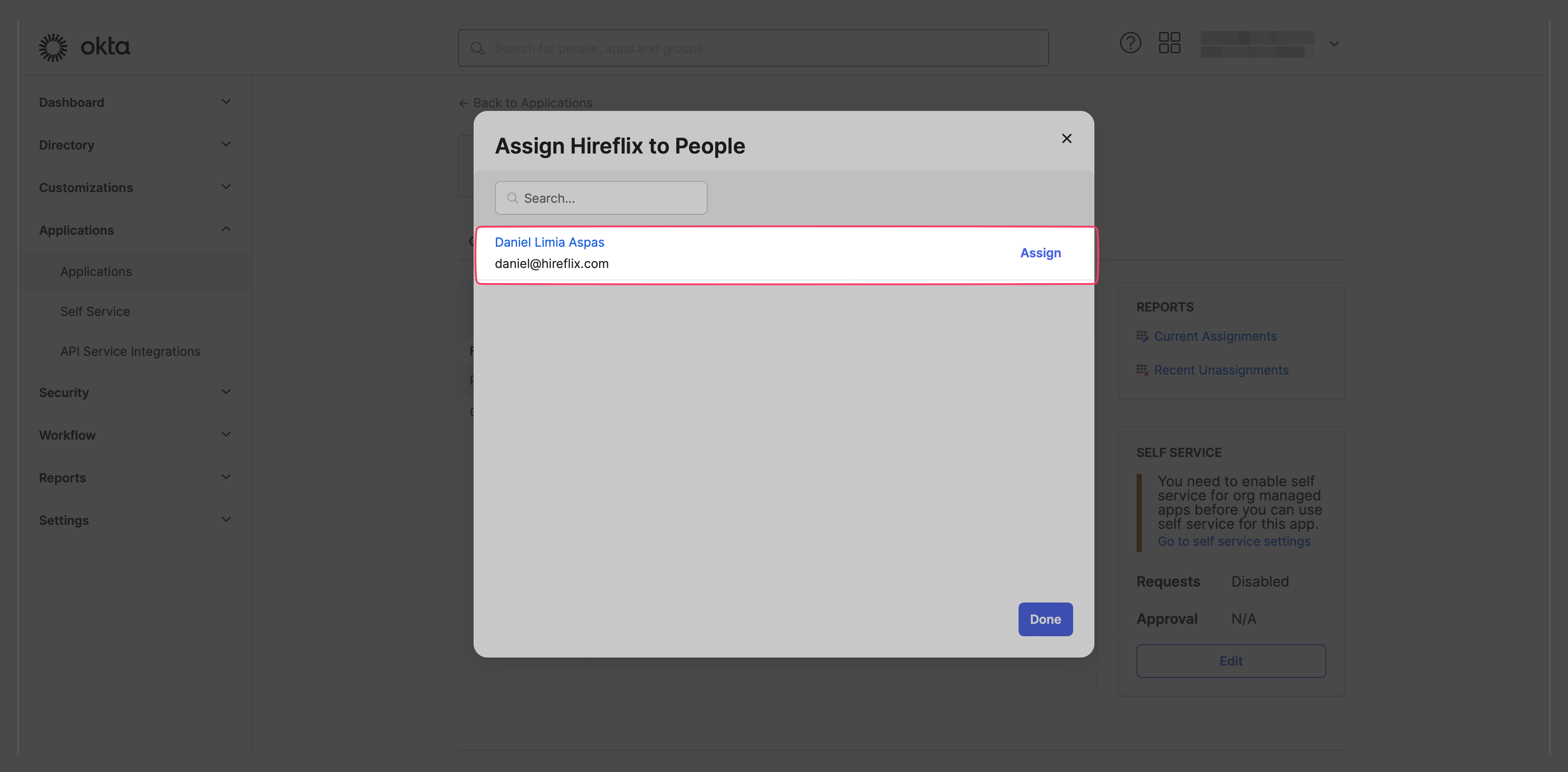
You need to give Okta users access to the Hireflix SSO app you just configured. Within the Hireflix SSO app configuration in Okta, go to **Assignments > Assign**.
## Assign Okta users to the Hireflix SSO app
You need to give Okta users access to the Hireflix SSO app you just configured. Within the Hireflix SSO app configuration in Okta, go to **Assignments > Assign**.
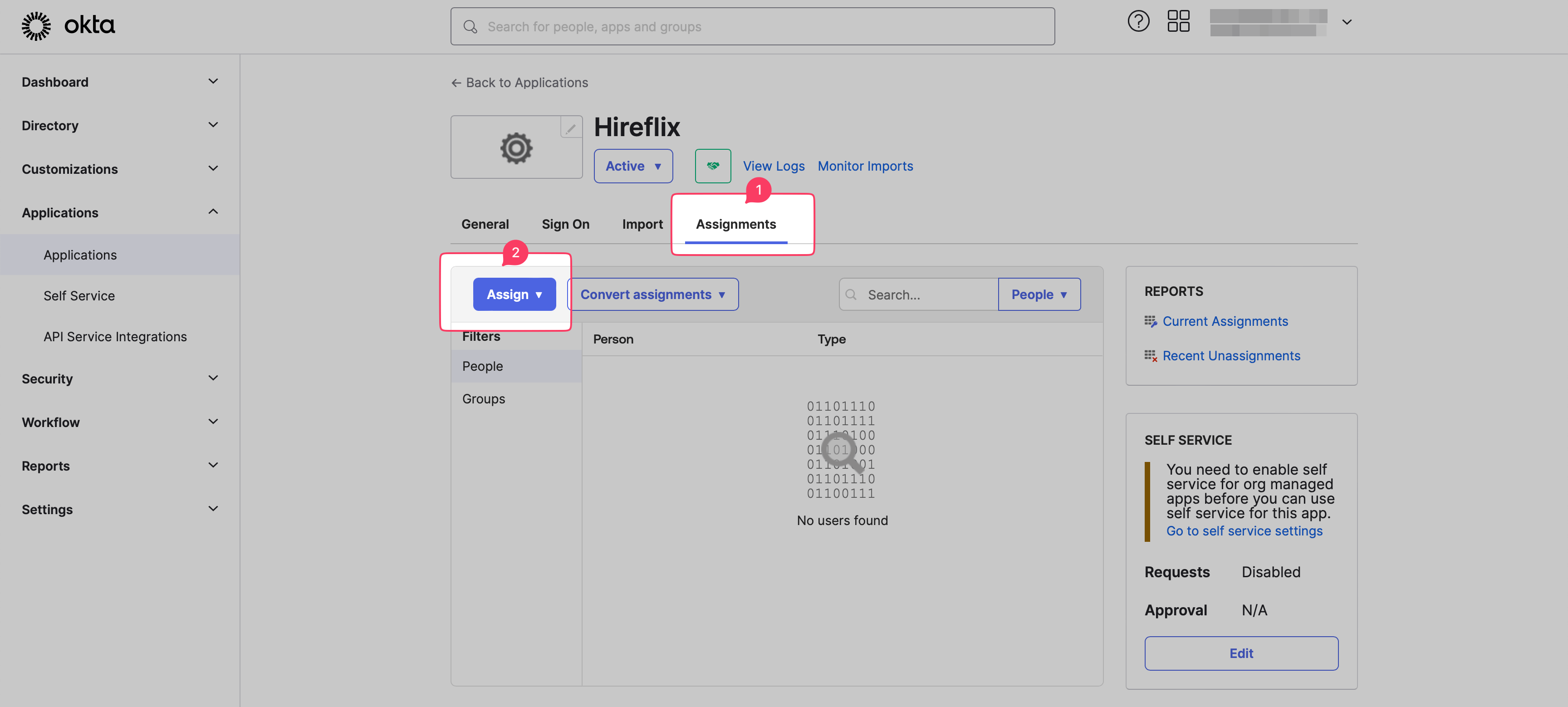 Then assign either people or groups to the Hireflix SSO app.
 Hireflix with Okta SSO is now configured.