> ## Documentation Index
> Fetch the complete documentation index at: https://hireflixsl.mintlify.site/llms.txt
> Use this file to discover all available pages before exploring further.
# Setting Up SSO with Azure AD
## Overview
How to set up SSO between Hireflix and Azure AD.
Only assign people whose email matches an email that's part of your team in Hireflix, otherwise they won't be able to log in.
## Steps
Go to **Azure AD > Enterprise Applications > Create an app** and name it Hireflix (or as you wish).
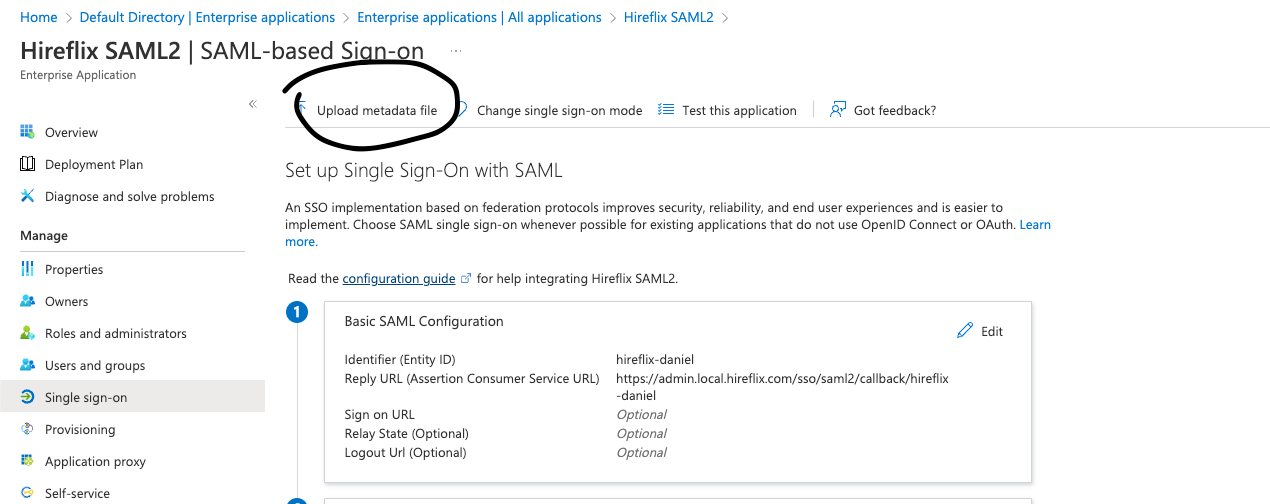
On the left-hand menu, click **Single Sign On**. This opens the app's SSO setup.
Go to [**Hireflix > My Account > Single Sign On**](https://admin.hireflix.com/en/my-account/sso) and open the **Service Provider Metadata Endpoint** in a new tab. Save its contents as an XML file.
Go back to Azure and click **Upload metadata file**, then upload the file you saved in the previous step.
 Go to the **Attributes & Claims** section and click **Edit**. In the required claims section, edit the first claim so its source attribute is `user.mail`, `user.otheremail`, or any attribute that matches the email address of your Hireflix account.
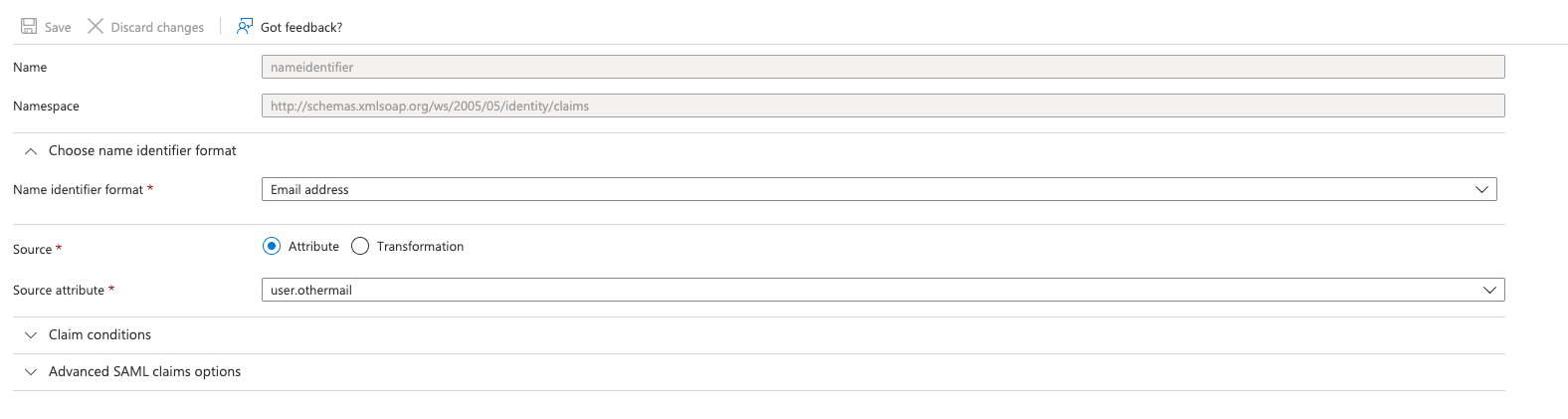 This is needed so Azure AD sends the raw email to Hireflix in the SAML2 metadata exchange.
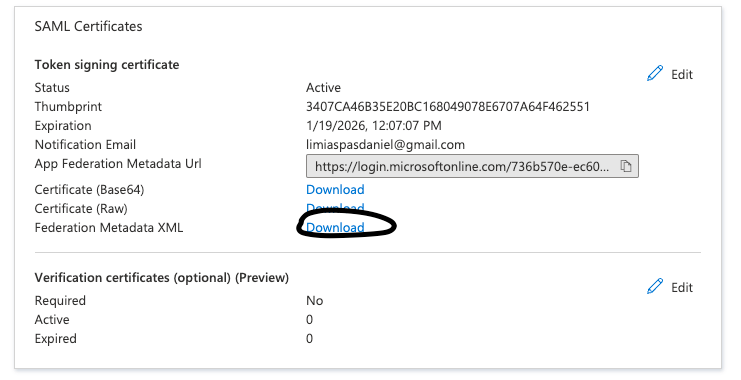
Go back to the SSO configuration screen and download the **Federation Metadata XML**.
This is needed so Azure AD sends the raw email to Hireflix in the SAML2 metadata exchange.
Go back to the SSO configuration screen and download the **Federation Metadata XML**.
 Go to **Hireflix > My Account > Single Sign On** and upload the file you generated in the previous step.
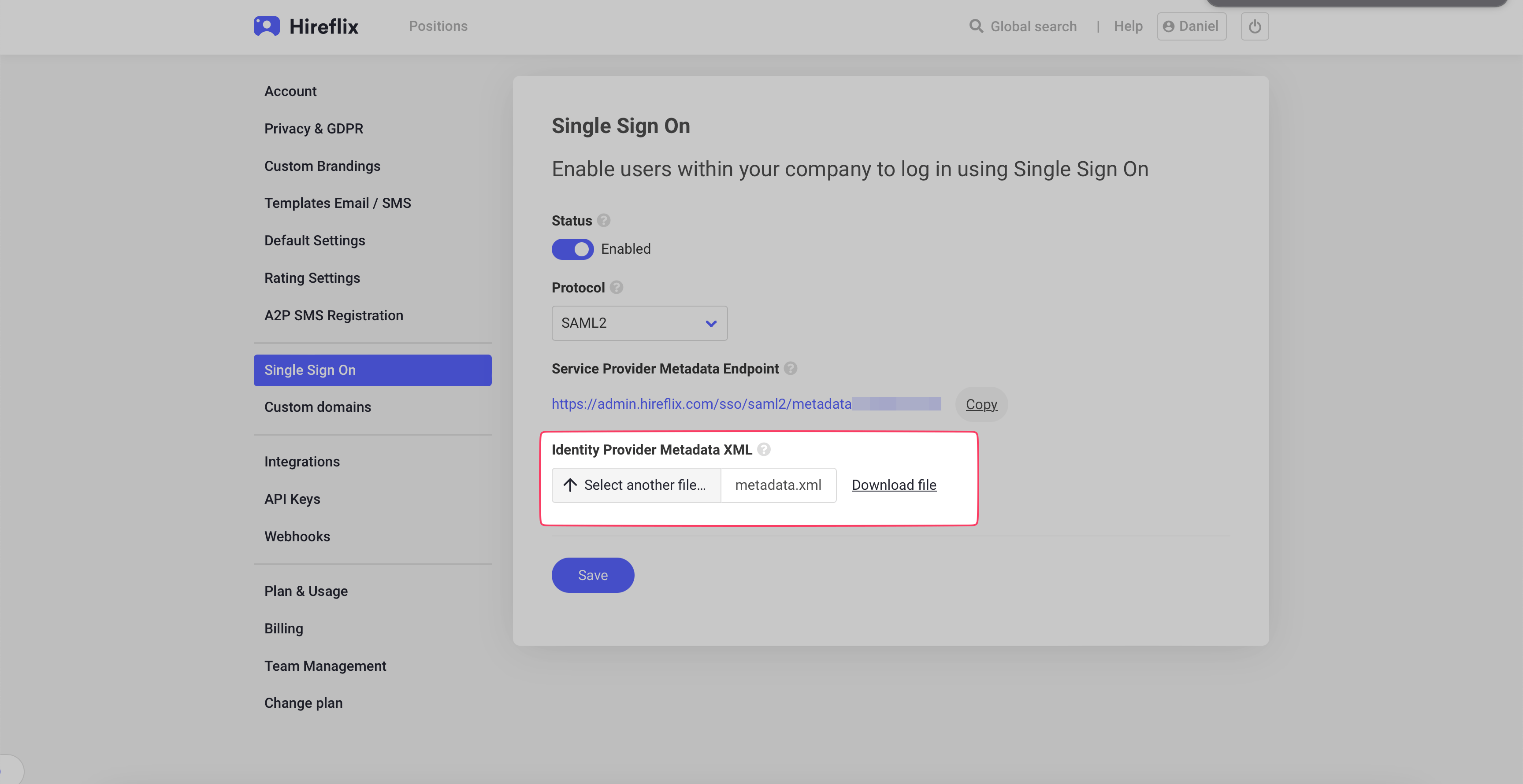 Click **Save** — SSO should now be configured and working properly. Make sure your users have access to the Azure AD Enterprise App.