> ## Documentation Index
> Fetch the complete documentation index at: https://hireflixsl.mintlify.site/llms.txt
> Use this file to discover all available pages before exploring further.
# FAQ: iOS App Webview Issues
When integrating Hireflix inside an **iOS WebView (WKWebView)**, you may encounter one of the following issues:
* **“Open this on Safari”**
* **“Your camera or microphone is not working”**
These issues are related to how iOS handles WebViews and media permissions. Below you’ll find the complete solution.
## 1. Fixing the “Open this on Safari” Error
By default, Hireflix detects certain in-app browsers or WebViews and may block them for compatibility reasons.
### ✅ Solution
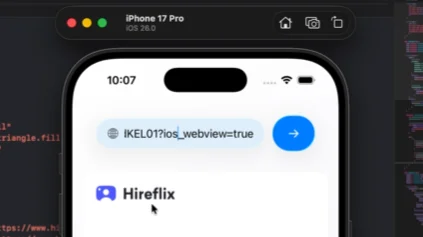
Append the following query parameter to your interview URL:
```
?ios_webview=true
```
### Example
Instead of:
```
https://app.hireflix.com/z6-UPBAA
```
Use:
```
https://app.hireflix.com/z6-UPBAA?ios_webview=true
```
This tells Hireflix that the interview is intentionally being loaded inside an iOS WebView.
 ## 2. Fixing the “Camera or Microphone is Not Working” Error
Even after enabling WebView support, iOS will **not automatically grant camera or microphone access**.
For security reasons, your app must explicitly:
* Declare camera & microphone usage in `Info.plist`
* Request runtime permissions
* Properly configure `WKWebView` to handle media permissions
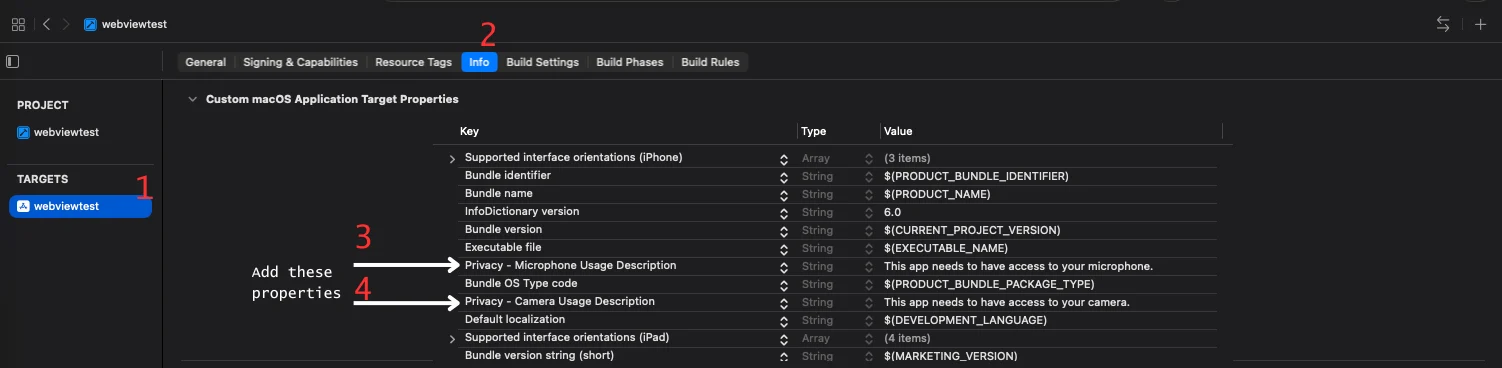
### Step 1: Add Privacy Permissions in Xcode
In **Xcode**:
1. Select your project in the navigator
2. Select your app target
3. Open the **Info** tab
4. Click the “+” button to add new keys
5. Add:
* `Privacy - Camera Usage Description`
* `Privacy - Microphone Usage Description`
These are required. Without them, permission requests will silently fail.
## 2. Fixing the “Camera or Microphone is Not Working” Error
Even after enabling WebView support, iOS will **not automatically grant camera or microphone access**.
For security reasons, your app must explicitly:
* Declare camera & microphone usage in `Info.plist`
* Request runtime permissions
* Properly configure `WKWebView` to handle media permissions
### Step 1: Add Privacy Permissions in Xcode
In **Xcode**:
1. Select your project in the navigator
2. Select your app target
3. Open the **Info** tab
4. Click the “+” button to add new keys
5. Add:
* `Privacy - Camera Usage Description`
* `Privacy - Microphone Usage Description`
These are required. Without them, permission requests will silently fail.
 ### Step 2: Import Required Frameworks
```swift theme={null}
import SwiftUI
import WebKit
import AVFoundation
```
### Step 3: Request Camera & Microphone Permissions
Add permission request logic in your app:
```swift theme={null}
private func requestMediaPermissions() {
guard !permissionsRequested else { return }
permissionsRequested = true
// Ensure usage descriptions exist
guard Bundle.main.object(forInfoDictionaryKey: "NSCameraUsageDescription") != nil,
Bundle.main.object(forInfoDictionaryKey: "NSMicrophoneUsageDescription") != nil else {
print("Warning: Camera and/or Microphone usage descriptions not found in Info.plist")
return
}
Task {
// Camera
let cameraStatus = AVCaptureDevice.authorizationStatus(for: .video)
if cameraStatus == .notDetermined {
_ = await AVCaptureDevice.requestAccess(for: .video)
}
// Microphone
let microphoneStatus = AVCaptureDevice.authorizationStatus(for: .audio)
if microphoneStatus == .notDetermined {
_ = await AVCaptureDevice.requestAccess(for: .audio)
}
}
}
```
### Step 4: Configure WKWebView to Handle Media Permissions
If you're using `WKWebView`, implement the `WKUIDelegate` method:
```swift theme={null}
func webView(_ webView: WKWebView,
requestMediaCapturePermissionFor origin: WKSecurityOrigin,
initiatedByFrame frame: WKFrameInfo,
type: WKMediaCaptureType,
decisionHandler: @escaping (WKPermissionDecision) -> Void) {
let mediaType: AVMediaType = type == .camera ? .video : .audio
let status = AVCaptureDevice.authorizationStatus(for: mediaType)
switch status {
case .authorized:
decisionHandler(.grant)
case .denied, .restricted:
decisionHandler(.deny)
case .notDetermined:
Task { @MainActor in
let granted = await AVCaptureDevice.requestAccess(for: mediaType)
decisionHandler(granted ? .grant : .deny)
}
@unknown default:
decisionHandler(.deny)
}
}
```
### Step 5: Assign the WKWebView UI Delegate
When creating your WebView:
```swift theme={null}
func makeUIView(context: Context) -> WKWebView {
let config = WKWebViewConfiguration()
let webView = WKWebView(frame: .zero, configuration: config)
webView.navigationDelegate = context.coordinator
webView.uiDelegate = context.coordinator // Required for media permissions
return webView
}
```
Setting the `uiDelegate` is critical. Without it, media permission requests will not be handled correctly.
## Summary
When embedding Hireflix in an iOS WebView:
1. ✅ Add `?ios_webview=true` to the interview URL
2. ✅ Add camera & microphone usage descriptions in `Info.plist`
3. ✅ Explicitly request AVFoundation permissions
4. ✅ Implement `WKUIDelegate` media permission handling
5. ✅ Assign the WebView’s `uiDelegate`
Once these steps are completed, interviews will work correctly inside your iOS app.
### Step 2: Import Required Frameworks
```swift theme={null}
import SwiftUI
import WebKit
import AVFoundation
```
### Step 3: Request Camera & Microphone Permissions
Add permission request logic in your app:
```swift theme={null}
private func requestMediaPermissions() {
guard !permissionsRequested else { return }
permissionsRequested = true
// Ensure usage descriptions exist
guard Bundle.main.object(forInfoDictionaryKey: "NSCameraUsageDescription") != nil,
Bundle.main.object(forInfoDictionaryKey: "NSMicrophoneUsageDescription") != nil else {
print("Warning: Camera and/or Microphone usage descriptions not found in Info.plist")
return
}
Task {
// Camera
let cameraStatus = AVCaptureDevice.authorizationStatus(for: .video)
if cameraStatus == .notDetermined {
_ = await AVCaptureDevice.requestAccess(for: .video)
}
// Microphone
let microphoneStatus = AVCaptureDevice.authorizationStatus(for: .audio)
if microphoneStatus == .notDetermined {
_ = await AVCaptureDevice.requestAccess(for: .audio)
}
}
}
```
### Step 4: Configure WKWebView to Handle Media Permissions
If you're using `WKWebView`, implement the `WKUIDelegate` method:
```swift theme={null}
func webView(_ webView: WKWebView,
requestMediaCapturePermissionFor origin: WKSecurityOrigin,
initiatedByFrame frame: WKFrameInfo,
type: WKMediaCaptureType,
decisionHandler: @escaping (WKPermissionDecision) -> Void) {
let mediaType: AVMediaType = type == .camera ? .video : .audio
let status = AVCaptureDevice.authorizationStatus(for: mediaType)
switch status {
case .authorized:
decisionHandler(.grant)
case .denied, .restricted:
decisionHandler(.deny)
case .notDetermined:
Task { @MainActor in
let granted = await AVCaptureDevice.requestAccess(for: mediaType)
decisionHandler(granted ? .grant : .deny)
}
@unknown default:
decisionHandler(.deny)
}
}
```
### Step 5: Assign the WKWebView UI Delegate
When creating your WebView:
```swift theme={null}
func makeUIView(context: Context) -> WKWebView {
let config = WKWebViewConfiguration()
let webView = WKWebView(frame: .zero, configuration: config)
webView.navigationDelegate = context.coordinator
webView.uiDelegate = context.coordinator // Required for media permissions
return webView
}
```
Setting the `uiDelegate` is critical. Without it, media permission requests will not be handled correctly.
## Summary
When embedding Hireflix in an iOS WebView:
1. ✅ Add `?ios_webview=true` to the interview URL
2. ✅ Add camera & microphone usage descriptions in `Info.plist`
3. ✅ Explicitly request AVFoundation permissions
4. ✅ Implement `WKUIDelegate` media permission handling
5. ✅ Assign the WebView’s `uiDelegate`
Once these steps are completed, interviews will work correctly inside your iOS app.